

Chromecast and YouTube work together seamlessly to bring a world of videos to your TV. But how does this integration really work? Let’s break it down!
At its core, Chromecast is a media streaming device that allows you to cast content from your mobile device or computer to your TV. When you use the YouTube app on your smartphone or tablet, you can easily cast videos to your Chromecast-connected television. This integration is powered by the Google Cast technology, which essentially transforms your device into a remote control for the media you're watching.
*Here's how the process typically works*:
- You open the YouTube app on your mobile device.
- Once you find a video you want to watch, tap on the "Cast" icon.
- Your app then connects to your Chromecast device via Wi-Fi.
- You select the Chromecast device you wish to cast to.
- After the connection is made, your content starts playing on the big screen!
Moreover, the YouTube app provides a rich interface with features like playlists, recommendations, and search capabilities. And as an added bonus, you can still use your mobile device for other tasks while streaming on the TV, making it a truly integrated experience. So, the next time you're enjoying a YouTube video on your Chromecast, you can appreciate the technology that powers it!
Common Reasons for YouTube Casting Issues
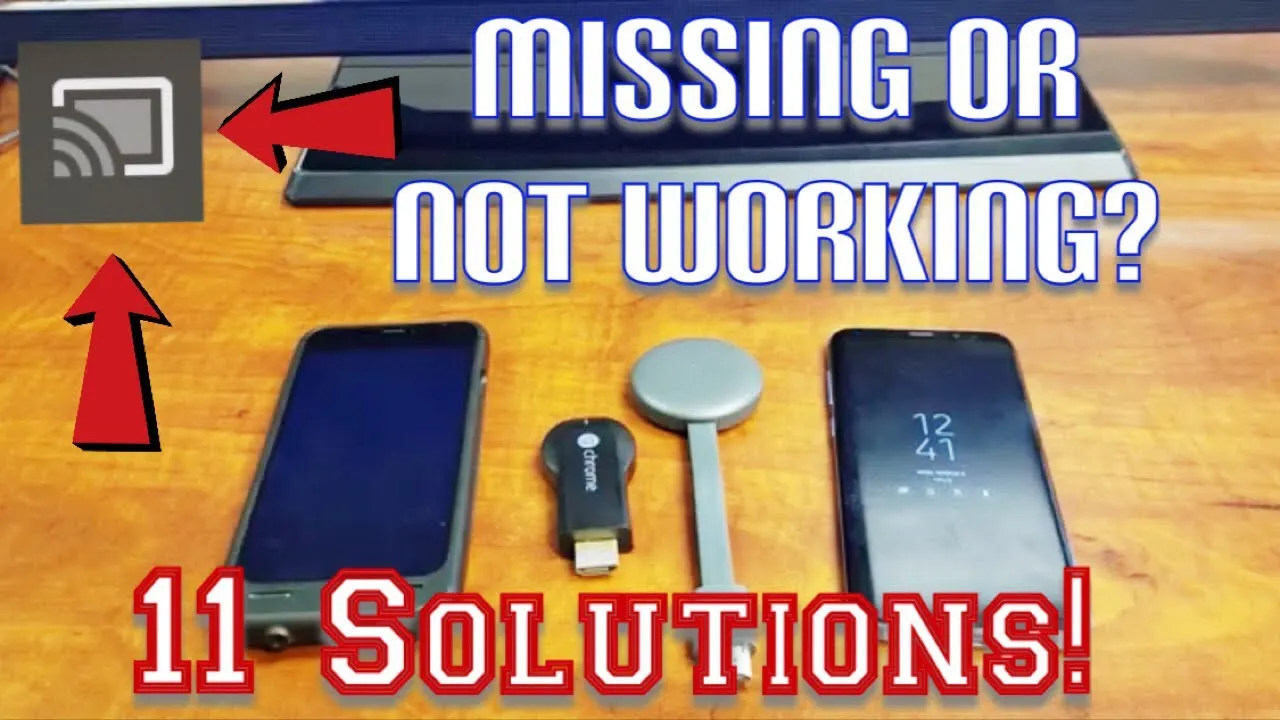
Experiencing problems casting YouTube videos to your Chromecast? You’re not alone! Several common issues can arise and keep you from enjoying your favorite content on the big screen. Let’s dive into some of the most frequent culprits.
- Network Connectivity Problems: One of the biggest reasons you can’t cast is due to connectivity issues. Ensure both your mobile device and Chromecast are connected to the same Wi-Fi network. A quick reset of your router might do the trick if there are network issues.
- Outdated Apps or Software: Using outdated versions of the YouTube app or your Chromecast firmware can lead to compatibility issues. Make sure both your device’s software and the YouTube app are updated to the latest versions.
- Device Compatibility: Check if your device is compatible with Chromecast. Some older devices may face difficulties with casting. A quick internet search can confirm your device's compatibility.
- Temporary Glitches: Sometimes, all it takes is a simple restart. Close the YouTube app, restart your mobile device, and try casting again. This often resolves minor glitches.
- Account Issues: If you're logged into multiple accounts or have switched accounts, sometimes YouTube gets confused. Try logging out and logging back in to ensure a smooth casting experience.
By understanding these common issues, you’re one step closer to troubleshooting your casting problems and getting back to watching your favorite YouTube videos without interruption!
Also Read This: Image Size Considerations When Using ShootProof
5. Restart Your Devices
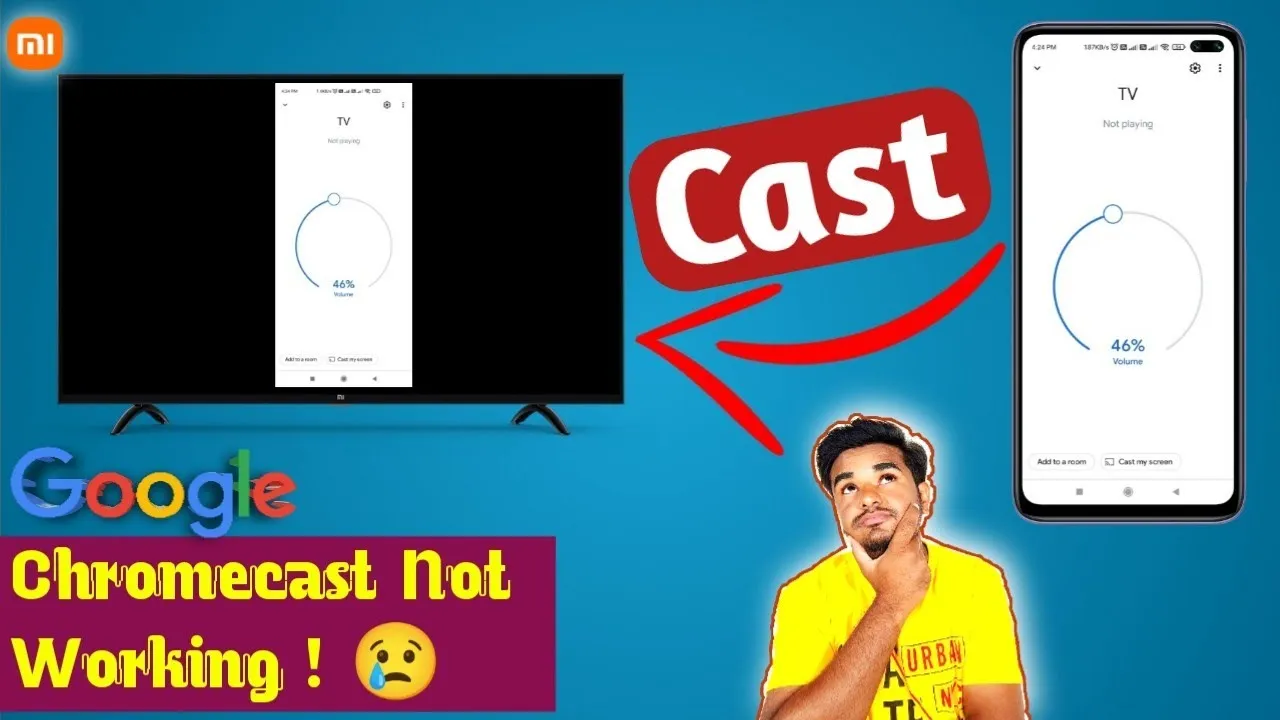
Sometimes, when the tech gods aren't smiling on us, a simple restart can work wonders. Restarting your devices—both the Chromecast and the device you're trying to cast from—can help clear temporary glitches that may be causing the issue. Here’s a straightforward guide for restarting your devices:
- Restart Your Chromecast: Unplug your Chromecast from the power source. Wait for about 10 seconds, then plug it back in. This will give the device a fresh start.
- Restart Your Smartphone or Tablet: Whether you’re using an Android or iOS device, simply hold down the power button and follow the prompts to restart. It’s like giving your device a breather!
- Restart Your Router: If the casting still isn’t working after restarting your devices, consider rebooting your Wi-Fi router. Unplug it, wait about 30 seconds, then plug it back in. A clear connection can often resolve network-related issues.
After completing these steps, try casting your YouTube content again. You might be surprised by how effective this simple troubleshooting step can be. If the issue persists after a restart, don’t lose hope just yet; there are still a few tricks up our sleeves!
Also Read This: The Official LinkedIn Web Address and Its Uses
6. Check Device Compatibility
Before diving deep into troubleshooting, it’s essential to ensure that your devices are compatible with Chromecast. Not all devices allow for casting, so double-checking compatibility is a wise step. Here's what to look for:
- Supported Devices: Most smartphones, tablets, and laptops can be cast to Chromecast. However, ensure your device's operating system is up to date. For example, Android devices generally need to be running Android 4.4 (KitKat) or later, while iOS devices should use iOS 9.1 or higher.
- YouTube App Version: Confirm that your YouTube app is the latest version. Go to the app store on your device, search for YouTube, and see if there’s an update available. An outdated app can sometimes lead to casting issues.
- Network Compatibility: Ensure that both your casting device and Chromecast are connected to the same Wi-Fi network. If they’re on different networks (like a guest network), the casting feature won't work.
- Browser Support: If you're casting from a laptop, ensure your browser supports casting. Google Chrome is typically the best option, so make sure it’s updated.
By checking these compatibility factors, you’ll eliminate a common roadblock that can hinder your Chromecast experience. Once you confirm compatibility, you’ll be better equipped to enjoy your favorite YouTube videos on the big screen!
Also Read This: Getting ESPN Plus on YouTube TV and Exploring Its Sports Content
7. Adjust Chromecast Settings
If you’ve tried casting to your Chromecast but still face issues, it might be time to delve into the settings of your Chromecast. Sometimes, the simplest tweaks can resolve ongoing casting problems. Here are a few steps you can take to adjust your Chromecast settings:
- Check the Wi-Fi Connection: Ensure your Chromecast is connected to the same Wi-Fi network as your device. Go to the Google Home app, select your Chromecast, and check its Wi-Fi settings.
- Update Chromecast Firmware: Occasionally, Chromecast might need an update. In the Google Home app, tap on your device and check for firmware updates.
- Factory Reset: If all else fails, a factory reset might be necessary. Locate the button on your Chromecast device, hold it down for about 25 seconds until the LED flashes orange. Release it, and when the LED flashes white, it’s ready to set up again.
- Change Display Settings: Sometimes, the casting problems can be a result of display settings. Make sure the display resolution of your Chromecast is set correctly for your TV. You can do this in the Google Home app too.
- Adjust Privacy Settings: Some privacy settings on your devices can interfere with casting. Ensure that casting permissions are granted for the necessary apps in both your mobile device and on the Chromecast.
By revisiting these settings, many users find the source of their casting issues. Just remember, troubleshooting can be a trial-and-error process, but patience pays off!
Also Read This: Men's Royal Rumble 2022 Winner Revealed
8. Use Alternative Casting Methods
If you’re still having trouble casting YouTube to Chromecast, don’t worry! There are alternative methods that can help you get your content on the big screen. Here are a few approaches you may find useful:
| Method | Description | Pros | Cons |
|---|---|---|---|
| Screen Mirroring | This method allows you to mirror your device’s entire screen to the TV using Chromecast. | Intuitive, can display anything from your device. | May lead to lag or quality loss. |
| Use the YouTube App | Open the YouTube app directly on your smart TV, if available. | No additional devices needed, easy navigation. | May not have the latest app features. |
| Third-Party Apps | Apps like “AllCast” or “LocalCast” can facilitate casting from various sources. | Compatibility with more file types! | App download required, potential ads. |
These alternative methods not only provide options but often help in achieving the same goal: enjoying YouTube content on your bigger screen. Sometimes, stepping outside of the standard might just be what you need to get back to casting in no time!
```html
Why Can't I Cast YouTube to Chromecast? Troubleshooting Tips and Solutions
Casting YouTube to Chromecast is typically a seamless experience, but various issues may disrupt this process. This post outlines common problems and offers troubleshooting tips and solutions to help you enjoy uninterrupted streaming.
Common Issues
Here are some frequent issues you might encounter when trying to cast YouTube:
- Network Connection Problems: Both your smartphone or tablet and Chromecast must be connected to the same Wi-Fi network.
- Outdated Apps: Ensure that your YouTube app and Chromecast firmware are up to date.
- Device Compatibility: Check if your smartphone or tablet supports Google Cast.
- Interference from Other Devices: Electronic interference can affect connectivity.
Troubleshooting Steps
If you're having trouble, follow these steps:
- Confirm that your device and Chromecast are on the same Wi-Fi network.
- Restart your Wi-Fi router and unplug then re-plug your Chromecast device.
- Update the YouTube app and your device’s operating system.
- Reboot your smartphone or tablet.
- Try using another device to cast to the Chromecast.
Advanced Solutions
If the basic troubleshooting steps do not work, consider these advanced solutions:
| Solution | Description |
|---|---|
| Factory Reset | Reset your Chromecast to its factory settings. |
| Use Google Home App | Try setting up or managing Chromecast through the Google Home App. |
When to Contact Support
If you have followed all the troubleshooting steps and still cannot cast YouTube to Chromecast, it may be time to contact Google Support. They can offer assistance specific to your situation and provide more in-depth solutions. Persistent issues might indicate a hardware fault with your Chromecast.
```