

Downloading YouTube videos can seem tricky, especially if you’re new to the process. However, with the right tools and a bit of guidance, it’s not only possible but also straightforward! In this guide, we’ll walk you through the essentials of downloading YouTube videos in MP4 format, which is one of the most compatible formats for various devices. So, let’s dive in and make those favorite videos available for offline viewing!
Understanding YouTube Video Formats
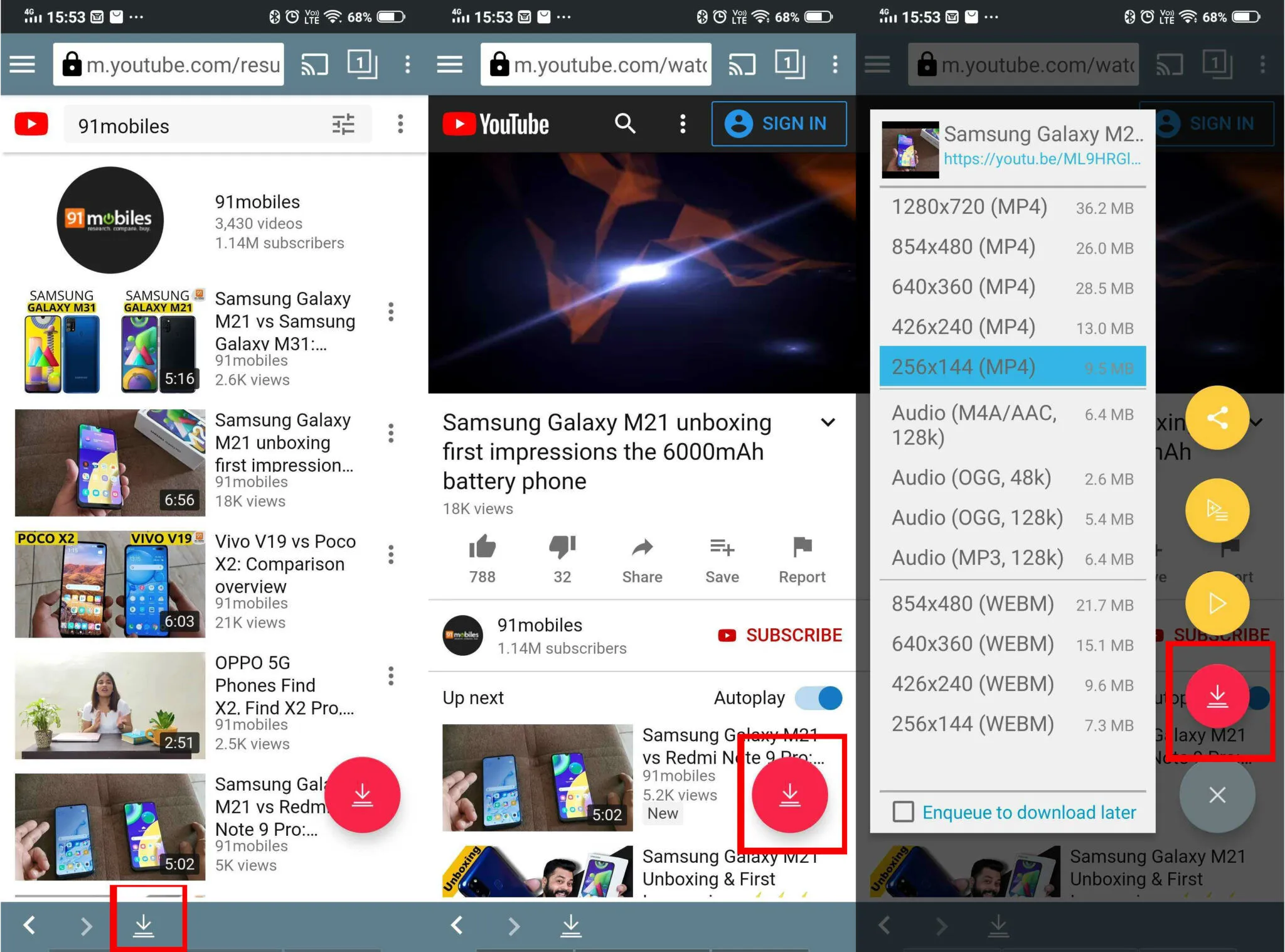
YouTube hosts videos in various formats, but it’s essential to know which ones are the most common and suitable for your needs. Here’s a breakdown of the key formats you’ll encounter:
- MP4: This is the most widely used video format and is compatible with almost all devices and media players. It offers a good balance between video quality and file size.
- WEBM: A newer format designed specifically for the web, WEBM files are optimized for streaming but may not play on all devices or players.
- AVI: An older format that offers high quality, but the file size can be much larger, which can be a downside for storage.
- FLV: Flash Video is less common nowadays, primarily used in Adobe Flash applications. It’s not recommended for general use.
When downloading YouTube videos, MP4 is usually the best choice due to its versatility. Here’s a quick comparison table of the formats:
| Format | Compatibility | File Size | Quality |
|---|---|---|---|
| MP4 | High | Medium | High |
| WEBM | Medium | Medium | High |
| AVI | Medium | High | Very High |
| FLV | Low | Medium | Medium |
In summary, understanding these formats helps you make informed decisions about which videos to download and how to store them. MP4 remains the favorite for its compatibility and quality, making it the go-to choice for beginners.
Also Read This: How to Allow NSFW Content on Telegram
Legal Considerations for Downloading Videos
Before diving into the world of downloading YouTube videos, it's crucial to understand the legal landscape surrounding this practice. While it may seem harmless, there are laws and regulations that could impact your ability to download content.
First and foremost, YouTube's Terms of Service explicitly state that you cannot download videos unless a download button is provided. This means that downloading videos without explicit permission can lead to potential legal issues.
Here are some key points to consider:
- Copyright Issues: Most videos on YouTube are protected by copyright. Downloading copyrighted material without permission from the creator can be a violation of copyright law.
- Fair Use Doctrine: In some cases, downloading a video for educational or commentary purposes may fall under the fair use doctrine. However, this is a gray area and often requires a legal interpretation.
- Public Domain and Creative Commons: Some videos are released under Creative Commons licenses or are in the public domain. These can typically be downloaded legally, so it's essential to check the video's license type.
In summary, while downloading YouTube videos can be tempting, always check the legal considerations and be aware of the implications. When in doubt, seek permission from the content creator or stick to videos that are clearly marked for free use.
Also Read This: Understanding the Reasons Behind the Rumbling in Attack on Titan
Tools and Software for Downloading YouTube Videos
Now that you're aware of the legal aspects, let’s explore some popular tools and software that make downloading YouTube videos a breeze. There’s a myriad of options out there, so you can choose one that fits your needs best.
Here’s a handy list of some top-rated tools:
- 4K Video Downloader: This user-friendly software allows you to download videos, playlists, channels, and even subtitles in high quality. It's perfect for beginners!
- YTD Video Downloader: A long-time favorite, YTD lets you download and convert videos seamlessly. Plus, it supports various formats, including MP4.
- ClipGrab: A free downloader that offers a simple interface and the ability to convert videos into different formats.
- Online Video Converter: If you prefer not to download software, this web-based tool allows you to download videos directly from your browser by pasting the URL.
When selecting a tool, consider:
| Tool | Platform | Key Features |
|---|---|---|
| 4K Video Downloader | Windows, Mac, Linux | High-quality downloads, playlist support |
| YTD Video Downloader | Windows, Mac | Conversion options, simple interface |
| ClipGrab | Windows, Mac, Linux | Free, format options |
| Online Video Converter | Web-based | No software needed, quick downloads |
Ultimately, the right tool for you will depend on your specific needs and preferences. Happy downloading!
Also Read This: How to Download YouTube Audio to Your Computer
5. Step-by-Step Guide to Downloading YouTube Videos
Downloading YouTube videos might seem daunting, but it's a breeze once you know the steps! Here’s a simple guide to help you get started:
- Choose a Download Tool: There are various tools available, both online and as software. Popular ones include YTMP3 and 4K Video Downloader. Pick one that suits you!
- Copy the Video URL: Go to YouTube, find the video you want to download, and copy the URL from the address bar.
- Paste the URL: Open your chosen download tool and paste the copied URL into the designated space. You’ll usually see a “Download” button nearby.
- Select the Format: Most tools will allow you to choose the format. Opt for MP4 if you want compatibility with most devices.
- Click Download: After selecting your format, hit the “Download” button again. The video will start downloading, and you’ll see a progress bar.
- Locate Your File: Once the download is complete, check your downloads folder or the location you specified to find your new video!
And voilà! You’ve successfully downloaded a YouTube video. Remember to respect copyright laws and only download videos when you have permission.
Also Read This: What Are the Best Free Tools for Downloading Twitter Images Without Hassle?
6. Converting YouTube Videos to MP4 Format
Now that you've downloaded your YouTube video, you might want to ensure it's in MP4 format. MP4 is widely used due to its compatibility across different devices and platforms. Here’s how you can convert your downloaded videos into MP4:
- Identify the Current Format: Check the format of your downloaded video. You can usually do this by right-clicking the file and selecting “Properties.”
- Select a Conversion Tool: Use tools like CloudConvert or Online Video Converter. These online services make the process easy and fast!
- Upload Your Video: Go to the conversion tool’s website, select the option to upload your file, and choose your downloaded video from your device.
- Choose MP4 as Output Format: In the conversion settings, select MP4 as your desired output format. This ensures compatibility with most devices.
- Start the Conversion: Click the “Convert” button and wait for the process to finish. This may take a few moments depending on the file size.
- Download Your Converted File: Once the conversion is complete, you’ll usually see a download link. Click it to save your MP4 video!
Now you have your video in the MP4 format, ready for viewing or sharing! Enjoy your favorite content anytime, anywhere!
Also Read This: The Champion of the Inaugural Women's Royal Rumble Match
Troubleshooting Common Issues
Downloading YouTube videos can sometimes feel like navigating a maze, especially for beginners. Don’t worry! Here are some common issues you might encounter and how to fix them:
- Download Failures: If your download doesn’t start, check your internet connection first. A weak connection can cause interruptions.
- Unsupported Format: If you receive an error about the file format, make sure you are selecting MP4, as this is widely supported. Double-check the software settings or the website you’re using.
- Video Not Available: Sometimes, a video might be blocked for downloading due to copyright restrictions. Always respect copyright laws and consider looking for videos labeled for reuse.
- Slow Download Speeds: If your download is taking forever, it could be due to high traffic on the server. Try downloading during off-peak hours or switch to another downloading tool.
- Software Crashes: If your software keeps crashing, ensure it’s updated to the latest version. Outdated software may not handle newer YouTube formats well.
Whenever you run into trouble, revisiting these tips can help you quickly get back on track!
Conclusion
So there you have it—downloading YouTube videos to MP4 isn't just for tech-savvy individuals. With the right tools and knowledge, anyone can do it! Here’s a quick recap:
- You can choose from various methods—online converters, dedicated software, or browser extensions.
- Always ensure you follow legal guidelines and download videos responsibly.
- Most tools are user-friendly, making the process straightforward, even for beginners.
Remember, practice makes perfect! As you get more comfortable with downloading videos, you’ll discover new features and tips along the way. So, dive in, start downloading, and enjoy your favorite content offline! Happy downloading!