
As a parent or guardian, it’s essential to create a safe online environment for your children. YouTube is a fantastic platform filled with educational content, entertainment, and creativity. However, it can also expose kids to inappropriate material, age-inappropriate advertisements, and harmful content. Here’s why blocking YouTube might be necessary:
- Exposure to Inappropriate Content: Despite YouTube’s efforts to filter content, some videos may not be suitable for younger audiences. This can include violence, explicit language, or other adult themes.
- Screen Time Management: Many parents struggle with their children’s screen time. Blocking YouTube can help manage the amount of time spent online, encouraging children to engage in more offline activities.
- Distraction from Studies: YouTube can be a massive distraction for kids, especially during homework or study time. By blocking it, you can help to maintain focus on educational activities.
- Unwanted Interactions: The comment sections of videos can sometimes lead to negative interactions or cyberbullying. Reducing access to the platform can minimize exposure to this type of environment.
- Promoting Safe Browsing Habits: Teaching children about safe browsing habits is vital. Temporarily blocking YouTube can help instill these habits before allowing supervised access.
In short, understanding the necessity behind blocking YouTube can help you create a healthier online experience for your children while guiding them toward more appropriate forms of entertainment and education.
Setting Up Parental Controls on Google
Setting up parental controls on Google is a vital step in safeguarding your children while they browse the internet. Follow these step-by-step instructions to effectively block YouTube:
1. Create a Family Group
First things first—creating a family group allows you to manage settings for all family members. Here’s how:
- Go to the Google Family Link website.
- Sign in with your Google account.
- Follow the prompts to set up a family group.
2. Download the Family Link App
To manage your child’s account effectively, you’ll need the Family Link app:
- Download Google Family Link from the App Store or Google Play Store.
- Create a child account if you haven’t done so.
3. Open the Settings
Once you’re set up:
- Open the Family Link app.
- Select your child’s account.
4. Manage Settings
Now, let’s get to the good part—blocking YouTube:
- Scroll down to the “Apps” section.
- Click on “Manage Settings.”
- Go to “Controls on Google Search.”
- Choose to block specific websites, including YouTube, or restrict access based on age.
5. Set Time Limits
Don’t forget to set time limits for your child’s device:
- In the Family Link app, go to “Daily Limit.”
- Set a limit that works for your family.
By following these steps, you can help ensure that your child has a safer and more controlled internet experience, keeping distractions and inappropriate content at bay.
Using YouTube Restricted Mode
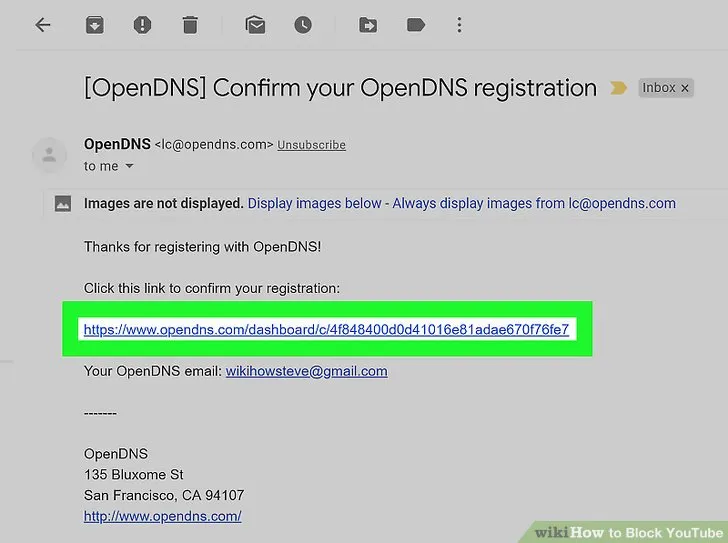
If you’re a parent or guardian eager to limit your child’s access to certain content on YouTube, leveraging the Restricted Mode is a smart move. This feature acts like a gatekeeper, filtering out potentially inappropriate videos. Here’s how to enable it easily:
- Open YouTube: Launch the YouTube app on your mobile device or go to the YouTube website on your computer.
- Sign In: Make sure you’re logged into your Google account. Restricted Mode is tied to your account, so it’s essential to have this step done.
- Access Settings: Click on your profile icon in the upper right corner. This will drop down a menu where you can find the Settings option.
- Find Restricted Mode: Scroll down until you see the Restricted Mode section. Toggle the switch to ‘On’.
- Lock Restricted Mode: If you want to make it difficult for your child to disable this feature, you can lock it in by entering your account password when prompted.
It’s important to note that while Restricted Mode filters out some content, it’s not entirely foolproof. Encourage open conversations with your kids about what they’re watching. You’re not just blocking content—you’re teaching them to understand it too!
Blocking YouTube via Google Family Link
If you’re looking for an effective way to manage your child’s online activity, the Google Family Link app is a fantastic tool. It allows parents to oversee their child’s use of devices and apps, including YouTube. Here’s how to block YouTube using Google Family Link:
- Install Family Link: First, get the Google Family Link app from the Google Play Store or Apple App Store. Make sure it’s installed on both your device and your child’s.
- Set Up Family Link: Follow the prompts to set up Family Link. You’ll need to create a Google account for your child if they don’t already have one.
- Manage Apps: Once everything is set up, open the Family Link app, select your child’s account, and navigate to the Apps section.
- Block YouTube: Find YouTube in the list of apps. Tap on it, and choose to block or set time limits for the app.
- Customize Further: You can also monitor app activity, set daily limits, and manage other content settings.
By blocking YouTube through Family Link, you gain an added layer of control over your child’s digital environment, ensuring their online safety while empowering you to teach them responsible technology use.
7. Utilizing Third-Party Apps for Blocking
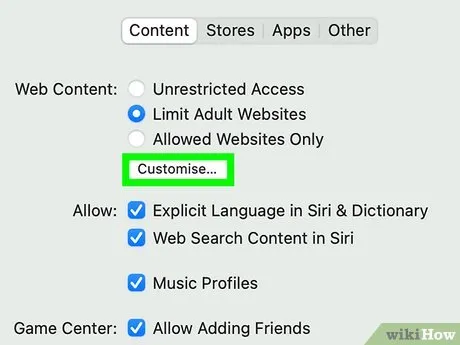
In today’s digital age, keeping your child safe online is a top priority for many parents and guardians. One effective strategy is to utilize third-party apps designed specifically for blocking access to websites like YouTube. These apps offer a range of features that can enhance your parental control efforts, providing a more tailored approach to managing what your children can see online.
Here are some popular options you might consider:
- Kaspersky Safe Kids: This app not only blocks websites but also monitors social media activity. It provides a comprehensive overview of your child’s online behavior.
- Norton Family: Norton is well-known for its robust security solutions. Norton Family includes tools to monitor and block specific content, along with time management features.
- Qustodio: This user-friendly app offers website blocking, app management, and a detailed dashboard that tracks your kids’ online activity.
- Net Nanny: A pioneer in online parental controls, Net Nanny’s features include real-time internet filter and customizable website blocking.
Most of these applications are compatible with various devices, including smartphones, tablets, and computers. When selecting an app, consider the specific needs of your household, such as:
- Device compatibility: Make sure it works on all devices your child uses.
- Features: Look for additional features that might benefit your family, like screen time limits and activity reports.
- User interface: Choose an app that is easy to use and set up.
Using third-party apps can provide an added layer of control, ensuring that your child’s online experience is safe and age-appropriate.
8. Monitoring Internet Use After Blocking
Once you’ve blocked YouTube or other distracting websites, the next crucial step for parents and guardians is monitoring internet use. It’s important not only to restrict access but also to understand how your child engages with the internet. Monitoring can help you identify any attempts to override restrictions as well as support your child in developing healthy online habits.
Here are some effective strategies for monitoring internet use:
- Set Clear Guidelines: Discuss with your child why you have implemented these restrictions. Understanding the reasons can help them respect your decisions.
- Utilize Monitoring Features: Many parental control apps provide activity reports. Regularly review these to stay updated on what sites and apps your child is using.
- Engage in Conversations: Talk regularly with your child about their online experiences. Ask about the websites they like and the content they enjoy.
- Check Browser Histories: If you don’t have apps in place, regularly check their browsing history. This can provide insight into their online interests.
- Encourage Open Communication: Create an environment where your child feels comfortable discussing online activities, any inappropriate content they might encounter, and their overall feelings about internet use.
By actively monitoring your child’s internet use, you not only ensure that they remain within the safe zones you’ve established, but you also help them learn to make responsible decisions about their online presence. Remember, the goal is to protect and educate, guiding them to become savvy digital citizens.
“`html
Communicating with Your Children About Restrictions
As a parent or guardian, discussing internet restrictions with your children is crucial for promoting understanding and ensuring a respectful relationship. Open communication can foster trust and help your children navigate online spaces safely. Here are some effective strategies for discussing restrictions on platforms like YouTube:
- Initiate the Conversation: Approach the topic in a calm and casual manner. Share the reasons behind implementing restrictions.
- Explain Your Concerns: Clearly articulate your worries regarding content, screen time, and online safety. For instance, you may be concerned about inappropriate content or excessive use of time online.
- Encourage Questions: Allow your children to ask questions about the restrictions. This promotes understanding and encourages them to think critically about their online habits.
- Set Guidelines Together: Collaboratively develop guidelines for online usage. This empowers your children and helps them feel involved in decision-making.
- Discuss Alternatives: Offer alternative activities to YouTube that can be engaging and educational. Suggest other platforms or resources that align with their interests.
- Reassure Their Opinions Matter: Let your children know that their opinions on content and screen time are valued. This can lead to mutual respect and compliance with the rules.
Ultimately, effective communication serves as a foundation for implementing online restrictions. By discussing your decisions openly, you can help your children understand the importance of internet safety and the rationale behind the need for boundaries.
“`