

Logging out of your LinkedIn account is more than just a good habit; it's essential for maintaining your online security and privacy. Whether you’re using a shared computer or just want to ensure your information stays protected, knowing how to log out securely can save you from potential headaches.
Why Logging Out is Important
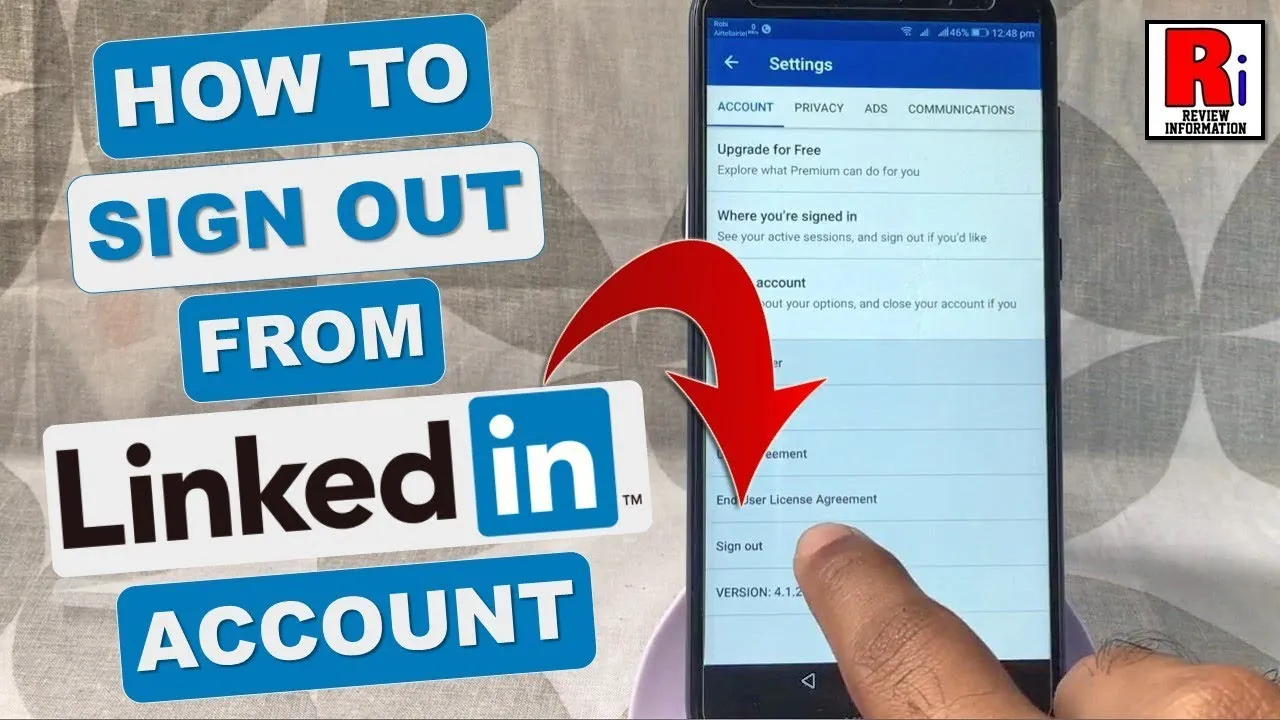
Understanding the importance of logging out from LinkedIn can help you safeguard your personal and professional information. Here are some key reasons to consider:
- Protection of Personal Data: Leaving your account logged in on a public or shared device can expose your personal data to others. This includes your connections, messages, and profile information.
- Prevent Unauthorized Access: If someone gains access to your account while it’s still logged in, they can impersonate you, send messages, or even change your account settings without your consent.
- Avoiding Account Breaches: Cybersecurity threats are real. Logging out can minimize the risk of someone exploiting your account, especially if there's a vulnerability on the device you used.
- Enhancing Privacy: Each time you log in, you create a new session that is more secure. If you do not log out, your previous session might be accessible, which can lead to privacy concerns.
- Clearing Cache and Cookies: Logging out helps clear temporary data like cookies. This can improve the performance of the application and help in maintaining your online footprint.
In summary, making the effort to log out of LinkedIn is a simple yet effective way to ensure your information remains secure. So, next time you finish a session, take a moment to log out!
Also Read This: Understanding the Lack of Views on Your YouTube Videos
3. Steps to Logout from LinkedIn on Desktop
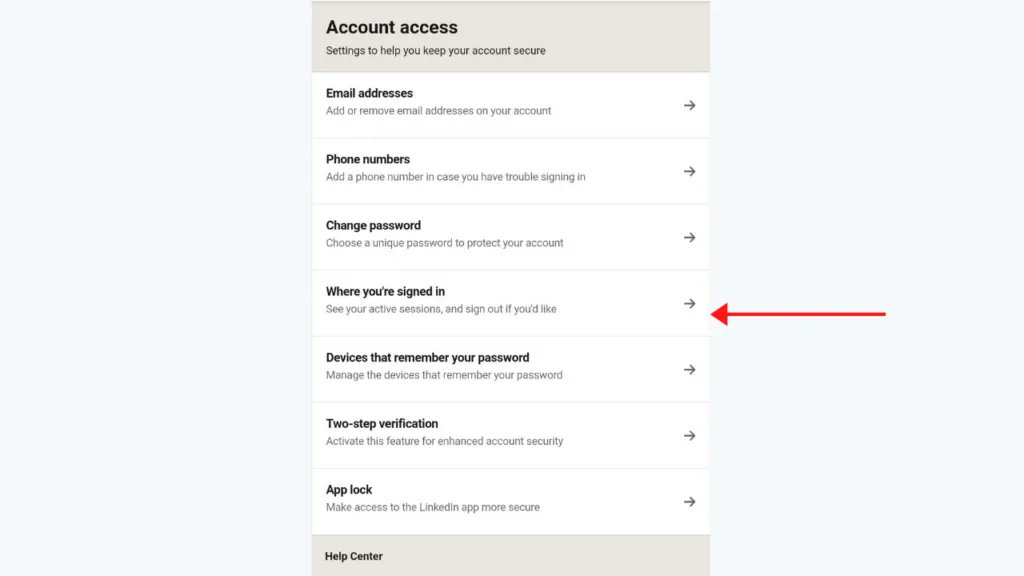
Logging out of LinkedIn on your desktop is a straightforward process. Whether you're using a personal or public computer, it's essential to ensure your account is secure after your session. Here are the steps to log out:
- Locate Your Profile Picture: In the top right corner of the LinkedIn homepage, you'll see your profile picture. Click on it to open a dropdown menu.
- Select 'Sign Out': From the dropdown menu, you'll find the option to 'Sign out.' Click on this option to log out of your account.
- Confirm Logout: After clicking 'Sign out,' you'll be redirected to the LinkedIn login page, confirming that you've logged out successfully.
It's a good practice to check that your profile picture no longer appears in the top right corner, indicating that you're not logged in. If you're on a shared or public computer, consider clearing your browser's cache and cookies to further enhance your security.
Also Read This: Seasonal Marketing Made Easy with Stunning Seasonal Photos from Imago Images
4. Steps to Logout from LinkedIn on Mobile App
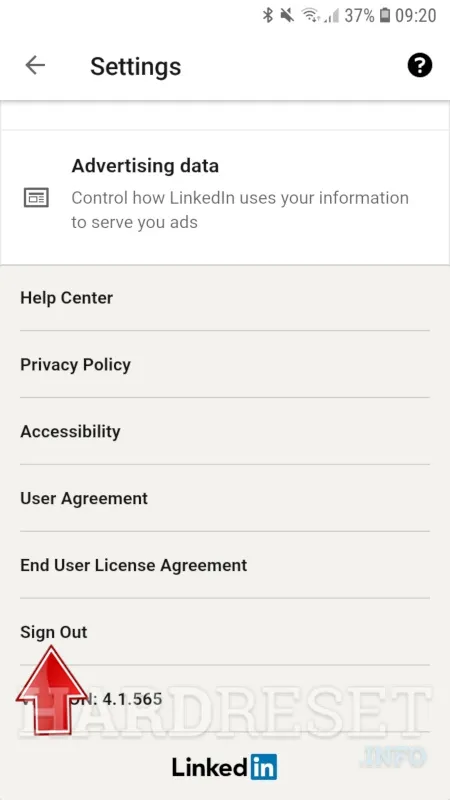
Logging out of the LinkedIn mobile app is just as easy as on the desktop version. Here’s how you can securely log out:
- Open the LinkedIn App: Launch the LinkedIn app on your mobile device.
- Go to Your Profile: Tap on your profile picture located at the top left corner of the screen.
- Access Settings: Scroll down and tap on 'Settings.' This will take you to the settings menu.
- Select 'Sign Out': At the bottom of the settings menu, you’ll find the 'Sign out' option. Tap on it.
- Confirm Your Logout: Finally, you might be prompted to confirm your decision to log out. Just tap 'Sign out' again to complete the process.
After logging out, it’s wise to ensure that you don’t leave the app open, especially if you're using a shared device. Closing the app can provide an extra layer of security. Happy networking!
Also Read This: Delicious Halwa Puri Recipes to Try at Home
5. Common Issues When Logging Out
Logging out from LinkedIn should be a straightforward process, but sometimes users encounter hiccups along the way. Here are some *common issues you might face:
- Page Not Responding: Occasionally, LinkedIn may not respond when you click the logout button. This can be due to temporary server issues or slow internet connectivity.
- Saved Passwords: If you’ve saved your password in your browser, it might log you back in automatically. Make sure to adjust your browser settings if you want to avoid this.
- Multiple Sessions: If you are logged in on multiple devices, logging out of one device may not log you out of others. Check all your devices to ensure your account is secure.
- Cache Issues: Sometimes, cached data can prevent you from logging out properly. Clearing your browser’s cache and cookies can resolve this.
- Browser Extensions: Certain browser extensions may interfere with your ability to log out. Try disabling them temporarily to see if that resolves the issue.
If you encounter any persistent problems, it’s a good idea to visit the LinkedIn Help Center for more detailed troubleshooting tips.
6. Conclusion
Logging out from LinkedIn securely is an essential step in protecting your personal and professional information. By following the simple steps outlined in this guide, you can ensure that your account remains safe, especially if you’re using shared or public devices.
Remember, the logout process is just as important as logging in. Here’s a quick recap:
- Always check for other active sessions.
- Clear your browser’s cache and cookies if you face issues.
- Disable any conflicting browser extensions.
Taking these precautions not only enhances your account security* but also gives you peace of mind. If you ever feel unsure about your security after logging out, consider changing your password or enabling two-factor authentication for added protection. Happy networking!