

LinkedIn is more than just a resume page; it's a powerful networking tool where you connect with professionals from various industries. Your LinkedIn contacts are the people you've connected with, forming a robust professional network. But what does this mean for you?
Each connection you make can open doors to new opportunities, whether it's job offers, collaborations, or knowledge sharing. However, it's crucial to manage these connections wisely. Let's break down what understanding your LinkedIn contacts involves:
- Types of Contacts: LinkedIn contacts can range from colleagues and classmates to industry leaders and potential clients. Understanding who’s in your network helps tailor your interactions effectively.
- Connection Strength: Not all connections are equal. Some may be close contacts with whom you frequently communicate, while others might be loose acquaintances you've never interacted with.
- Visibility and Engagement: Your contacts can see your activity on LinkedIn, which includes posts and shares. This visibility can work in your favor or against it if you have irrelevant or unwanted connections in your network.
- Network Management: Keeping your LinkedIn connections fresh and relevant is key. Periodically assessing your contacts helps you streamline your network and enhances your professional brand.
Ultimately, understanding your LinkedIn contacts can lead to better networking strategies and a more favorable professional image. It's about quality over quantity!
Reasons to Delete Contacts
As you build your professional network on LinkedIn, you might find that over time, some connections no longer serve your goals. Here are several compelling reasons to consider deleting contacts:
- Diminished Relevance: Sometimes you connect with people out of obligation or in a moment of enthusiasm, but as your career goals shift, these connections may no longer align with your professional objectives.
- Inactive or Fake Accounts: If a connection hasn’t engaged on LinkedIn for a lengthy period or seems suspicious, it may be best to remove them. Keeping active, meaningful connections is essential.
- Unwanted Solicitation: If a contact is consistently promoting their own business or services and you find it bothersome, it’s perfectly reasonable to cut ties.
- Negative Influence: Connections who post toxic or controversial content can impact your professional image. Removing such contacts can protect your brand and allow you to curate a positive feed.
- Forced Connections: Perhaps you added someone because they were a colleague at some point, but you no longer relate to them. It’s okay to let go and free up space for more relevant connections.
In the end, keeping a clean and effective network is crucial for maintaining a vibrant LinkedIn presence. Evaluating your connections regularly helps keep your professional life aligned with your current aspirations.
Also Read This: How to Become a Getty Images Contributor – A Comprehensive Guide
How to Access Your LinkedIn Connections
Accessing your LinkedIn connections is a straightforward process! Whether you're looking to clean up your network or just want to reach out to someone, knowing how to navigate your connections can save you a lot of time.
Here’s how you can get to your connections:
-
Log into Your LinkedIn Account:
Start by visiting the LinkedIn website or opening the LinkedIn app on your mobile device. Enter your credentials to log in to your account.
-
Navigating to Your Profile:
Once logged in, click on your profile picture or the “Me” icon at the top of the page. This will take you to your profile.
-
Finding Your Connections:
Look for the “Connections” link on the left side of your profile page. This is where all your current connections will be listed. You may also see an overview of the number of connections you have!
-
Sort and Filter Connections:
LinkedIn allows you to sort your connections by various parameters, such as location, industry, or even how recently you've connected. This can help you find specific people faster.
And that's it! You now have easy access to your LinkedIn connections. Whether you're looking to maintain them, reach out for networking purposes, or even remove a few, you've got the power at your fingertips!
Also Read This: How to Download a Behance Font
Step-by-Step Guide to Deleting Contacts
If you’re considering decluttering your LinkedIn connections, deleting contacts is a simple yet vital step in managing your online network. Here’s a step-by-step guide to help you through the process:
-
Access Your Connections:
Follow the steps outlined above to navigate to your connections page.
-
Identify the Connection to Delete:
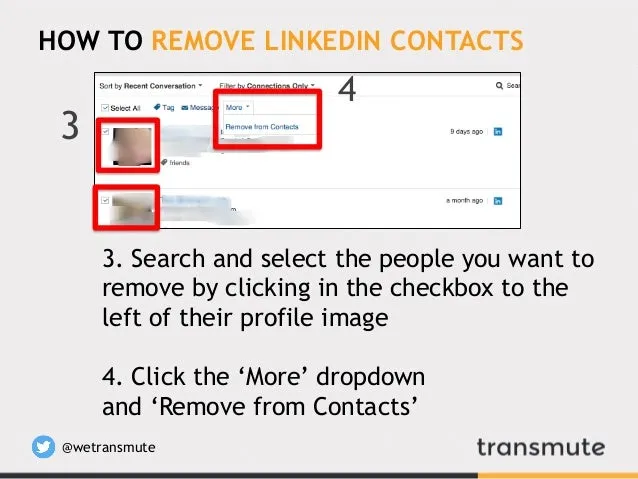
Scroll through your list of connections or use the search bar to find the person you wish to remove. Click on their name to view their profile.
-
Open the More Options Menu:
On their profile page, look for the “More” button (you might find it represented as three dots). This will give you a dropdown menu.
-
Select “Remove Connection”:
In the dropdown menu, click on “Remove Connection.” You might find a confirmation dialogue box that pops up, asking if you’re sure you want to proceed.
-
Confirm Your Choice:
If prompted, confirm that you want to delete this connection. Once you do this, they will no longer appear in your connections list!
And just like that, you’ve removed a contact! It’s essential to remember that once someone is removed, you won’t be connected unless you send them a new connection request in the future. So make sure you’re certain before hitting that delete button!
Also Read This: Why Is My Hero Ultra Rumble Not Working
Managing Your Remaining Connections
Once you've decided to delete certain contacts from your LinkedIn network, the next step is to manage the connections that remain. It's crucial to keep a curated network that aligns with your professional goals and interests. Here are some strategies to help you effectively manage your remaining connections:
- Evaluate Connection Relevance: Take a moment to assess the relevancy of each of your remaining connections. Ask yourself questions like, "Do we have mutual career interests?" or "Could this connection benefit my professional growth?" This will help ensure that your network remains valuable.
- Engage Regularly: Once you've trimmed your connections, engage regularly with your remaining network. This could be through commenting on their posts, sharing relevant content, or even messaging them directly. Staying active helps keep your relationships alive.
- Update Your Profile: Consider refining your LinkedIn profile to reflect your current career aspirations or interests. When you make changes, your connections will be notified, giving you a chance to reconnect on shared interests.
- Utilize Connection Features: LinkedIn offers various features such as tagging or creating lists for your connections. Use these tools to categorize your network, making it easier to manage and engage with specific groups, such as colleagues, industry peers, or mentors.
- Regularly Review Your Connections: Make it a habit to periodically review your connections. This ongoing process ensures that your network stays relevant and useful to your current career goals.
By applying these strategies, you can effectively manage your remaining connections and ensure that your LinkedIn network aligns with your professional aspirations.
Also Read This: How to Speed Up Video Uploads on YouTube
Privacy Settings and Controls
Your privacy on LinkedIn is paramount, especially as you manage your connections and career interactions. Understanding how to control your privacy settings allows you to tailor your LinkedIn experience while keeping your information secure. Here’s how to navigate LinkedIn’s privacy settings:
- Accessing Privacy Settings: Start by clicking on your profile picture at the top right corner of LinkedIn. From the dropdown menu, select "Settings & Privacy." Here, you'll find various options to manage your account's privacy.
- Profile Viewing Options: Decide how you want others to see your profile when you view theirs. You can choose to display your name and headline, or remain anonymous. This choice impacts how you engage with others on the platform.
- Manage Who Can See Your Connections: You can choose whether only your connections can see your list of connections or if anyone can view it. To enhance your privacy, consider limiting this access to just your connections.
- Control Data Sharing: Review the "Data privacy" section to understand what data LinkedIn collects and how it's used. You can customize settings related to ads, sharing data with partners, and more.
- Turn Off Activity Broadcasts: If you want to keep your changes under the radar, you can turn off activity broadcasts. This means that your connections won’t be notified when you update your profile, make new connections, or follow companies.
Taking control of your privacy settings enhances your overall LinkedIn experience. Regularly revisiting these settings helps ensure that you're comfortable with what you're sharing while also protecting your personal information.
How to Delete Contacts from LinkedIn: A Privacy and Network Management Guide
Managing your LinkedIn connections is crucial for maintaining a professional online presence. Often, as your career evolves, you might find that some connections no longer serve your networking needs. Deleting contacts can also enhance your privacy and streamline your network. Here's how to effectively delete contacts from LinkedIn.
Why Delete Contacts?
- Improve Network Quality: Having only relevant connections ensures that you receive pertinent updates and opportunities.
- Protect Personal Privacy: Reducing your network minimizes exposure to unwanted views of your profile and activity.
- Streamline Notifications: Fewer connections mean fewer notifications, making it easier to focus on important updates.
Step-by-Step Guide to Deleting Contacts
- Log into Your LinkedIn Account: Visit LinkedIn's website or app and log in securely.
- Access Your Contacts: Click on the 'My Network' tab at the top of your homepage, then select 'Connections' from the left sidebar.
- Find the Contact to Delete: Use the search bar or scroll through your list to find the person you wish to remove.
- Remove Connection: Click on the three dots (ellipsis) next to their name, and select 'Remove Connection' from the dropdown menu.
- Confirm Removal: Confirm the action when prompted to finalize the deletion.
Things to Consider
Before deleting a contact, consider:
- If you might want to reconnect in the future.
- Your reason for deletion might affect your professional image.
In conclusion, regularly managing your LinkedIn connections is essential for maintaining a healthy professional network. Deleting contacts can help tailor your connections to those who truly matter, enhancing both your privacy and networking effectiveness.
```