

Are you considering canceling your LinkedIn profile for any reason? Whether you're taking a break from professional networking or opting for a fresh start, it’s essential to understand the steps involved. In this guide, we will walk you through the process of canceling your LinkedIn account and clarify what you need to know before making this decision. Let’s dive in!
Understanding the Difference Between Deactivating and Deleting
Before you hit that cancel button, it’s important to grasp the distinction between deactivating and deleting your LinkedIn profile. These two options serve different purposes, and understanding them can save you from potential headaches down the line.
Deactivating Your LinkedIn Profile:
- When you deactivate your account, your profile becomes invisible to others, but all your data is saved.
- You can reactivate your account at any time by simply logging back in, making this a great option if you just need a break.
- Your connections, endorsements, and recommendations remain intact, ready for you when you return.
Deleting Your LinkedIn Profile:
- Deleting your account is a permanent action. Once you confirm, all your information—connections, messages, and endorsements—will be lost forever.
- This option is ideal if you’re sure you no longer want to use LinkedIn or if you’re concerned about privacy.
- It can take up to 30 days for your data to be fully removed from LinkedIn's servers after deletion.
In summary, think carefully about your choice. If you might return, deactivation is the safer route. If you’re ready to part ways permanently, then deleting is the way to go. Make your decision wisely!
Also Read This: Web and Video Filtering Services Provided by Fortiguard Downloader
How to Deactivate Your LinkedIn Profile
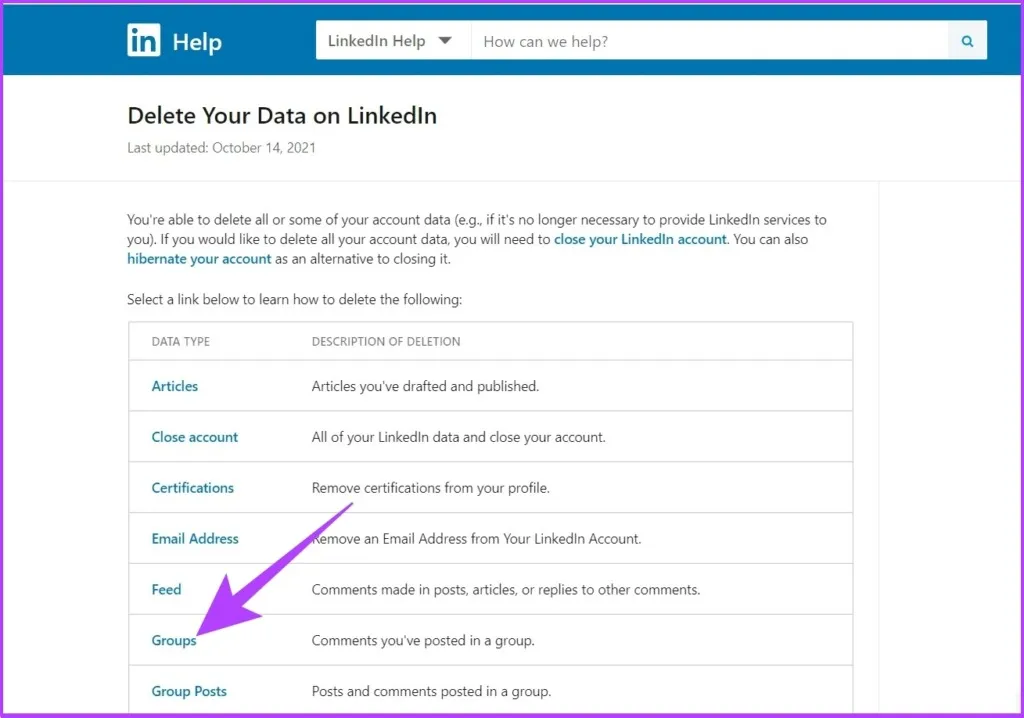
Deactivating your LinkedIn profile is a great option if you need a break from the platform but might want to come back later. Here’s how you can do it in just a few simple steps:
- Log In to Your Account: Start by logging into your LinkedIn account using your credentials.
- Access Your Settings: Click on the "Me" icon at the top of your LinkedIn homepage. From the dropdown menu, select "Settings & Privacy."
- Navigate to Account Preferences: In the left sidebar, look for "Account preferences" and click on it.
- Find the Deactivation Option: Scroll down until you see “Close your account” under the “Account management” section.
- Follow the Prompts: Click on “Closing your LinkedIn account” and you’ll be guided through a series of prompts. You’ll need to choose a reason for deactivating your account.
- Confirm Your Decision: After selecting the reason, confirm your choice. LinkedIn will then start the deactivation process.
Once deactivated, your profile will be invisible to others, but your data will still be stored in case you decide to reactivate it later.
Also Read This: Applying Liquid Foundation on Dark Skin for a Flawless Finish
How to Delete Your LinkedIn Profile Permanently
If you’ve made up your mind to say goodbye to LinkedIn for good, deleting your profile is the way to go. Here’s how to do it:
- Log In to Your LinkedIn Account: Just like deactivation, begin by logging into your account.
- Go to Settings: Click on the "Me" icon, then select "Settings & Privacy" from the dropdown menu.
- Navigate to Account Preferences: Click on "Account preferences" in the left sidebar.
- Close Your Account: Look for the “Close your account” option under “Account management.”
- Select Deletion: Choose “Continue” and then select “I’d like to close my account” to confirm your intent to delete.
- Provide Your Reason: LinkedIn will ask why you’re leaving. It’s optional, but your feedback can help improve the platform.
- Final Confirmation: Confirm your decision one last time, and voila! Your profile will be permanently deleted.
Remember, once you delete your profile, all your connections, messages, and data are gone forever. Make sure you really want to take this step before proceeding!
Also Read This: A Guide to Red Cherry Images on ShootProof
What Happens When You Cancel Your Profile
Cancelling your LinkedIn profile can feel like a big step, but it’s important to understand what that means for your professional online presence. When you decide to take this step, several things occur:
- Profile Visibility: Your profile becomes invisible to others. No one can see your connections, endorsements, or any information you've shared.
- Data Deletion: LinkedIn retains your data for a period, but your activity history, including posts and comments, will be removed from the platform.
- Connections: You will lose all your connections. If you decide to return to LinkedIn later, you won’t automatically be reconnected with these contacts.
- Recommendations and Endorsements: Any recommendations you've received or endorsements for your skills will also be lost. These are valuable elements of your professional reputation.
- Job Applications: If you’ve applied for jobs through LinkedIn, those applications will be canceled, and you might need to reapply through other means.
However, don’t worry too much! You can always reactivate your account later if you change your mind, although some connections may have moved on.
Also Read This: Is Rumble Purchasing TikTok and What It Means for the Future
Frequently Asked Questions
Got questions about cancelling your LinkedIn profile? You're not alone! Here are some common queries that many people have:
| Question | Answer |
|---|---|
| Can I reactivate my profile after cancellation? | Yes, you can reactivate your account within a certain time frame. However, some data may not be retrievable. |
| Will my connections be notified if I cancel my profile? | No, LinkedIn does not send notifications to your connections when you deactivate your profile. |
| Can I download my data before cancellation? | Absolutely! It's a good practice to download your LinkedIn data before you cancel. |
| What if I just want to take a break? | Consider deactivating your profile instead of cancelling it, so you can return without losing everything. |
Don't hesitate to reach out to LinkedIn support if you have more specific concerns! They’re there to help you navigate your choices regarding your account.
How to Cancel Your LinkedIn Profile with Step-by-Step Instructions
If you've decided to take a break from LinkedIn or permanently cancel your account, it's essential to follow the correct procedure to ensure that your data is handled appropriately. Below are detailed, step-by-step instructions to help you cancel your LinkedIn profile effortlessly.
Step-by-Step Instructions
- Log into Your LinkedIn Account: Open your web browser, navigate to the LinkedIn website, and log in using your credentials.
- Access Settings & Privacy: Click on your profile picture located in the top right corner. From the dropdown menu, select “Settings & Privacy.”
- Navigating to Account Management: In the left-hand sidebar, find and click on “Account preferences.”
- Close Your Account: Scroll down to the “Account management” section and click on “Closing your LinkedIn account.”
- Follow the Prompts: LinkedIn will ask you to provide a reason for closing your account. Select an option from the list or type your reason in the provided box.
- Confirm Your Decision: Review the information presented, then click on “Next.” You will be asked to enter your password to confirm the closure of your account.
- Account Closure: Finally, click on “Close account.” You will receive a confirmation message indicating that your account is scheduled for closure.
Important Considerations
Before canceling your LinkedIn profile, keep in mind:
- All your connections will be lost.
- Your profile information will no longer be visible to others.
- You can reactivate your account within a limited timeframe if you change your mind.
What Happens After Closing?
Once you close your account, LinkedIn will start the process of deleting your data. However, some information may remain in their backup systems for a limited time.
Need Help?
If you encounter issues while closing your account, LinkedIn's Help Center is available for assistance.
Conclusion: Canceling your LinkedIn profile is a straightforward process that involves logging into your account, accessing the settings, and following the prompts to close it. Just remember to consider the implications of your decision before proceeding.