

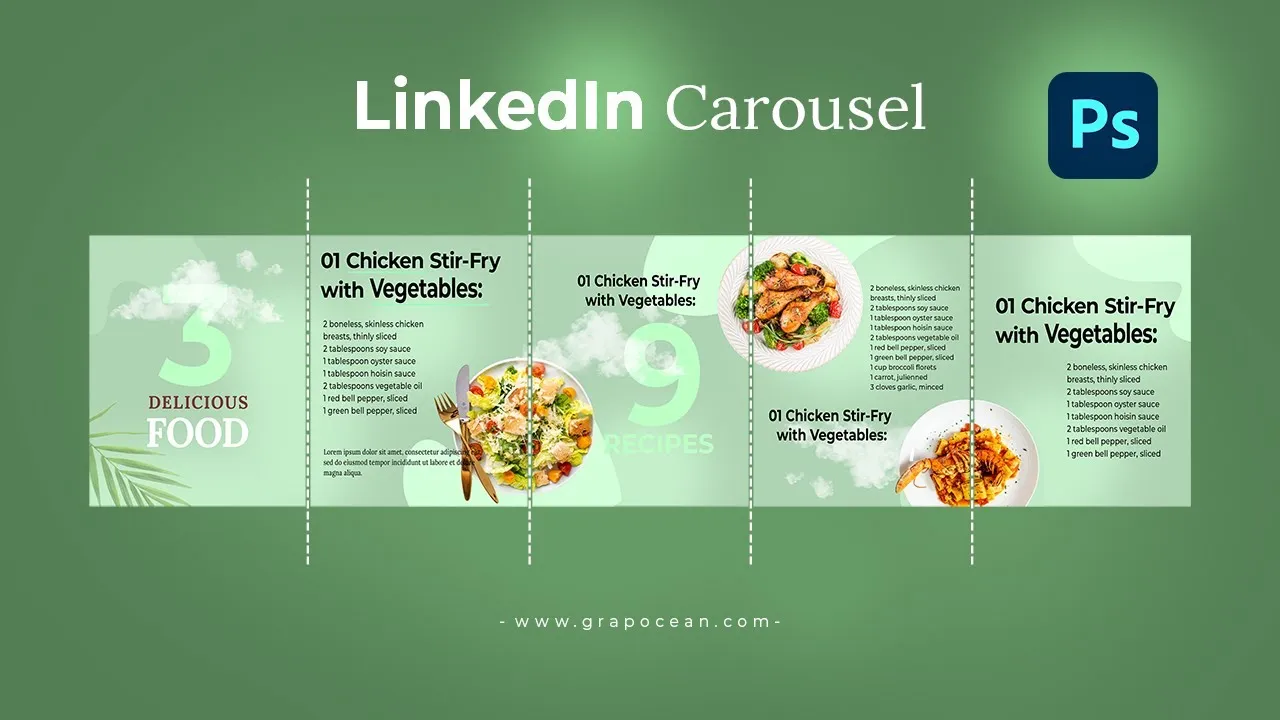
Carousel posts on LinkedIn have become a popular way to share information in a visually engaging format. Unlike standard posts, which typically display a single image or block of text, carousel posts allow users to swipe through multiple images or slides. This interactive element not only captures attention but also encourages viewers to spend more time engaging with your content. Whether you’re showcasing your latest project, sharing industry insights, or presenting valuable tips, carousel posts can make your message more impactful.
Benefits of Using Carousel Posts on LinkedIn
Utilizing carousel posts on LinkedIn offers several distinct advantages that can enhance your content strategy. Here are some key benefits:
- Increased Engagement: Carousel posts naturally encourage interaction. Users often spend more time swiping through multiple images, which can lead to higher engagement rates compared to traditional single-image posts.
- Storytelling Opportunities: With multiple slides, you can craft a narrative or a journey. This storytelling approach can make your content more relatable and memorable.
- Showcase Variety: Whether it’s charts, infographics, or images, carousels allow you to display diverse types of content in one post. This variety can cater to different learning styles and preferences.
- Enhanced Visual Appeal: A well-designed carousel can catch the eye and stand out in a user’s feed. This visual appeal can attract more views and shares.
- Greater Reach: Engaging content tends to get more shares, leading to increased visibility. When your carousel post resonates, it has the potential to reach a broader audience.
In summary, carousel posts are a powerful tool for communicating your message effectively on LinkedIn, driving engagement, and reaching a wider audience.
Also Read This: Canva Image Resolution Change
Step-by-Step Guide to Creating a Carousel Post
Creating a carousel post on LinkedIn can be a game-changer for engaging your audience. Follow these simple steps to get started:
- Choose Your Topic: Think about what you want to share. Is it a tutorial, a case study, or maybe some valuable industry insights? Picking a relevant topic sets the stage.
- Create Your Content: Prepare the text and images for each slide. Aim for concise, informative content. Each slide should ideally have one main idea. For example, if you’re showcasing a product, each slide could highlight a different feature.
- Design Your Slides: Use tools like Canva or PowerPoint to design your slides. Keep a consistent color scheme and font. Remember, a clean layout is key!
- Export as PDF: Once your slides are ready, export them as a PDF file. Make sure the quality is high for a professional look.
- Upload to LinkedIn: Go to your LinkedIn home page, click on “Start a post,” and select the PDF you created. Add a catchy caption and relevant hashtags.
- Engage with Your Audience: After posting, respond to comments and encourage discussions. Engagement boosts visibility!
By following these steps, you can create a visually appealing and informative carousel post that captivates your LinkedIn network!
Also Read This: Does YouTube Send You a W2 – Understanding Tax Documents for Creators
Tips for Designing Compelling Carousel Slides
Designing an eye-catching carousel isn’t just about pretty pictures; it’s about creating a cohesive story. Here are some tips to make your slides pop:
- Consistency is Key: Use the same color palette and fonts throughout your slides. This creates a professional look and helps with brand recognition.
- Limit Text: Keep text minimal. Aim for bullet points or short sentences. For example, use 5-10 words per slide to maintain focus.
- Use High-Quality Images: Ensure all images are high resolution. Blurry visuals can detract from your message. Websites like Unsplash offer free quality images.
- Incorporate Visual Hierarchy: Highlight important information using contrast and size. Make key points bold or larger to draw attention.
- Include a Call to Action: End your carousel with a clear CTA. Whether it’s prompting viewers to visit your website or comment their thoughts, make sure it’s compelling!
Remember, designing compelling carousel slides is about striking a balance between aesthetics and information. Keep your audience engaged and your message clear!
Also Read This: Understanding YouTube's Content Guidelines and Restrictions on Violent Language
Best Practices for Sharing Carousel Posts
Creating and sharing carousel posts on LinkedIn can significantly enhance your engagement. Here are some best practices to maximize their impact:
- High-Quality Visuals: Use eye-catching images or graphics that are relevant to your content. Tools like Canva or Adobe Spark can help create professional-looking visuals.
- Compelling Headlines: Each slide should have a captivating headline that draws the reader in. Make sure it summarizes the content effectively.
- Keep It Concise: Limit the text on each slide. Aim for clarity and brevity. Use bullet points or short sentences to convey your message.
- Engagement Hooks: Include questions or calls to action to encourage interaction. For example, ask your audience to share their thoughts in the comments.
- Optimal Length: Aim for 5 to 10 slides. Too few may not provide enough information, while too many can overwhelm the reader.
- Test Different Formats: Experiment with various designs and styles to see what resonates best with your audience. Don’t be afraid to get creative!
By following these best practices, you can create carousel posts that not only look great but also captivate your audience and encourage them to engage with your content.
Also Read This: How to Receive Gift Memberships on YouTube
Analyzing Engagement and Performance
Once you've shared your carousel post, analyzing its performance is crucial for understanding its success and areas for improvement. Here’s how to effectively analyze engagement:
- View Count: Start by checking how many people viewed your post. This gives you a baseline idea of its reach.
- Likes and Reactions: Monitor the number of likes and reactions your post received. High engagement can indicate that your content resonated well.
- Comments and Shares: Pay attention to the comments—what are people saying? Also, shares can amplify your reach beyond your immediate network.
- Click-Through Rate (CTR): If your carousel includes links, track how many users clicked through. This metric helps gauge interest in your further content.
Consider using LinkedIn’s analytics tools or third-party platforms for deeper insights. Here’s a simple table of key metrics to track:
| Metric | What to Analyze |
|---|---|
| View Count | Total views your post received. |
| Engagement Rate | Likes, comments, and shares relative to views. |
| CTR | Percentage of viewers who clicked on any linked content. |
Regularly analyzing these metrics will help you refine your strategy for future posts, ensuring that your LinkedIn content remains engaging and relevant.
Creating an Engaging Carousel Post on LinkedIn
LinkedIn carousel posts are a powerful way to engage your audience, showcase your expertise, and provide valuable insights in a visually appealing format. Unlike standard posts, carousels allow users to swipe through multiple slides, making your content interactive and more likely to capture attention.
Here are some essential steps to create an engaging carousel post on LinkedIn:
- Define Your Objective: Determine the primary purpose of your carousel. Are you sharing tips, showcasing a project, or educating your audience?
- Choose a Compelling Topic: Select a topic that resonates with your audience. Consider trending topics in your industry or frequently asked questions.
- Design Eye-Catching Slides: Use tools like Canva or Adobe Spark to create visually appealing slides. Keep your design consistent and professional.
- Utilize High-Quality Images: Incorporate relevant images and graphics that enhance your message. Avoid cluttered designs that can distract the viewer.
- Keep Text Concise: Use bullet points and short sentences to convey your message clearly. Aim for about 20-30 words per slide.
- Include a Clear Call-to-Action (CTA): Encourage engagement by prompting viewers to comment, share, or visit your website.
- Optimize for Mobile: Ensure that your carousel is mobile-friendly since a significant portion of users access LinkedIn on their phones.
| Best Practices | Tips |
|---|---|
| Visual Consistency | Stick to a color palette and font style. |
| Engaging Headlines | Use intriguing headlines to draw attention. |
| Interactive Elements | Incorporate questions or polls to encourage interaction. |
In conclusion, a well-crafted carousel post on LinkedIn can significantly enhance your visibility and engagement. By following these guidelines, you can create content that not only informs but also captivates your audience, ultimately leading to greater connection and interaction on the platform.