

Before you can block someone on LinkedIn, it’s essential to identify the correct individual you wish to block. This might seem straightforward, but with the vast number of profiles, it's easy to mix up names and faces. Here’s how you can go about it:
1. Search for Their Profile: Use the search bar at the top of your LinkedIn homepage. Type the person's name or any relevant keywords associated with their profile. You can even filter your search results based on connections, locations, or current companies.
2. Check Your Connection Status: Knowing whether you are a first-degree connection, second-degree connection, or not connected at all can influence your choice to block someone. Navigate to their profile to verify this status.
3. Examine Mutual Connections: If you're not sure which person to block, look at your mutual connections. This may help confirm you have the right person, especially if their name is common.
4. Review Their Activity: Check their recent activity on LinkedIn. This can provide further context about why you want to block them. For instance, have they been overly aggressive in discussions, or is there a personal reason behind your decision?
Once you've reliably identified the person you want to block, you can confidently move on to the next steps. Taking a moment to double-check will save you from making a mistake you might regret later!
Steps to Block Someone from Their Profile
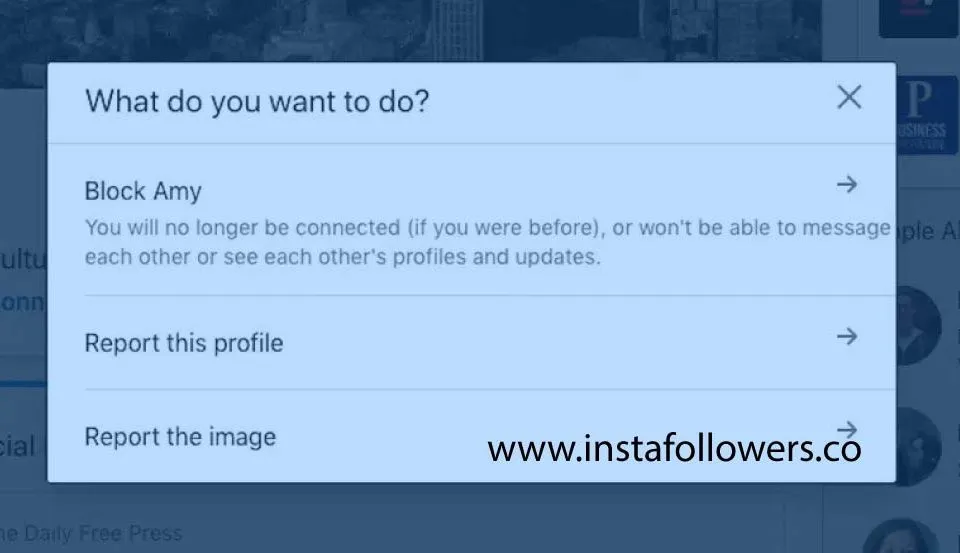
Blocking someone on LinkedIn is a simple process, but it’s important to do it correctly. Here’s a detailed step-by-step guide:
1. Go to Their Profile: First, navigate to the individual’s LinkedIn profile you wish to block. You can find them through your connections or by searching their name in the search bar.
2. Click on the More Button: Once you’re on their profile, look for the “More” button. It’s usually located right next to the “Connect” or “Message” buttons. Clicking this will open a dropdown menu.
3. Select Block or Report: In the dropdown menu, you will see the option labeled “Report/Block”. Click on it to proceed. LinkedIn will give you options to either report the profile for issues or block the person.
4. Choose Block: You will be prompted with a confirmation window asking if you’re sure you want to block them. Here, choose “Block [Name]” to confirm your choice.
5. Review Your Blocked List: After blocking, consider checking your account settings to ensure they have been added to your blocked list. You can access this via Admin settings under “Privacy” and then “Blocking and Hiding” to see all profiles you’ve blocked.
And that's it! Blocking someone on LinkedIn can feel empowering, giving you control over your professional space while ensuring your networking experiences remain positive.
Also Read This: Origins of the Rumble in The Outsiders
Managing Your Blocked List
Once you’ve taken the step to block someone on LinkedIn, it's essential to know how to manage your blocked list effectively. After all, people can come and go in our professional lives, and sometimes we need to revisit our decisions. Here’s how to handle your blocked contacts:
To view and manage your blocked list:
- First, go to your LinkedIn profile.
- Click on the Me icon at the top of your LinkedIn homepage.
- Select Settings & Privacy from the dropdown menu.
- In the Privacy tab, look for the section labeled Blocking and Hiding.
- Click on Change next to the section labeled Blocked Accounts.
Here, you will see a list of all the profiles you have blocked. If you ever feel ready to unblock someone, simply click on the Unblock button next to their name. Remember, unblocking someone means they will be able to see your profile and interact with you again, so only proceed if you're comfortable with that!
Additionally, it's a good practice to periodically review your blocked list. You might have blocked someone who you’ve since changed your mind about, or perhaps you want to keep your list updated to reflect your current professional network.
Also Read This: Understanding the Decline of Rumble Stock
What Happens After You Block Someone
When you block someone on LinkedIn, several things happen behind the scenes that you should be aware of:
- Profile Visibility: The blocked person can no longer view your profile, posts, or any activity you engage in. It’s as if you’ve disappeared from their LinkedIn experience!
- Connection Status: If you were connected, blocking someone will immediately remove the connection. They won’t receive a notification but will notice the lack of interaction.
- Messaging Restrictions: The blocked contact will no longer be able to send you direct messages. Any existing conversations will also be hidden from their view.
- Endorsements and Recommendations: If you’ve previously been endorsed by the blocked individual or have recommendations from them, they will no longer be visible in your profile.
- No Notifications: You won’t receive any updates or notifications from LinkedIn about the blocked person. Their activities will be completely hidden from you.
It's worth noting that blocking someone doesn't send them a formal notification. Yet, they may piece together that they’ve been blocked from the lack of visibility and interaction. This action can be a crucial tool for maintaining your professional boundaries, ensuring that you curate a comfortable network that aligns with your career aspirations.
Also Read This: Troubleshooting Connectivity Issues with Fortiguard Downloader
7. Unblocking Someone on LinkedIn
Sometimes, we might block someone on LinkedIn in the heat of the moment or due to a misunderstanding. Fortunately, LinkedIn offers a straightforward way to unblock users if you decide you want to reconnect or give them another chance. Here's how you can do it:
- Go to Your Settings: Click on your profile picture located at the top right of the LinkedIn homepage. From the dropdown menu, select "Settings & Privacy."
- Access the Blocking Section: In the "Settings" menu, look for the "Visibility" section. Within this section, find "Blocking" to view the users you've blocked.
- Select the User: Once you’re in the blocking section, you’ll see a list of all the people you've blocked. Locate the person you wish to unblock.
- Unblock the User: Click on the "Unblock" button next to their name. LinkedIn will prompt you with a confirmation message to ensure that you really want to unblock this person. Confirm your choice.
- Reconnect (Optional): After unblocking, you can send them a connection request if you're comfortable doing so. Just find their profile and hit “Connect.”
Keep in mind that once you unblock someone, you won’t be able to block them again for 48 hours, so make sure your decision is final before proceeding!
Also Read This: Remove Top News From Your YouTube Feed and Customize Your Home Page
8. Tips for Handling Unwanted Interactions on LinkedIn
Unwanted interactions on LinkedIn can be frustrating, but you don’t have to let them ruin your experience on this professional networking platform. Here are some handy tips to help you manage such situations:
- Use the Block Feature: If a specific user is persistently bothering you, blocking them is effective. This prevents any future messages or profile views.
- Report Spam or Harassment: If someone is not just annoying but is engaging in inappropriate behavior, use LinkedIn's reporting feature. This helps keep the community safe.
- Adjust Your Privacy Settings: Tailor your privacy settings to control who can send you connection requests or messages. This gives you the upper hand in managing your network.
- Set Expectations Clearly: When someone approaches you for networking or collaboration, be clear about your intentions. If you’re not interested in connecting, politely decline the invitation.
- Engage Wisely: If you find unwanted messages in your inbox, consider responding professionally and then disengaging. Sometimes, a simple, “Thank you, but I’m not interested” can do the trick.
Remember, LinkedIn is primarily a professional space, so maintaining a positive and respectful interaction is key. Don't hesitate to take advantage of the platform’s features to create a comfortable networking experience!
```html
A Step-by-Step Guide to Blocking Someone on LinkedIn
LinkedIn is a professional networking platform that allows users to connect with colleagues, industry leaders, and potential employers. However, there may be instances where you need to block someone due to unwanted interactions or negative experiences. This guide will walk you through the process of blocking someone on LinkedIn step by step.
Step 1: Navigate to the Profile
To block someone, first, you need to find their profile:
- Log in to your LinkedIn account.
- Use the search bar at the top of the page to search for the person you wish to block.
- Click on their name to access their profile.
Step 2: Access the Settings Menu
Once you are on their profile, follow these steps:
- Click on the *More button, which is located next to the Message button.
- Select Report/Block from the dropdown menu.
Step 3: Block the User
After selecting Report/Block, you will see options:
- Choose the Block option to prevent them from seeing your profile or contacting you.
- Confirm your choice by clicking on the Block button again in the confirmation pop-up.
Step 4: Review Your Blocked List (Optional)
To manage your blocked users:
- Go to Settings & Privacy by clicking on your profile picture in the top right corner.
- Navigate to the Account Preferences section.
- Select Blocked Accounts* to view and manage your blocked users.
Table: Key Notes on Blocking on LinkedIn
| Action | Result |
|---|---|
| Block User | User cannot see your profile or connect with you |
| Unblock User | You can re-establish connection, but cannot undo past interactions |
Conclusion and Final Thoughts on LinkedIn Etiquette
Blocking someone on LinkedIn is a straightforward process designed to help you maintain a professional and respectful environment. While it's essential to protect your online presence, consider using blocking as a last resort and always strive for professional courtesy in your networking practices.
```