

Telegram is one of the most popular messaging apps, renowned for its speed and security. One of the features that comes with Telegram is the auto-download option. Understanding this feature is essential for managing your data and storage effectively.
So, what exactly is auto-download? In simple terms, it's a setting that automatically downloads media files like photos, videos, and audio messages to your device. Depending on your settings, Telegram can download these media files over Wi-Fi, mobile data, or both. This feature aims to make your experience seamless, ensuring you have access to shared files immediately without needing to hit the download button.
Here’s a brief overview of how auto-download works:
- Automatic downloads: Media files are downloaded to your device automatically based on your preferences.
- Customization: Telegram allows you to customize auto-download settings according to your preferences. You can choose which types of files to download and under what conditions.
- Bandwidth management: You can set auto-download settings to happen only over Wi-Fi to save on mobile data.
To access these settings, navigate to Settings > Data and Storage in the app. There, you'll see options to configure your auto-download preferences for different scenarios, like when connected to Wi-Fi or mobile data.
Understanding these features is crucial for optimizing how you use Telegram, especially if you find yourself overwhelmed by unwanted media files taking up space on your device.
Why You Might Want to Disable Auto-Download
While Telegram's auto-download feature can provide convenience, there are several compelling reasons you might want to disable it. Let's dive into some of the most common motivations for turning off auto-download on Telegram.
1. Data Usage Control: If you’re on a limited data plan, auto-downloading media can quickly deplete your data allowance. By disabling this feature, you can take control of your data usage and download files only when you choose to connect to Wi-Fi.
2. Storage Management: Media files can take up significant space on your device. If you frequently receive large videos or multiple images, your storage can fill up rapidly. Disabling auto-download helps prevent unnecessary clutter and keeps your device running smoothly.
3. Managing Unwanted Content: Not all media shared in Telegram chats is relevant to you. By having auto-download turned off, you can be more selective about what you download, avoiding unwanted files and ensuring that your device is only filled with relevant and useful content.
4. Security Concerns: In a world where security breaches are commonplace, disabling auto-download mitigates the risk of downloading malicious files inadvertently. This can be particularly crucial if you’re part of public groups or channels where the content might be questionable.
| Reason for Disabling | Benefit |
|---|---|
| Control Data Usage | Saves on mobile data plans |
| Manage Storage | Prevents device storage from filling up |
| Avoid Unwanted Content | Only download what you really want |
| Enhance Security | Reduce risks of malicious downloads |
Considering these points, you can see that, while auto-download can enhance convenience, managing this setting aligns better with your personal preferences and usage habits. Take the time to think about what works for you!
Also Read This: Create Engaging Magazines Using Canva Magazine Templates
How to Access Telegram Settings

Accessing the settings in Telegram is a breeze! Whether you're using an Android, iOS device, or the desktop version, you can easily navigate to the settings section to customize your experience. Let’s break it down:
*For Mobile Users:
- Android: Open the Telegram app, then tap on the three horizontal lines (menu) in the top left corner of the screen. From there, select "Settings" from the sidebar menu.
- iOS: Launch the Telegram app and tap on the "Settings" icon at the bottom right corner of the screen. It looks like a gear!
For Desktop Users:
- Launch the Telegram desktop application.
- Click on the three horizontal lines in the top left corner of the window and select "Settings" from the dropdown menu.
Once you’re in the settings menu, you’ll find a plethora of options to fine-tune your Telegram experience. You can manage privacy settings, notifications, chat settings, and, most importantly for this discussion, auto-download settings. Now let’s move on to customizing those settings!
Also Read This: How to Make Money on Behance
Customizing Auto-Download Settings on Mobile Devices
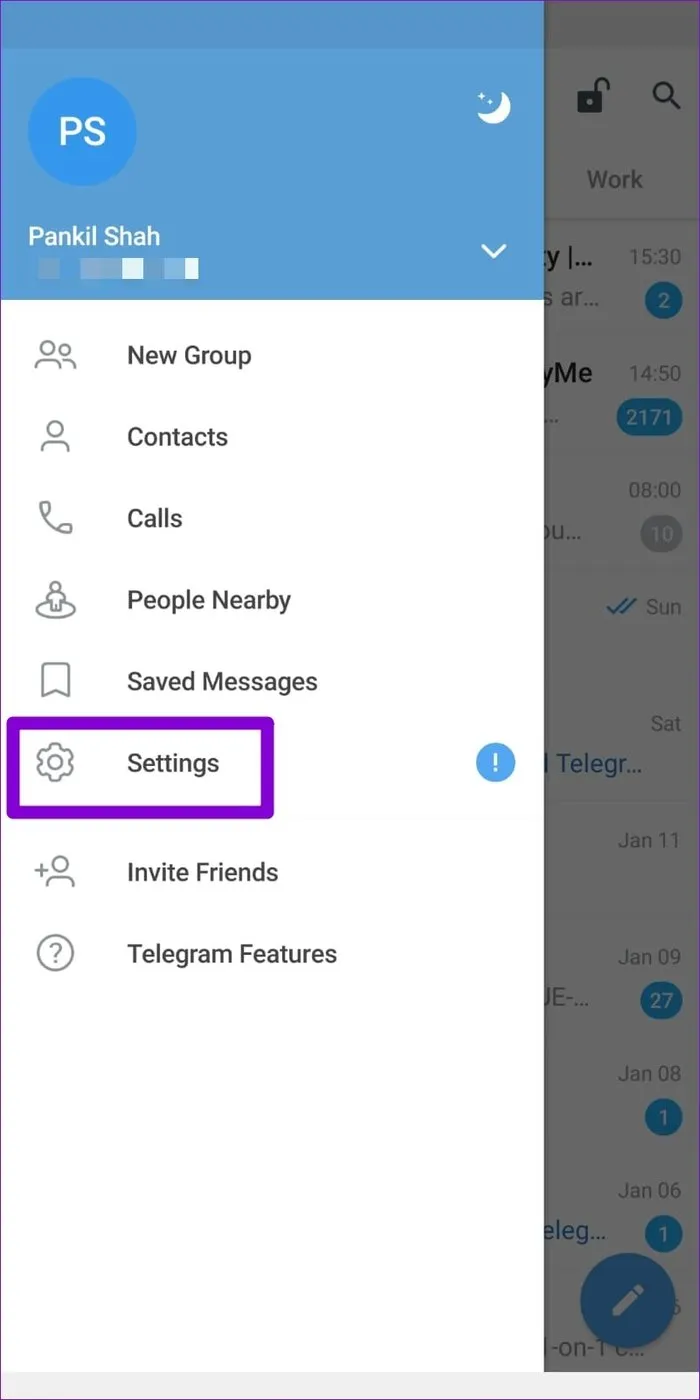
If you're tired of Telegram automatically downloading every media file sent in your chats, you have the power to change that! Customizing your auto-download settings on mobile devices is quick and easy. Here’s how you can do it:
For Android Users:
- Go to the "Settings" by following the steps mentioned above.
- Tap on "Data and Storage."
- In the Auto-Download section, you can see three categories: "When using mobile data," "When connected on Wi-Fi," and "When roaming."
- By toggling the options, you can choose what media types (photos, videos, files, etc.) should auto-download in each scenario. Simply uncheck the boxes for media types you don't want downloading automatically.
For iOS Users:*
- Access "Settings" by tapping the gear icon.
- Select "Data and Storage."
- Similar to Android, you'll see auto-download options. Adjust them according to your preferences, unchecking unwanted media types.
With these steps, you can save storage space, data, and prevent unnecessary clutter in your gallery. Now, your chat app will only pull in media when you want it to! Isn't that handy?
Also Read This: Mastering the Front French Braid Technique
Adjusting Auto-Download Settings on Desktop
When using Telegram on your desktop, it’s pretty common to encounter the hassle of auto-downloaded files. Thankfully, tailoring these settings is straightforward! Here’s how you can adjust your auto-download preferences to ensure that you retain control over what gets downloaded and when.
- Open Telegram Desktop: Launch the Telegram application on your desktop. If you haven’t installed it yet, you can download it from the official Telegram website.
- Access Settings: Look for the three horizontal lines or the gear icon at the top left corner. Click on that to open the menu, and then select Settings.
- Navigate to Advanced Settings: Within the Settings menu, find and click on Advanced. It’s usually near the bottom of the list.
- Auto-Download Settings: Here, you will see several options related to auto-download. You can enable or disable the auto-download feature for media types such as photos, videos, and files.
- Choosing Your Preferences: You may find options to auto-download in different scenarios, like when using mobile data or connected to Wi-Fi. Choose according to your liking!
Once done, just close the settings window. From now on, you’ll have complete control over what gets downloaded on your desktop version of Telegram!
Also Read This: How to Sell More Photos on Shutterstock and Attract Buyers
Setting Rules for Different Media Types
Did you know Telegram lets you customize auto-download rules for different media types? This feature can save you from unwanted data usage and clutter in your media gallery. Let’s dive into how you can set specific rules for photos, videos, and other files.
- In the Auto-Download Settings: While in the auto-download settings menu, you’ll notice options categorized by media types. This includes Photos, Videos, Files, and even Voice Messages.
- Toggle Auto-Download: For each media type, you can decide whether you want to enable or disable auto-download. For example, if you frequently receive large videos, you might want to turn off auto-download for Videos while keeping it on for Photos.
- Choose Your Connections: Under each media type, you can further specify your preferences based on the type of connection. Peculiarly, you can set it to auto-download on Wi-Fi only or allow it on mobile data as well.
By tailoring these rules, you can structure how Telegram interacts with your data and device storage. This not only gives you a sleeker experience but also enables you to enjoy Telegram more efficiently.
Also Read This: Improve Fluency and Confidence in English Speaking with Dailymotion
How to Stop Telegram from Auto-Downloading: Managing Auto-Download Settings
Telegram is a popular messaging app known for its flexibility and security features. However, the auto-download feature can sometimes lead to unwanted downloads of images, videos, and documents, consuming storage space and data. This guide will help you manage your auto-download settings effectively.
To prevent Telegram from automatically downloading media files, follow these steps:
Steps to Disable Auto-Download on Mobile
- Open the Telegram app on your mobile device.
- Go to Settings by tapping on the three horizontal lines in the top-left corner.
- Select Data and Storage.
- In the Auto-Download section, you’ll see different categories:
- When using mobile data: Disable auto-download for photos, videos, and files.
- When connected to Wi-Fi: You can choose to download content automatically or disable it.
- When roaming: It’s advisable to disable to avoid extra charges.
Steps to Disable Auto-Download on Desktop
- Launch the Telegram Desktop app.
- Click on the three horizontal lines to access the menu and select Settings.
- Navigate to the Advanced section and find the Media Settings.
- Uncheck the options for auto-downloading files.
Additional Tips
Here are some additional tips to help you manage Telegram downloads:
- Consider using Cloud Storage for important files instead of saving them directly to your device.
- Regularly check your Telegram storage settings to keep your device uncluttered.
- Use self-destructing messages for sensitive files.
Conclusion and Final Tips
By managing your auto-download settings on Telegram, you can significantly reduce unnecessary storage use and maintain more control over your media downloads. Regularly review your preferences, and consider your data plan when adjusting these settings to ensure a seamless and efficient messaging experience.
```