

Today, streaming videos on your devices has never been easier, thanks to great technologies like Chromecast and platforms like Dailymotion. Chromecast is a handy device that allows you to stream content from your smartphone, tablet, or computer directly to your TV screen. Think of it as a bridge between your personal device and your television!
Dailymotion, on the other hand, is a popular video-sharing platform that offers a wide variety of videos, including music, news, and original content. With millions of users worldwide, it’s a fantastic place to find entertaining clips and informative documentaries. So, when you combine Chromecast with Dailymotion, you have a perfect recipe for an enjoyable viewing experience! In this guide, we're going to walk you through the easy steps to cast
Requirements for Streaming Dailymotion with Chromecast
Before you dive into streaming Dailymotion via Chromecast, you’ll need a few essentials. Don’t worry; you likely have most of these at hand! Here's what you need:
- Chromecast Device: Make sure you have a Chromecast device connected to your TV’s HDMI port and powered on.
- Wi-Fi Connection: Your Chromecast and streaming device (like a smartphone or tablet) must be connected to the same Wi-Fi network. This is crucial for them to communicate smoothly.
- Dailymotion App or Browser: You can stream Dailymotion through its app, which is available on both iOS and Android devices, or you can use a web browser on your computer.
- Updated Software: Ensure that your Chromecast device, Dailymotion app, and device’s operating system are up to date. This will help avoid any compatibility issues.
- Stable Internet Connection: A reliable and fast internet connection will enhance your streaming experience, minimizing buffering and improving video quality.
Having these essentials ready will set you up for a smooth and delightful streaming session of your favorite Dailymotion content on your TV!
Also Read This: How to Turn Off YouTube Mixes and Enjoy Personalized Recommendations
3. Setting Up Your Chromecast Device
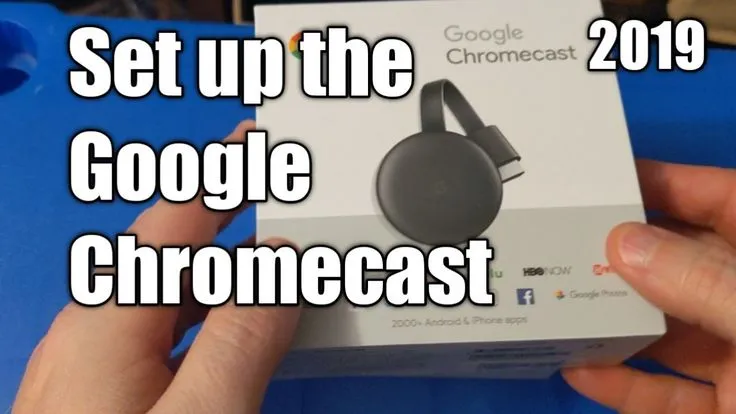
If you're ready to start casting from your device to your TV, the first step is to set up your Chromecast device. It’s pretty straightforward, and before you know it, you’ll be enjoying your favorite Dailymotion videos on the big screen! Here's how you can do it:
- Unbox Your Chromecast: Start by taking your Chromecast out of the box. You’ll find the Chromecast device, a USB power cable, and a power adapter.
- Connect to TV: Plug the Chromecast into an available HDMI port on your TV. You should also connect the USB power cable to the Chromecast and plug the other end into a power source.
- Switch TV Input: Turn on your TV and switch to the HDMI input where your Chromecast is connected. You should see the Chromecast setup screen.
- Download Google Home App: On your smartphone or tablet, download the Google Home app from the Google Play Store or Apple App Store.
- Connect Chromecast to Wi-Fi: Open the Google Home App and follow the prompts to set up your Chromecast. This includes connecting it to your home Wi-Fi network. Make sure your smartphone is on the same network!
- Complete Setup: Once connected, follow any additional instructions. Your Chromecast should now be ready to use!
That’s it! Your Chromecast is now set up and waiting for you to start casting. Whether it’s Dailymotion or another streaming service, you’re all set to enjoy some great content!
Also Read This: How to Check Blood Pressure Using a Mercury Sphygmomanometer
4. Downloading the Dailymotion App
Before you can start casting your favorite videos, you need to have the Dailymotion app on your device. Whether you’re using an Android or iOS device, downloading the app is a breeze. Let’s take a closer look at how to do this based on your device type:
For Android Users:
- Open Google Play Store: Find and tap on the Google Play Store icon on your Android device.
- Search for Dailymotion: In the search bar, type “Dailymotion” and press search.
- Select the App: You should see the Dailymotion app among the search results. Tap on it to open the app page.
- Download the App: Click the green “Install” button. The app will begin downloading and installing on your device.
- Open the App: Once installed, tap “Open” to launch the Dailymotion app.
For iOS Users:
- Open the App Store: Locate the App Store icon on your iPhone or iPad and tap on it.
- Search for Dailymotion: Use the search tab at the bottom and type "Dailymotion."
- Select the App: Look for the Dailymotion app in the results. Tap on it to proceed.
- Download the App: Tap the “Get” button, then confirm the installation with your Apple ID or Face ID.
- Open the App: After installation, you’ll see an “Open” button. Tap it to start using Dailymotion!
After downloading and opening the Dailymotion app, you’re all set to explore a world of videos. With just a few taps, you’ll be streaming your favorite content on your TV through Chromecast. Ready to dive in?
Also Read This: The Benefits of Joining Interest-Based Communities on OK.ru
Connecting Dailymotion to Chromecast
Getting Dailymotion to work with Chromecast is a straightforward process that can transform your streaming experience. If you want to enjoy your favorite videos on a bigger screen, here’s how to do it:
- Ensure Your Devices Are Connected: Make sure both your Chromecast device and the device you’re using to stream (smartphone, tablet, or computer) are connected to the same Wi-Fi network. This is crucial for seamless casting.
- Open the Dailymotion App: If you’re using a smartphone or tablet, open the Dailymotion app. For those using a computer, head over to the Dailymotion website in your preferred web browser.
- Select a Video: Browse through the vast collection of videos available on Dailymotion. When you find one you love, click on it to start watching.
- Cast Your Video: Look for the cast icon, which typically resembles a rectangle with a Wi-Fi symbol in the corner. Tap on this icon. A list of available devices will appear. Select your Chromecast device from the list.
- Enjoy Your Stream! Your video will start playing on the big screen. You can control playback from your device, pausing, rewinding, or fast-forwarding as needed.
And that's it! You’re all set to enjoy Dailymotion videos on the larger display. If you encounter any hiccups, make sure everything is properly connected and try restarting your devices.
Also Read This: Design Memorable Concert Tickets with Canva Concert Ticket Template
Alternative Method Using a Web Browser
If you prefer not to use the Dailymotion app or want to cast from your computer, you're in luck! There’s an alternative method using a web browser, and it’s just as simple.
- Open Your Web Browser: Launch your favorite web browser on your computer. This could be Chrome, Firefox, Edge, or Safari.
- Navigate to Dailymotion: Go to the Dailymotion website. You can log in if you have an account, although this isn’t necessary to watch videos.
- Select a Video: Browse through the content and click on the video you’d like to watch.
- Cast the Tab: For Chrome users, click on the three-dot menu in the upper right corner of the browser. From the drop-down menu, select “Cast.” Your browser will start searching for devices.
- Choose Your Chromecast: When your Chromecast appears in the list, select it. Make sure to cast the tab where Dailymotion is open by clicking “Sources” to select “Cast tab.”
- Stream Away! Sit back and enjoy your video on the big screen! You’ll still be able to control it from your browser.
Using this method not only gives you the flexibility of casting from a computer but also makes it easy to switch between videos quickly. Enjoy the stream!
How to Chromecast Dailymotion: A Step-by-Step Guide for Easy Streaming
If you're a Dailymotion enthusiast and want to enjoy your favorite videos on a bigger screen, using Chromecast is an excellent option. With just a few simple steps, you can cast Dailymotion videos from your mobile device or computer directly to your TV. This guide will walk you through the process of setting it up effortlessly.
Requirements
- Chromecast Device: Ensure your Chromecast is plugged into your TV and powered.
- Wi-Fi Connection: Both your mobile device (or computer) and Chromecast should be on the same Wi-Fi network.
- Dailymotion App: Install the Dailymotion app on your mobile device or ensure you're logged into Dailymotion’s website on your browser.
Step-by-Step Instructions
Follow these steps to start casting Dailymotion to your TV:
| Step | Action |
|---|---|
| 1 | Ensure your Chromecast device is connected to your TV and powered on. |
| 2 | Open the Dailymotion app on your mobile device or visit the Dailymotion website on your computer. |
| 3 | Select the video you want to stream. |
| 4 | Tap on the “Cast” icon located within the video player or app interface. |
| 5 | Choose your Chromecast device from the list that appears. |
| 6 | Enjoy your video on the big screen! |
Troubleshooting Tips
- Make sure both devices are on the same Wi-Fi network.
- Restart your Chromecast and mobile device if casting fails.
- Update the Dailymotion app to the latest version for a seamless experience.
Conclusion and Final Thoughts
Streaming Dailymotion on your TV using Chromecast enhances your viewing experience, making it easy to enjoy a variety of content on a larger screen. By following these simple steps, you can effortlessly cast Dailymotion videos and explore countless entertaining options available on the platform.
```