
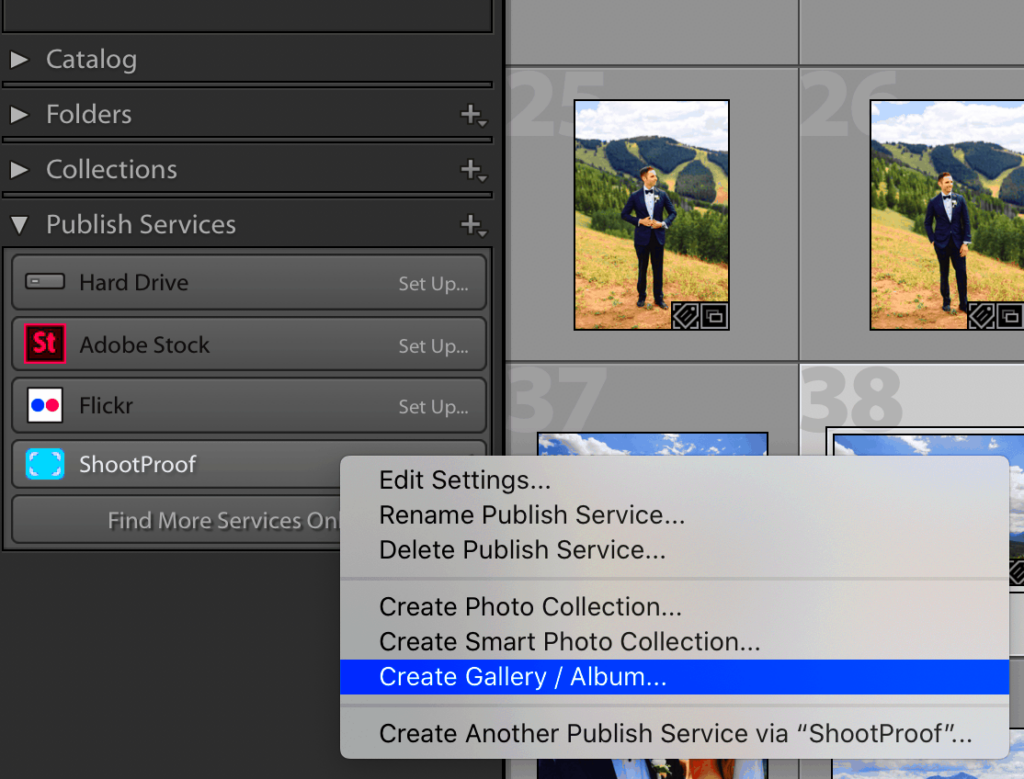
As someone who loves photography I always get a kick out of showcasing my work especially after spending hours fine tuning it in Lightroom. Theres something satisfying about uploading a collection to ShootProof and knowing that my pictures will finally be shared with the clients who appreciate them. In this article I want to walk you through the steps that have made it seamless for me to transfer my galleries from Lightroom to ShootProof. Whether youre just starting out or need a quick refresher I hope to simplify this process for you a bit.
Setting Up Your ShootProof Account
Before you can begin uploading, it’s necessary to establish your ShootProof account. Here’s a step by step guide on how to accomplish that.
- Visit the ShootProof website: Go to shootproof.com and click on “Sign Up.”
- Choose your plan: ShootProof offers different pricing plans. Select the one that suits your needs.
- Fill out your details: Enter your name, email, and create a password.
- Verify your email: Check your inbox for a verification email and click the link.
- Set up your profile: Customize your profile by adding your logo, business name, and contact information.
After setting up your account, take some time to check out the dashboard. Getting to know the layout will help you save time down the road.
Preparing Your Lightroom Gallery for Upload
With your ShootProof account set up its time to get your gallery ready in Lightroom. This part is essential to ensure a smooth upload process. Here are the steps you should follow:
- Organize your images: Create a collection in Lightroom for the photos you want to upload. This helps in keeping everything neat and tidy.
- Edit your photos: Ensure all your images are edited to your liking. Remember, first impressions matter!
- Export your images: Go to File > Export. Choose the following settings:
- File format: JPEG
- Quality: 80-100 (for best results)
- Resize to fit: Long edge, set to 2048 pixels (ideal for online viewing)
- Color space: sRGB (to ensure consistent colors across devices)
- Output sharpening: For screen, set to Standard
- Select a destination: Create a new folder on your computer for these exported images to keep them organized.
If you follow these steps, you can make sure your images are all set for upload and look their when shared with clients. The thrill of watching your gallery come to life is just ahead!
Connecting Lightroom with ShootProof
Linking Lightroom with ShootProof is a crucial move that unveils a realm of opportunities for showcasing your creations. I recall the moment I established this connection; it was akin to opening a door in my photographic path. This integration enables you to seamlessly transfer your collections streamlining the process and preserving the quality of your visuals. Here’s a guide on how to get started.
- Install the ShootProof plugin: Head over to the ShootProof website and download the Lightroom plugin. This small file is what bridges the gap between your editing software and your online gallery.
- Open Lightroom: Launch Lightroom and go to the ‘File’ menu, then select ‘Plug-in Manager.’
- Add the plugin: Click on ‘Add’ in the Plug-in Manager and navigate to the folder where you downloaded the ShootProof plugin. Select it and click ‘OK.’
- Log in to ShootProof: After adding the plugin, you’ll see a new menu item in Lightroom for ShootProof. Click on it and enter your ShootProof credentials to log in.
- Check settings: Ensure your settings are correctly configured to match your desired upload options, such as image size and watermark preferences.
Once you make this connection, a feeling of achievement will wash over you. Your photos are now only a few taps away from being elegantly displayed on ShootProof for your clients to admire and treasure.
Step by Step Guide to Uploading Your Gallery
Now that you’ve linked Lightroom with ShootProof it’s time to upload your gallery. This part can be really thrilling because it gives you a chance to show off all your efforts. I still recall the exhilarating feeling of seeing my photos go live for the very first time. Here’s a comprehensive step by step guide to assist you in the process.
- Select your gallery: In Lightroom, navigate to the collection you prepared earlier. Make sure it contains all the images you want to upload.
- Go to the ShootProof menu: Click on the ShootProof menu item you added earlier.
- Choose ‘Upload Gallery’: Select the option to upload a new gallery. A window will pop up asking for your gallery name and any additional details.
- Fill in the details: Enter your gallery name, description, and other relevant information. You can also set the privacy options and add a cover image to represent your gallery.
- Start the upload: Once everything is filled out, hit the ‘Upload’ button. Sit back and watch as your images start transferring. This part always feels magical to me!
The time it takes to upload images can vary based on your internet speed and the quantity of photos you’re uploading. So hang in there! Once the process is done you’ll get a notification letting you know that your gallery is now active.
Tips for a Smooth Upload Experience
After going through the upload process a few times, I’ve picked up some tricks that can make things easier for you. These suggestions are based on my own experiences and the insights I’ve gained throughout the journey.
- Check your internet connection: A stable and fast connection is crucial. I’ve faced delays due to poor connectivity, and trust me, it’s frustrating!
- Organize images before uploading: Ensuring your images are in the correct order can save time. It’s easier to rearrange them in Lightroom than on ShootProof.
- Keep file sizes manageable: Large files can slow down the upload. Stick to the settings you chose during export to keep the sizes optimized.
- Double-check your settings: Before you hit ‘upload,’ quickly review your gallery settings and image quality options. It can make a big difference in presentation.
- Take breaks: If you’re uploading a large gallery, don’t forget to take breaks! It helps keep your mind fresh and focused.
By following these suggestions you can reduce the likelihood of encountering issues while uploading. Every gallery you submit is more than a set of pictures; it holds a narrative eager to be told and you aim to showcase it perfectly.
Common Issues and How to Fix Them
Like with any tool uploading your photos to ShootProof can present its fair share of hurdles. I’ve experienced those moments too—sitting in front of the screen, dealing with a blend of annoyance and bewilderment when things don’t go smoothly. Throughout my journey I’ve come across a few challenges that photographers often encounter. Here’s an overview of these issues along with some practical tips to help you get back on course.
- Slow Upload Speeds: If your images are taking too long to upload, it might be due to large file sizes or a slow internet connection. To fix this, check your internet speed using a speed test website. If it’s slow, consider uploading during off-peak hours or compressing your images before exporting them from Lightroom.
- Images Not Appearing: Sometimes, images may not show up in your gallery after uploading. This can happen due to a hiccup during the transfer. If this happens, try re-uploading just the missing images. Double-check that they’re in the correct collection in Lightroom.
- Plugin Errors: Occasionally, the ShootProof plugin might not work as expected. If you encounter error messages, try restarting Lightroom and your computer. If the problem persists, reinstall the plugin following the installation steps.
- Gallery Not Visible to Clients: If your gallery isn’t showing up for clients, check the privacy settings. Ensure you’ve set it to ‘Public’ or shared the correct link with your clients. It can be disheartening to realize that your beautiful work is hidden!
By being mindful of these challenges and having the skills to resolve them you can approach the uploading process smoothly and with assurance.
FAQ
As a photographer who uses ShootProof I often receive a few inquiries. I recall my initial days filled with uncertainties and having readily available answers is always valuable. Here are some commonly asked questions that could help clarify any misunderstandings.
- How long does it take to upload a gallery?
- The time can vary depending on your internet speed and the number of images. A smaller gallery may take just a few minutes, while larger ones can take longer.
- Can I edit my gallery after uploading?
- Absolutely! ShootProof allows you to make changes even after your gallery is live. You can add or remove images, update descriptions, and adjust settings at any time.
- Is there a limit to the number of images I can upload?
- There’s no strict limit, but be aware that larger galleries may require more time for uploading and managing. It’s best to organize them into collections for easier handling.
- Can I protect my images from downloads?
- Yes, ShootProof offers settings that allow you to prevent image downloads, ensuring your work stays protected while still being displayed beautifully.
- What if I have issues with the plugin?
- If you encounter problems with the ShootProof plugin, try reinstalling it or reaching out to ShootProof support for assistance. They are usually quite helpful!
Finding the answers to these queries can bring you some calmness as you explore the process of uploading to galleries. Keep in mind that you dont have to go through this experience by yourself!
Conclusion
As we conclude this guide I trust that you now feel better prepared to confidently upload your galleries from Lightroom to ShootProof. Every step in the process, from account setup to addressing common issues is crucial for presenting your stunning creations to clients. I have shared my insights and valuable lessons learned throughout this journey and I encourage you to embrace this experience with an attitude.
Capturing moments, feelings and tales is what photography is all about. Your photo collections serve as a way for your clients to immerse themselves in these stories. So pause for a moment, go through the instructions in this guide and allow your imagination to flow. Regardless of whether you’re an experienced photographer or just beginning your journey there’s something incredibly special about unveiling your artistry to the world. Enjoy the process of sharing your work!