
When it comes to managing a YouTube channel, comment moderation is an essential aspect that often gets overlooked. Why, you might ask? Well, comments can have a significant impact on your channel’s community, viewer engagement, and even your brand reputation. Let’s delve into why moderating comments is so crucial.
Firstly, comments can be a double-edged sword. On one side, they provide valuable insights into what your audience thinks about your content. You might discover constructive feedback, new topic ideas, or even build connections with your viewers. On the flip side, though, negative comments, spam, or inappropriate content can create a toxic environment, driving away potential subscribers and viewers.
Moreover, comment moderation helps maintain a professional image. When you allow harmful comments to linger, it reflects poorly on you and your channel. For instance:
- Builds Trust: By moderating comments and removing harmful ones, you show your audience that you care about their experience.
- Encourages Engagement: A positive comment section invites more viewers to engage, increasing overall interaction on your videos.
- Protects Your Brand: Keeping comments clean prevents potential brand damage from negative or harmful discussions.
Lastly, effective comment moderation can help you stay compliant with community guidelines and platform policies, which is vital for keeping your channel in good standing. In essence, taking the time to manage comments can bring your channel much closer to the positive community you aim to cultivate.
Accessing Your YouTube Studio
Accessing your YouTube Studio is the first step in managing your comment sections effectively. If you’re unfamiliar with where to find it or how to navigate, no worries; I’ve got you covered! Here’s a step-by-step guide that will help you get to the right spot.
- Log into Your YouTube Account: Start by logging into your YouTube account. You’ll need to be using the account associated with the videos you want to manage.
- Click on Your Profile Icon: In the top right corner of the screen, click on your profile icon. This will open a dropdown menu.
- Select YouTube Studio: From the dropdown, select “YouTube Studio.” This will take you to the dashboard where you can manage your channel’s settings.
Once you’re in YouTube Studio, you’ll see a sidebar on the left. Here’s where you can access various features:
| Feature | Description |
|---|---|
| Dashboard | Overview of your channel’s performance and recent activity. |
| Content | View and manage all your uploaded videos. |
| Comments | Moderate comments on your videos and set preferences for future comments. |
From the YouTube Studio, you’ll have all the tools you need to manage your comments effectively—whether you want to respond, moderate, or even remove them entirely. With just a few clicks, you can ensure your comment section aligns with the positive community you’re striving to foster!
Navigating to the Video Settings
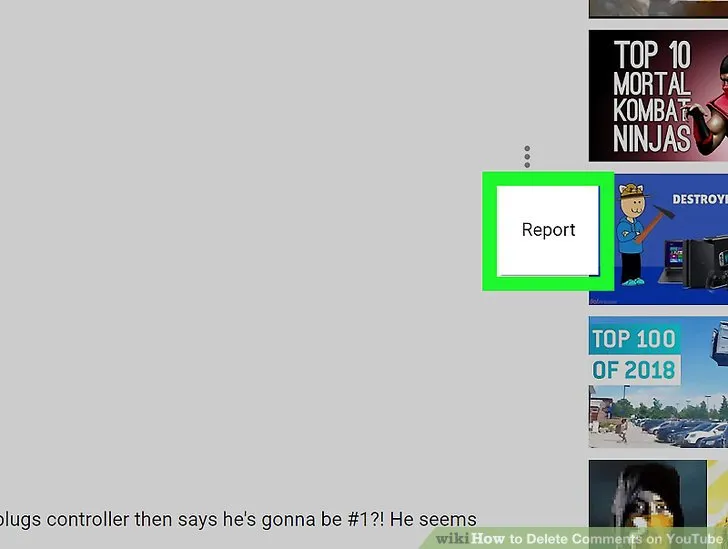
Once you’re ready to manage the comments on your YouTube videos, the first step is to navigate to the specific video settings. Don’t worry, it’s a straightforward process! Just follow these simple directions:
- Log into Your YouTube Account: Start by signing in to your YouTube account. You need to be logged in as the account owner or a channel manager to change the settings.
- Go to YouTube Studio: After logging in, click on your profile icon located at the top right corner. From the dropdown menu, select YouTube Studio. This is where all the magic happens when it comes to video management!
- Access Your Videos: In YouTube Studio, look for the left-hand menu and click on Content. Here, you’ll see all the videos you’ve uploaded.
- Select the Video: Find the video you want to modify. Hover over it, and you’ll see a pencil icon (edit icon). Click on that icon to enter the video details page.
Now that you’re in the video settings, you’re just a few clicks away from disabling comments altogether! Keep in mind, you can remove comments for individual videos or make changes site-wide. Your account settings will influence how visible the comments are, so be aware of that as you proceed.
Disabling Comments for Individual Videos
If you’ve decided to turn off comments for a specific video, it’s a quick and easy process! Simply follow the steps mentioned before, and once you’re in the video details, here’s what to do:
- Scroll to the ‘More options’ section: After you’ve entered the video details page, scroll down until you find the section labeled More options or scroll to the right tabs.
- Find the Comments settings: Within this section, look for the comments settings. You’ll see an option that says Allow all comments. You want to change that setting.
- Select ‘Disable comments’: From the dropdown menu, select the option that says Disable comments. This will immediately turn off the comments for that particular video.
Once you’ve finished, be sure to click on Save at the top right of the page to ensure your changes take effect. And voilà! Comments are now disabled on your individual video.
Remember, you can always go back and enable comments later if you change your mind. This flexibility allows you to curate the conversation according to your channel’s needs and audience engagement strategy!
7. Checking the Impact of Comment Removal
Once you’ve successfully removed comments from your YouTube videos, it’s crucial to assess how this change affects your channel’s performance. Monitoring the impact can help you understand whether the removal of comments improves or hampers viewer experience and engagement.
Here are some steps to effectively check the impact:
- Review Analytics: Dive into YouTube Analytics to evaluate changes in viewer behavior. Key metrics to consider include:
- Watch Time: Is your audience still engaging with your videos as much as before?
- Viewer Retention: Are viewers staying until the end of your videos?
- Click-Through Rate (CTR): Are more people clicking on your videos after comments have been disabled?
- Monitor Viewer Feedback: Keep an eye on other feedback channels, such as social media mentions or private messages. Your community’s sentiment is vital.
- Engagement Trends: Look for organic engagements, like shares or likes. Has removing comments decreased or increased these interactions?
By analyzing these aspects, you’ll gain a clearer picture of how your decision impacts your content’s success and sometimes even helps you to adjust your strategy moving forward.
8. Addressing Viewer Engagement Concerns
Removing comments from your videos can raise eyebrows among your viewers, particularly in an age where engagement is key to community building. It’s essential to preemptively address any concerns they might have about this significant change.
Here are a few strategies to ease viewer apprehensions and maintain engagement:
- Transparency: Consider posting a video or community update explaining why you made this decision. Clear communication can foster understanding and acceptance from your audience.
- Alternative Engagement Options: Direct viewers to alternative ways to engage with your content, like:
- Social media platforms
- Email newsletters
- Live Q&A sessions
- Polls or surveys
- Creating a dedicated forum or Discord channel
- Provide Value: Focus on producing high-quality content that resonates with your audience. The more value viewers find in your videos, the less they may feel deterred by the lack of comments.
By addressing these concerns proactively, you can keep your audience engaged and ensure they still feel connected to your content and community.
“`html
How to Remove All Comments from Your YouTube Videos: A Simple Method
Managing comments on your YouTube videos can be a time-consuming task, especially if you’re dealing with criticism, spam, or inappropriate content. Thankfully, YouTube provides tools to help you manage, disable, or remove comments efficiently. In this article, we will explore a straightforward method to remove all comments from your YouTube videos in just a few simple steps.
Steps to Remove Comments from Your YouTube Videos
-
Sign In to Your YouTube Account:
Start by logging into your YouTube account using your credentials.
-
Navigate to YouTube Studio:
Click on your profile icon in the upper right corner and select YouTube Studio.
-
Select Videos:
Within YouTube Studio, go to the Content section on the left sidebar to see your uploaded videos.
-
Choose Video:
Select the video from which you want to remove comments. Click on the thumbnail or the title.
-
Open the Comments Tab:
In the video details page, navigate to the Comments tab.
-
Disable Comments:
To remove comments from that specific video, toggle the Allow comments option to Off.
Removing Comments from Multiple Videos
If you have multiple videos and want to disable comments for all of them, you can do so in bulk:
- In the Content section, check the box next to the videos you want to edit.
- Click on Edit and select Comments.
- Choose Disable comments and save your changes.
Conclusion and Final Tips
Removing comments from your YouTube videos can help create a more controlled environment for your audience. Always remember to regularly monitor your comments section, and consider using comment moderation features that YouTube offers for future management. This way, you can maintain a positive interaction space while retaining control over your content.
“`