
One of the first steps you should take when you encounter issues with the YouTube app on your phone is to ensure that you have the latest version installed. Just like any other app, YouTube frequently rolls out updates that enhance performance, fix bugs, and introduce new features. So, an outdated app can often lead to functionality problems.
Here’s how you can update the YouTube app on both Android and iOS devices:
- For Android Users:
- Open the Google Play Store.
- Tap on the Menu icon (three horizontal lines) in the upper left corner.
- Go to My apps & games.
- Look for YouTube in the list of updates available.
- If an update is available, tap Update.
- For iOS Users:
- Open the App Store.
- Tap on your profile icon in the top right corner of the screen.
- Scroll down to see pending updates.
- Find YouTube and tap Update if it’s available.
After updating, it’s always a good idea to restart the app to ensure the new changes take effect. If the app continues to malfunction despite being updated, there may be other underlying issues at play, prompting further troubleshooting.
Restart Your Phone
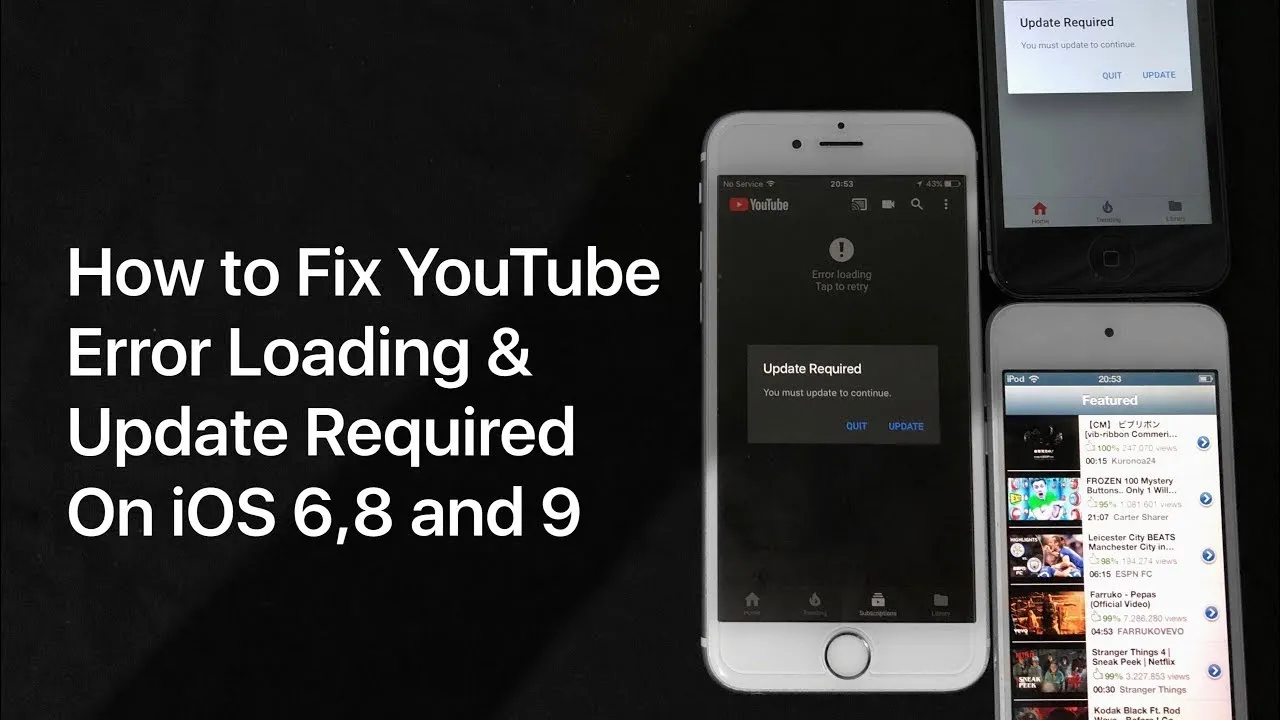
Sometimes, the most straightforward solution to a persistent problem is simply restarting your device. It might seem old-fashioned, but rebooting your phone can often resolve issues by refreshing the system and clearing temporary glitches. This process can help with apps that are misbehaving, including YouTube.
Here’s how to restart your phone depending on the type of device you have:
- For Android:
- Press and hold the power button until you see the power menu.
- Select Restart or Reboot.
- For iPhone:
- Press and hold the side button and either volume button until the slider appears.
- Drag the slider to turn your iPhone off.
- After a minute, press and hold the side button again until you see the Apple logo.
Once your device has restarted, open the YouTube app and check if it functions properly. If the issue persists, there may be other factors at play that require additional troubleshooting steps.
Clear Cache and Data of the YouTube App
If you’re experiencing issues with the YouTube app on your phone, one of the first troubleshooting steps you should take is to clear the cache and data. This process can help fix glitches that may be causing the app to misbehave. Here’s how you can do it:
- Open your phone’s Settings app.
- Scroll down and select Apps or Application Manager, depending on your device.
- Find and tap on YouTube from the list of installed apps.
- Once on the YouTube app page, you’ll see options like Storage.
- Tap on Storage, and you’ll be presented with two buttons: Clear Cache and Clear Data.
- First, click Clear Cache. This will remove temporary files and might resolve minor issues.
- If problems persist, you might need to select Clear Data. Note that this will reset the app, erasing any offline content and requiring you to log in again.
After clearing the cache and data, restart the YouTube app and see if it’s working properly. This method often resolves buffering issues and crash problems, so it’s definitely worth a try!
Check for System Updates
Sometimes, the issue with YouTube not working properly on your phone can be due to outdated software. Ensuring your operating system is up to date can make a significant difference. Here’s how to check for system updates on both Android and iOS devices:
For Android:
- Open the Settings app.
- Scroll down and select About Phone or About Device.
- Look for System updates or Software updates.
- Tap on it to check for any available updates.
- If an update is available, follow the prompts to download and install it.
For iPhone:
- Open the Settings app.
- Scroll down and tap on General.
- Select Software Update.
- If an update is available, you’ll see details and an option to Download and Install.
Updating your system can fix bugs and improve performance, making your YouTube experience smoother. After updating, don’t forget to restart your device and then reopen the YouTube app to see if the issues have been resolved!
7. Disable VPN and Proxy Settings
If you’re experiencing issues with YouTube on your phone, one common culprit could be your VPN or proxy settings. While these tools are often used for privacy and security, they can sometimes interfere with app functionality, including streaming services like YouTube. Here’s how to troubleshoot this issue:
First, if you have a VPN enabled, turn it off. This can typically be done through your phone’s settings:
- For iPhone: Go to Settings > VPN and toggle it off.
- For Android: Go to Settings > Network & Internet > VPN and switch it off.
After disabling your VPN, try opening the YouTube app again. If it works, then the VPN was likely the issue. You may want to consider switching to a different server or contacting your VPN service’s support for help if you want to continue using it while enjoying uninterrupted YouTube access.
Next, if you’re using a proxy, it might be beneficial to disable that as well. Proxies can route Internet traffic through different servers, which can lead to complications with apps:
- Go to Settings > Wi-Fi (or Network)
- Find your current network and tap on it to access further settings.
- Look for Proxy settings and set it to None.
Once you’ve made these changes, restart the YouTube app and check if it’s functioning properly. Disabling VPN and proxy settings can often resolve connection issues and improve your app’s performance!
8. Reinstall the YouTube App
If disabling VPN and proxy settings doesn’t resolve your YouTube app issues, it may be time to consider reinstalling the app. Sometimes, apps can become corrupted or outdated, leading to persistent problems. Here’s how you can go about it:
First, you’ll want to uninstall the YouTube app:
- On an iPhone: Press and hold the YouTube app icon until it jiggles, then tap the − icon, and confirm to delete.
- On Android: Go to Settings > Apps > YouTube, then select Uninstall.
Once the app is uninstalled, it’s important to restart your phone. This helps clear out temporary files and ensures a clean slate for the new installation.
After your phone has rebooted, head over to the app store:
- For iPhone, open the App Store and search for “YouTube.”
- For Android, visit the Google Play Store and look for “YouTube.”
Download and install the app again. Once it’s installed, launch the app and sign back into your account. This fresh installation can often fix bugs and glitches, giving you a smoother experience. If you find that after reinstalling, the issues still persist, you might want to check your device’s compatibility with the latest version of the app or explore further troubleshooting options.
“`html
Contacting YouTube Support for Persistent Problems
If you’ve tried all the troubleshooting steps and YouTube is still not functioning on your phone, it may be time to reach out to YouTube Support. Here are several effective methods to contact them:
- YouTube Help Center: Start by visiting the YouTube Help Center. This resource contains comprehensive guides and FAQs that may address your specific issue.
- Community Support: Engage with other users in the YouTube Community. Often, other users have faced similar problems and can provide solutions or workarounds.
- Report a Problem: Inside the YouTube app, you can report issues directly. Go to your profile, select ‘Settings’, then ‘Help & feedback’, and choose ‘Send feedback’. This allows you to describe your issue, assisting YouTube in understanding and resolving the problem.
- Social Media: Contact YouTube via their official social media pages, such as Twitter (@TeamYouTube). They actively monitor their accounts and can often address issues quickly through these platforms.
It’s essential to provide detailed information when reaching out, including:
| Information to Provide | Description |
|---|---|
| Device Model | The brand and model of your phone. |
| App Version | The current version of the YouTube app you are using. |
| OS Version | The operating system of your device (e.g., Android or iOS version). |
| Issue Description | A clear and concise description of the problem you’re facing. |
Remember, while contacting support might feel like a last resort, it can yield solutions specifically tailored to the problems you are experiencing.
“`