
In today’s fast-paced world, having access to your favorite YouTube videos offline can be a game-changer. Whether you’re on a long flight, commuting, or simply want to enjoy your favorite content without buffering issues, knowing how to rip videos from YouTube can come in handy. However, it’s essential to navigate this process wisely and legally. In this post, we’ll explore how to safely and effectively save videos for offline use while keeping
Understanding YouTube’s Terms of Service
Before diving into the methods for ripping videos, it’s crucial to understand YouTube‘s Terms of Service (ToS). These rules are in place to protect content creators and the platform itself. Here are some key points to consider:
- Content Ownership: Most videos on YouTube are owned by individual creators. Downloading or redistributing their content without permission violates their rights.
- Personal Use: YouTube allows users to watch videos for personal use, but downloading them without consent is typically against the ToS.
- Third-Party Software: Using third-party tools to rip videos can lead to account suspension if they violate YouTube’s policies.
- Creative Commons: Some videos are released under Creative Commons licenses, which may allow for downloading and reuse. Be sure to check the licensing before proceeding.
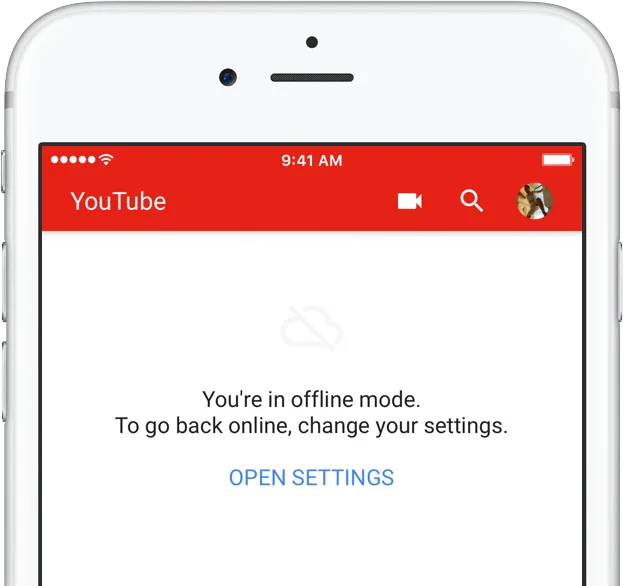
To keep things above board, always respect the content creator’s rights and the platform’s rules. If you want to enjoy videos offline, consider using YouTube‘s own features, like YouTube Premium, which allows for legitimate offline viewing without breaking any rules.
Ultimately, understanding these terms helps create a fair environment for content creators and users alike. So, think twice before you hit that download button!
3. Tools and Software for Downloading YouTube Videos
When it comes to downloading YouTube videos, there are a variety of tools and software options available, each with their unique features. Whether you prefer desktop applications, browser extensions, or online services, there’s something for everyone. Let’s dive into some popular choices:
- 4K Video Downloader: This user-friendly software allows you to download videos, playlists, channels, and subtitles from YouTube in high quality. Just copy the video link, and the software does the rest.
- YTD Video Downloader: A classic in the video downloading scene, YTD offers a straightforward interface. It supports a wide range of video formats and allows batch downloading, saving you time.
- ClipGrab: This free downloader is not only easy to use, but it also converts videos to various formats. It’s perfect if you want to save videos for different devices.
- SaveFrom.net: An online service that’s perfect for quick downloads. Just paste the video URL on their site, and you can choose your desired video quality.
- JDownloader: A powerful, open-source software that’s ideal for tech-savvy users. It can manage multiple downloads simultaneously and supports various sites beyond YouTube.
Choosing the right tool depends on your needs, whether it’s speed, format options, or user-friendliness. Always ensure you’re adhering to copyright laws when downloading content.
4. Step-by-Step Guide to Downloading Videos
Ready to start downloading your favorite YouTube videos? Follow this simple step-by-step guide tailored for various tools:
- Select Your Tool: Choose one of the tools from the previous section. For this guide, let’s use 4K Video Downloader as an example.
- Download and Install: Go to the official website of 4K Video Downloader, download the software, and follow the installation instructions.
- Copy Video URL: Open YouTube, find the video you want to download, and copy the URL from the address bar.
- Open 4K Video Downloader: Launch the software and click on the “Paste Link” button. The tool will analyze the link.
- Select Quality and Format: Choose your preferred video quality (like 1080p or 4K) and format (MP4 is widely compatible). You can also select subtitles if needed.
- Download the Video: Click the “Download” button. The video will start downloading, and you can track its progress in the app.
- Access Your Downloaded Video: Once finished, navigate to the output folder specified in the settings to find your video ready for offline use!
And there you have it! With just a few clicks, you can have your favorite videos saved for later viewing, all set to enjoy without an internet connection.
Choosing the Right Video Format and Quality
When you’re about to rip videos from YouTube, the format and quality you choose can significantly impact your viewing experience. Depending on your device and how you plan to watch the videos, different formats have their pros and cons.
Video Formats: Here are some common formats you might consider:
- MP4: This is the most popular format and is compatible with almost any device, from smartphones to laptops.
- AVI: While it provides high quality, AVI files can be quite large and may not be supported on all devices.
- MKV: A great option for high-definition videos, MKV files can hold multiple audio and subtitle tracks.
- WebM: This is primarily used for web playback, offering good quality and smaller file sizes.
Now, let’s talk about video quality. You might see options ranging from 144p to 1080p and even 4K! Here’s a quick guideline:
| Quality | Resolution | Recommended Use |
|---|---|---|
| 144p | 256 x 144 | Low-bandwidth situations |
| 480p | 854 x 480 | Standard quality for mobile |
| 720p | 1280 x 720 | Good for most devices |
| 1080p | 1920 x 1080 | High-definition viewing |
| 4K | 3840 x 2160 | Ultra HD displays |
So, choose wisely! Consider your device capabilities and internet speed before making a selection. It’s all about balancing quality with practicality.
Saving and Organizing Downloaded Videos
Once you’ve ripped those videos from YouTube, the next step is to save and organize them effectively. A well-structured library can save you time and hassle later on. Here are some tips to keep your downloaded videos organized:
Create a Folder Structure: Start by creating a dedicated folder for your videos. Within that folder, you can create subfolders based on categories like:
- Genres: Movies, Tutorials, Music, etc.
- Channels: Organize by YouTube channels you frequently download from.
- Date: A chronological folder for downloads can help you find recently added videos easily.
File Naming Conventions: Use a consistent naming format for your video files. This could be as simple as:
- Title of the video
- Creator’s name
- Date downloaded
For example: Cooking_101_Jamie_Oliver_2023.mp4.
Backup Your Videos: Don’t forget to back up your collection! Use cloud storage services like Google Drive or Dropbox, or external hard drives to keep your videos safe. This way, you won’t lose your favorites if something goes wrong with your device.
In short, a little organization goes a long way in making your offline viewing experience enjoyable and stress-free!
7. Legal Considerations and Best Practices
When it comes to ripping videos from YouTube, there are important legal considerations to keep in mind. YouTube’s terms of service explicitly state that users should not download content unless a download button or link is provided by the platform. Ignoring these guidelines can lead to potential legal ramifications.
Here are some key points to consider:
- Copyright Issues: Most videos on YouTube are protected by copyright. Downloading and using these videos without permission can lead to copyright infringement claims.
- Personal Use vs. Distribution: If you’re ripping videos for personal use, you may be on safer ground, but sharing them or using them for commercial purposes can get you into trouble.
- Creative Commons: Some videos are licensed under Creative Commons, allowing for legal downloads and modifications. Always check the video’s description for licensing information.
- Respect Content Creators: Consider supporting your favorite creators through subscriptions or donations instead of ripping their content.
To stay on the right side of the law, it’s best to:
| Best Practices | Description |
|---|---|
| Use Official Platforms | Utilize YouTube’s own download feature if available. |
| Seek Permissions | If you wish to use a video, reach out to the creator for permission. |
| Educate Yourself | Stay informed about copyright laws and YouTube’s policies. |
8. Conclusion
Ripping videos from YouTube can be a convenient way to enjoy content offline, but it’s essential to navigate the legal landscape carefully. While technology makes it easy to download videos, respecting copyright laws and the work of content creators is vital.
In conclusion:
- Understand the Risks: Be aware of the potential legal risks involved in downloading content without permission.
- Utilize Legitimate Options: Whenever possible, use YouTube’s own features to save videos legally.
- Support Creators: Consider ways to support your favorite creators, such as subscribing to their channels or engaging with their content.
By following these guidelines, you can enjoy your favorite videos offline while respecting the rights of those who create them. Happy watching!