
When it comes to enjoying videos on YouTube, quality is everything. Whether you’re watching your favorite music videos, tutorials, or gaming streams, the resolution can dramatically affect your viewing experience. High-quality videos are sharper, more vibrant, and immersive, making it essential to understand how to enhance your video quality settings. In this post, we’ll explore practical tips to boost the quality of your YouTube streaming experience, ensuring you never have to compromise on clarity or detail.
Understanding YouTube’s Video Quality Settings

YouTube offers a variety of video quality settings that allow you to tailor your viewing experience based on your preferences and internet connection. Here’s a breakdown of what you need to know:
- Automatic Settings: YouTube typically adjusts video quality automatically based on your internet speed. This means that if you have a slower connection, it may default to lower quality to prevent buffering.
- Resolution Options: YouTube supports resolutions ranging from 144p (low quality) to 4K (ultra-high definition). You can manually select your desired resolution by clicking on the gear icon in the video player and navigating to the “Quality” option.
- Data Saver Mode: If you’re streaming on limited data, consider using the data saver mode. This feature automatically selects lower quality to conserve bandwidth, which can be helpful if you’re on mobile data.
- Playback Speed: Adjusting the playback speed can also impact perceived video quality. A slower speed can make fast-paced videos clearer, especially if the content involves intricate details.
To adjust these settings:
| Step | Action |
|---|---|
| 1 | Click on the video to bring up the controls. |
| 2 | Click on the gear icon (Settings). |
| 3 | Select “Quality” and choose your preferred setting. |
Understanding these settings can significantly enhance your streaming experience on YouTube, making it more enjoyable and tailored to your needs.
Factors Affecting Video Quality on YouTube
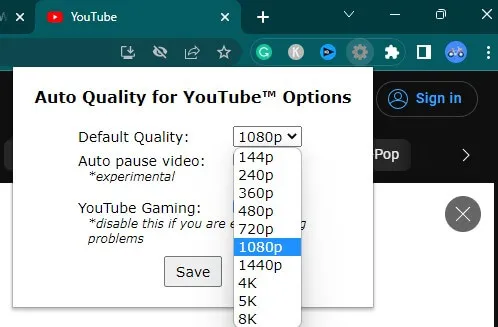
When it comes to streaming videos on YouTube, several factors come into play that can either enhance or diminish your viewing experience. Let’s break down these factors to understand how they influence video quality:
- Internet Speed: A stable and fast internet connection is crucial. If your connection is slow, YouTube will automatically lower the video quality to ensure smooth playback. Aim for at least 5 Mbps for 1080p streaming.
- Device Capability: The device you are using matters. Older devices may struggle with high-quality videos, while newer models can easily handle 4K content.
- Video Encoding: Videos are compressed and encoded before uploading. The original quality of the video file impacts how well it streams on YouTube. Higher bitrate and resolution enhance streaming quality.
- Browser and App Performance: Sometimes, the browser or app you’re using may not support the highest quality streams. Keeping your software updated can help avoid this issue.
- Network Congestion: If multiple devices are connected to the same network, it can lead to bandwidth issues. This can slow down your connection and affect streaming quality.
Understanding these factors can help you troubleshoot and improve your YouTube streaming experience significantly.
Steps to Adjust Video Quality on YouTube

Want to take control of your YouTube video quality? Adjusting it is simple and can enhance your viewing experience. Here’s how to do it:
- Open the Video: Start by playing the video you want to watch on YouTube.
- Click on the Settings Gear: Look for the gear icon (⚙️) at the bottom right corner of the video player and click on it.
- Select Quality: In the menu, click on “Quality.” This will show you a list of available resolutions.
- Choose Your Desired Quality: Depending on your internet speed and device capability, select the desired quality (e.g., 480p, 720p, 1080p, or 4K).
- Enjoy Your Video: Once you’ve made your selection, simply close the settings menu and continue watching the video in your chosen quality!
Pro Tip: If you’re on a mobile device, you can also access quality settings through the three-dot menu on the top right of the video. Adjusting your video quality can significantly enhance your viewing experience, especially for high-action or visually stunning content!
5. Improving Your Internet Connection for Better Streaming
One of the most common culprits behind poor video quality on YouTube is an unstable or slow internet connection. Here’s how you can enhance your streaming experience by improving your connection:
- Check Your Internet Speed: Use tools like Speedtest.net to measure your current internet speed. For smooth streaming, aim for at least 5 Mbps for standard definition (SD) and 25 Mbps for high definition (HD).
- Optimize Your Wi-Fi: If you’re using Wi-Fi, ensure your router is placed centrally in your home. Obstacles like walls and furniture can weaken your signal. Consider upgrading to a dual-band router for better performance.
- Limit Bandwidth-Heavy Activities: Streaming on YouTube requires bandwidth. To avoid interruptions, pause downloads or other streaming services when watching videos. You can also set your router to prioritize devices being used for streaming.
- Upgrade Your Service: If you frequently encounter buffering, it might be time to talk to your internet service provider. They may offer higher speed packages that better suit your streaming needs.
- Use Ethernet Instead of Wi-Fi: For the best connection, consider connecting your device directly to the router using an Ethernet cable. Wired connections are generally faster and more stable than wireless ones.
By following these tips, you should notice a significant improvement in your streaming quality on YouTube!
6. Using YouTube Premium for Enhanced Features
YouTube Premium is a subscription service that can elevate your streaming experience in numerous ways. Let’s explore what you can enjoy with this premium membership:
- Ad-Free Viewing: Say goodbye to those pesky ads that interrupt your favorite videos. With YouTube Premium, you can watch content uninterrupted, allowing for a more enjoyable viewing experience.
- Background Play: YouTube Premium allows videos to continue playing in the background, even when you switch to other apps. This feature is perfect for listening to music or podcasts while using your device.
- Offline Downloads: With Premium, you can download videos to watch later, even without an internet connection. Ideal for long trips or areas with limited connectivity!
- YouTube Music: Your subscription includes access to YouTube Music, offering millions of songs and playlists without ads. It’s a fantastic way to discover new music or enjoy your favorite hits.
- Exclusive Content: YouTube Premium members get access to original series and movies that aren’t available to non-subscribers, enhancing your entertainment variety.
By investing in YouTube Premium, you not only enhance your streaming experience but also gain access to a treasure trove of features that can make your time on the platform even more enjoyable!
Curl error: Connection timed out after 50000 milliseconds
How to Increase Video Quality on YouTube to Boost Your Streaming Experience
YouTube is a fantastic platform for streaming videos, but sometimes the quality of the videos can be less than optimal. Here are some effective strategies to enhance your YouTube video quality:
- Adjust Video Quality Settings:
- Click on the gear icon (⚙️) in the bottom right corner of the video player.
- Select ‘Quality’ and choose the highest resolution available (e.g., 1080p, 1440p, or 4K).
- Check Your Internet Connection:
- A stable and fast internet connection is essential for streaming high-quality videos.
- Consider using a wired connection or improving your Wi-Fi signal.
- Clear Your Browser Cache:
- Regularly clear your browser cache to enhance performance.
- This can help in loading videos faster and in better quality.
- Use YouTube Premium:
- YouTube Premium offers ad-free streaming and can often improve video quality.
- Device and Browser Updates:
- Ensure that your device and web browser are up to date for optimal performance.
By following these steps, you can significantly improve your YouTube streaming experience, allowing for clearer visuals and a more enjoyable viewing experience. Remember that the quality of the original video uploaded by the creator also plays a crucial role. Always look for content that is produced in high resolution for the best results.
Conclusion and Final Tips for Optimal Viewing: To fully enjoy the high-quality content on YouTube, always ensure that your device and internet connection are capable of supporting higher resolutions, and don’t hesitate to test different settings and configurations. This will ensure a seamless and visually pleasing streaming experience.