
Streaming content has become an integral part of our entertainment experience, and platforms like Rumble are leading the way. If you’re curious about how to bring Rumble‘s unique blend of content to your living room, you’re in the right place. In this guide, we’ll break down everything you need to know to start streaming
Understanding Rumble and Its Content
Rumble is quickly becoming a go-to platform for those who crave diverse and independent content. Unlike mainstream channels, Rumble caters to a wide array of interests, featuring videos from creators across various genres, including news, entertainment, sports, and more. Here’s what makes
- Diverse Content: Rumble hosts videos on a variety of topics, from political commentary to DIY projects, allowing viewers to explore many interests in one place.
- Independent Creators: The platform emphasizes empowering individual content creators, giving them a space to share their work without the restrictions often found on larger platforms.
- Community Engagement: Rumble encourages viewer interaction through comments and shares, fostering a community vibe where users can connect over shared interests.
One of the most appealing aspects of Rumble is its accessibility. Users can find content that resonates with their values and preferences. Whether you’re interested in educational videos, entertaining clips, or thought-provoking documentaries, Rumble has a little something for everyone.
Additionally, Rumble provides content that often challenges mainstream narratives, making it a refreshing alternative for those seeking different viewpoints. This creates a rich tapestry of ideas and discussions, perfect for both casual viewing and deeper engagement.
3. Compatible Devices for Streaming Rumble
When it comes to streaming Rumble on your TV, having the right device can make all the difference. Fortunately, Rumble is compatible with a variety of devices, making it accessible for most viewers. Here’s a quick list of the devices that can help you enjoy
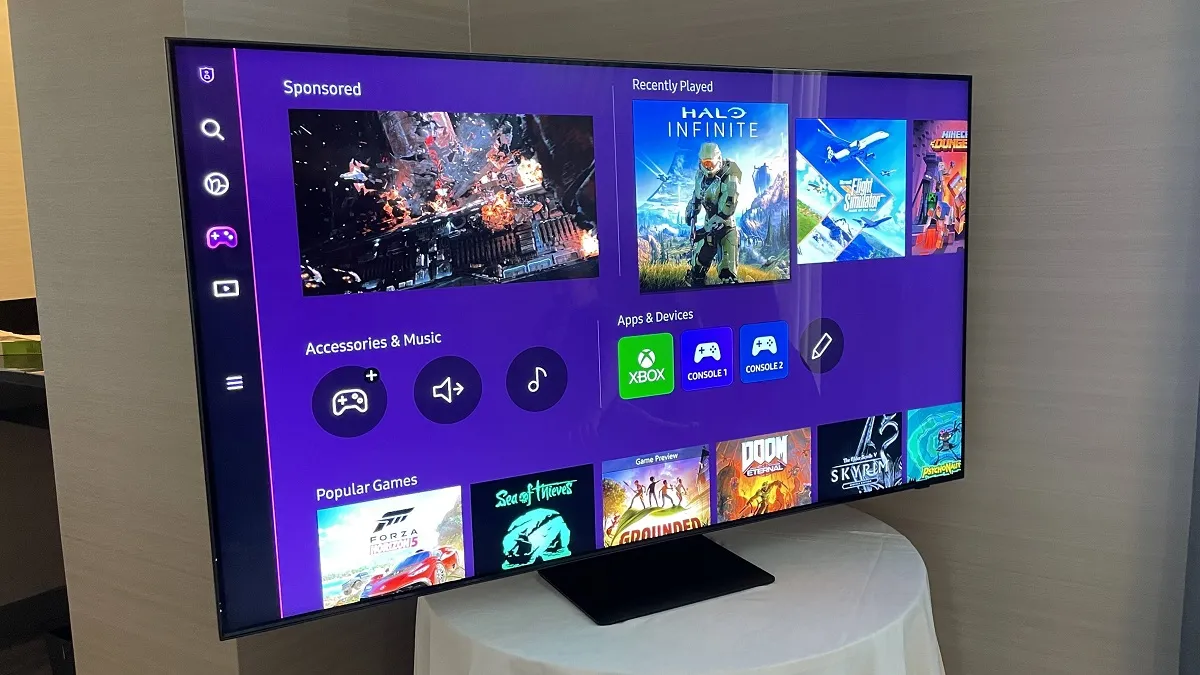
- Smart TVs: Most modern Smart TVs come with built-in apps that support Rumble. Brands like Samsung, LG, Sony, and Vizio typically have the Rumble app available for download.
- Streaming Devices: If your TV isn’t a Smart TV, don’t worry! Devices like Roku, Amazon Fire TV Stick, Apple TV, and Chromecast can easily connect to your television and allow you to stream Rumble effortlessly.
- Game Consoles: PlayStation and Xbox consoles also support streaming Rumble. If you’re a gamer, you can switch from gaming to streaming in just a few clicks!
- Set-Top Boxes: Devices like the NVIDIA Shield or similar Android boxes can run the Rumble app, giving you another option for seamless streaming.
With these compatible devices, streaming Rumble can be a breeze. Just ensure that your device is updated to the latest software version for the best experience. Happy streaming!
4. Setting Up Rumble on Smart TVs
Setting up Rumble on a Smart TV is a straightforward process that can be completed in just a few steps. Here’s a simple guide to get you started:
- Turn on your Smart TV: Make sure your TV is connected to the internet. You can check this in the settings menu.
- Access the App Store: Navigate to the app store on your Smart TV. This could be labeled as “Apps,” “LG Content Store,” “Samsung Smart Hub,” etc., depending on your brand.
- Search for Rumble: Use the search function to find the Rumble app. Type “Rumble” and wait for the results.
- Download and Install: Once you find the app, click on it and select the “Install” or “Download” button. Wait for it to complete.
- Open Rumble: After installation, you can find Rumble in your apps section. Click to open it.
- Log In or Sign Up: If you already have an account, log in. If not, take a moment to create a free account.
And there you have it! Your Rumble app is now set up on your Smart TV, ready for you to enjoy countless videos and live streams. If you encounter any issues, don’t hesitate to check your TV’s support page or the Rumble help center for troubleshooting tips. Enjoy streaming!
5. Streaming Rumble via Streaming Devices
If you’re looking to stream Rumble on your TV, using a streaming device is one of the simplest and most effective methods. Devices like Roku, Amazon Fire Stick, Apple TV, and Chromecast offer a seamless way to access Rumble’s content directly on your television. Here’s how you can do it:
- Roku: Add the Rumble channel from the Roku Channel Store. Once installed, you’ll be able to browse and watch videos right from your Roku home screen.
- Amazon Fire Stick: Find Rumble in the Amazon Appstore. Download the app, sign in if required, and you’re ready to start streaming.
- Apple TV: Search for Rumble in the App Store on your Apple TV. Download the app and enjoy a world of videos at your fingertips.
- Chromecast: If you have the Rumble app on your mobile device, simply tap the Cast button to stream videos directly to your TV. Make sure your phone and Chromecast are on the same Wi-Fi network.
Streaming devices not only enhance your viewing experience but also often come with additional features like voice search and personalized recommendations. This makes it easier than ever to discover new content on Rumble. Plus, these devices are typically affordable and easy to set up, making them a popular choice among cord-cutters.
6. Using Screen Mirroring or Casting
Another fantastic way to enjoy Rumble on your TV is by using screen mirroring or casting. This method allows you to project your mobile device’s screen onto your TV, making it a breeze to watch Rumble videos. Here’s a quick guide on how to do it:
- For Android Devices: Ensure your TV supports Miracast or has a Chromecast built-in. Swipe down on your device to access Quick Settings, tap on ‘Cast’ or ‘Screen Mirroring,’ and select your TV from the list.
- For iOS Devices: If you have an Apple TV, swipe up from the bottom of your screen (or down from the upper-right corner on iPhone X or later) to access Control Center. Tap on ‘Screen Mirroring’ and select your Apple TV.
- Using Third-party Apps: Apps like AllCast or AirScreen can help you mirror your device to a non-smart TV. Simply install the app on your device and follow the app’s setup instructions.
Screen mirroring is particularly useful for sharing your favorite videos with friends and family. Just pull up Rumble on your device, and everyone can enjoy the content together on a bigger screen. So, grab that popcorn and start streaming!
Troubleshooting Common Issues
Streaming Rumble on your TV can sometimes come with its own set of hiccups. But don’t worry; most issues are easy to fix! Here’s a rundown of common problems and how to tackle them:
- Buffering Issues: If your stream is constantly buffering, it might be due to slow internet. Check your connection speed. Ideally, you should have at least 5 Mbps for smooth streaming. Restart your router if needed.
- App Crashing: If the Rumble app keeps crashing, ensure it’s updated to the latest version. Uninstall and reinstall the app if the problem persists.
- No Sound: Check your TV’s volume settings. Sometimes, the audio can be muted or set too low. Also, ensure that your TV is not connected to a different audio source.
- Poor Video Quality: If the video quality is low, check your internet speed again. You can adjust the video quality settings in the app to match your connection.
- Device Compatibility: Ensure that your device supports the Rumble app. Refer to Rumble’s official website for a list of compatible devices.
Remember, most issues can be resolved with a quick restart or a software update. If problems persist, consider reaching out to Rumble’s support for assistance.
Conclusion
Streaming Rumble on your TV opens up a world of exciting content and entertainment. By following the steps outlined above, you can ensure a seamless streaming experience. Whether you’re diving into live events or catching up on your favorite videos, having Rumble on your TV enhances your viewing pleasure.
To recap:
- Choose the right streaming device.
- Ensure you have a stable internet connection.
- Download the Rumble app and log in.
- Troubleshoot any common issues promptly.
Now that you’re equipped with the knowledge to stream Rumble successfully, grab your popcorn and enjoy the show! Happy streaming!