
Have you ever settled down to enjoy a YouTube video, only to find the app acting up? Whether it’s a sudden crash or videos not loading, these issues can be frustrating. Before you throw in the towel and assume the app is down, let’s explore some common symptoms of YouTube app problems and how you can troubleshoot them. This guide will help you identify what’s going wrong and get back to your favorite videos in no time!
Common Symptoms of YouTube App Issues
When the YouTube app is experiencing problems, you might notice a variety of symptoms. Here’s a rundown of the most common issues users encounter:
- Videos Won’t Load: You tap on a video, but it just spins and spins. This can happen due to poor internet connectivity or app glitches.
- Frequent Crashes: The app unexpectedly closes when you open it or try to watch a video. This can be particularly annoying during live streams!
- Buffering Problems: You start watching a video, but it keeps pausing to buffer. This can be an indication of a slow internet connection.
- Error Messages: You might see messages like “Playback error” or “YouTube is not available.” These can signal various issues, from server problems to local app errors.
Taking note of these symptoms can help you diagnose the issue more accurately. Here’s a quick table summarizing each symptom and what it might mean:
| Symptom | Possible Cause |
|---|---|
| Videos Won’t Load | Poor internet connection or app glitch |
| Frequent Crashes | App version issues or device incompatibility |
| Buffering Problems | Slow internet speed or high traffic |
| Error Messages | Server issues or app bugs |
By recognizing these symptoms, you’ll be better equipped to troubleshoot effectively and enjoy uninterrupted video content.
Checking YouTube’s Status
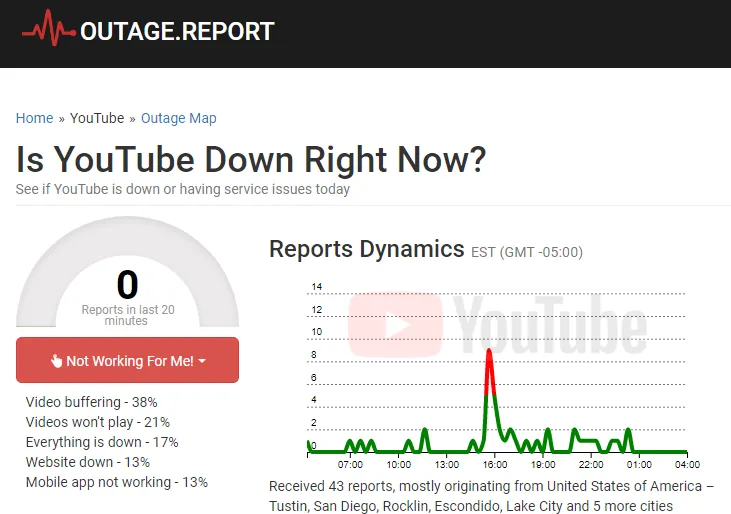
Before jumping headfirst into troubleshooting, it’s wise to check if the issue lies with YouTube itself. Sometimes, the app might not be functioning due to server problems. Here’s how you can check YouTube‘s status:
- Official YouTube Status Page: Visit the YouTube Status Page. This page provides real-time updates on any ongoing outages or technical issues. If the page indicates that YouTube is down, it’s a collective issue affecting multiple users.
- Social Media Updates: Platforms like Twitter are often buzzing with real-time updates. Search for hashtags like #YouTubeDown or #YouTubeIssues to see if others are experiencing similar problems.
- Third-Party Websites: Websites like Downdetector provide insights into YouTube’s performance based on user reports. A graph shows spikes in reported issues, helping you determine if it’s a widespread problem.
By verifying YouTube‘s status, you can save time and avoid unnecessary troubleshooting steps if the problem is on their end. If everything seems operational, it’s time to explore basic troubleshooting methods.
Basic Troubleshooting Steps
If you’ve confirmed that YouTube is up and running, but you’re still facing issues, don’t worry! Here are some basic troubleshooting steps that often resolve common problems:
- Restart the App: Sometimes, a simple restart can work wonders. Close the YouTube app completely and reopen it to see if the problem persists.
- Check Your Internet Connection: Ensure your device is connected to the internet. You can try switching between Wi-Fi and mobile data to see if that helps.
- Clear App Cache: Clearing the app’s cache can remove any corrupted data. Go to your device’s settings, find the YouTube app, and select “Clear Cache.”
- Update the App: Ensure you’re using the latest version of the YouTube app. Head to your app store and check for any available updates.
- Reinstall the App: If all else fails, uninstalling and reinstalling the YouTube app can resolve persistent issues by giving you a fresh start.
By following these steps, you can tackle many common issues and get back to enjoying your favorite videos in no time!
Advanced Troubleshooting Techniques
Sometimes, issues with the YouTube app can be stubborn, requiring a bit more than the usual fixes. Let’s explore some advanced troubleshooting techniques that might just do the trick.
- Clear Cache and Data: If you’re experiencing persistent problems, clearing the cache and data can often resolve hidden glitches. Here’s how:
- Go to your device’s settings.
- Select Apps or Application Manager.
- Find and select YouTube.
- Tap on Storage, then hit Clear Cache and Clear Data.
- Update Your Device’s Software: Sometimes, it’s not the app but your device that needs an update. Ensure your operating system is up to date. Check your device settings for any available updates.
- Reinstall the App: If you’re still having trouble, uninstalling and reinstalling the YouTube app can be a simple yet effective solution.
- Check Your Network Settings: If your Wi-Fi or mobile data connection is unstable, it can affect the app’s performance. Try switching networks or resetting your router.
- Disable VPN or Proxy: If you’re using a VPN, it might be causing conflicts. Try turning it off and see if that resolves the issue.
By following these advanced techniques, you can elevate your troubleshooting game and potentially enjoy a smoother YouTube experience. Remember, persistence can pay off!
When to Contact YouTube Support
While many issues can be resolved with basic or advanced troubleshooting, there are times when reaching out to YouTube Support is the best option. Here’s when you should consider it:
- Persistent Crashes: If the app continues to crash despite your best efforts, it may be time to escalate the issue.
- Account Issues: If you can’t access your account, have been locked out, or notice suspicious activity, contacting support is crucial.
- Content Removal Concerns: If your videos are being removed or flagged incorrectly, YouTube Support can provide clarification and assistance.
- Technical Problems Beyond Your Control: If there’s a widespread outage or known issue affecting multiple users, YouTube Support will have the latest information.
You can reach out to YouTube Support through their Help Center or via social media channels. Clearly describe your issue and the troubleshooting steps you’ve already attempted to get the best assistance.
Is the YouTube App Down and How to Troubleshoot Issues
Experiencing issues with the YouTube app can be frustrating, especially when you’re ready to dive into your favorite videos. It’s essential to determine whether the app is down or if the problem lies with your device or internet connection. Below are some common signs that the YouTube app may be down:
- Videos won’t load or play.
- Error messages appear frequently.
- The app crashes unexpectedly.
- Accessing the app results in a blank screen.
If you’re facing any of these issues, follow these troubleshooting steps to resolve the problem:
- Check YouTube’s Status: Visit websites like DownDetector or IsItDownRightNow to see if others are experiencing similar problems.
- Restart the App: Close the YouTube app completely and reopen it to see if the problem persists.
- Update the App: Ensure that you are using the latest version of the YouTube app. Check your device’s app store for updates.
- Clear Cache and Data: For Android users, go to Settings > Apps > YouTube > Storage and select “Clear Cache” and “Clear Data.”
- Check Internet Connection: Make sure your Wi-Fi or mobile data connection is stable. Try switching networks to see if the app works.
- Reinstall the App: If all else fails, uninstall the YouTube app and then reinstall it from your device’s app store.
By following these steps, you can effectively troubleshoot issues with the YouTube app. If the problem persists, it may be a temporary outage, and waiting for a few hours might resolve the issue.
In conclusion, if you find yourself facing difficulties with the YouTube app, determining whether the app is down or if the issue lies with your device is crucial. By following the troubleshooting steps outlined above, you can identify and resolve most common issues quickly.