
Recording live TV on YouTube TV is a fantastic way to ensure you never miss your favorite shows, sports events, or breaking news. With its cloud-based DVR feature, YouTube TV makes it incredibly easy to record content and watch it later at your convenience. In this guide, we’ll explore how to utilize this feature effectively and enhance your viewing experience.
Understanding YouTube TV Features
YouTube TV offers a variety of features that make it a competitive option in the streaming service arena. Understanding these features is key to maximizing your experience. Here’s a breakdown:
- Cloud DVR: One of the standout features of YouTube TV is its cloud DVR service. You can record an unlimited number of shows and movies, all stored in the cloud. This means you don’t have to worry about running out of space or managing physical storage. You can store recordings for up to nine months!
- Multiple Streams: YouTube TV allows you to stream on up to three devices simultaneously. This is especially useful for families with varying viewing preferences, ensuring that everyone can enjoy their favorite content without interruptions.
- Wide Selection of Channels: With over 85 channels, including popular networks like ESPN, NBC, and HBO, YouTube TV provides a vast array of options. You can easily record live broadcasts from these channels.
- User-Friendly Interface: The interface is intuitive, making it simple to navigate through live TV and recordings. You can quickly find what you want to watch or set recordings with just a few clicks.
- Search Functionality: YouTube TV has an advanced search feature that allows you to find specific shows or movies easily. This is particularly useful when looking for a particular season or episode of a series.
By familiarizing yourself with these features, you’ll be better equipped to make the most of your YouTube TV subscription, especially when it comes to recording live TV.
Setting Up Your YouTube TV Account
Getting started with YouTube TV is a breeze! First things first, you’ll need a Google account. If you don’t have one yet, creating one is simple and only takes a few minutes. Once you have your Google account ready, follow these steps:
- Visit YouTube TV: Go to the YouTube TV website or download the app on your device.
- Sign In: Click the “Sign In” button and enter your Google account credentials.
- Choose Your Plan: YouTube TV usually offers a base plan with a variety of channels. Take a moment to review the lineup and choose the plan that best fits your viewing habits.
- Payment Information: Enter your payment details to activate your subscription. YouTube TV often offers a free trial, so keep an eye out for that!
- Set Up Your Preferences: Customize your experience by selecting your favorite channels and adjusting your settings for notifications and recommendations.
Once everything is set up, you’re ready to dive into the world of live TV! Remember, YouTube TV is accessible on multiple devices, so you can enjoy it on your smart TV, phone, tablet, or laptop. Happy streaming!
How to Record Live Content
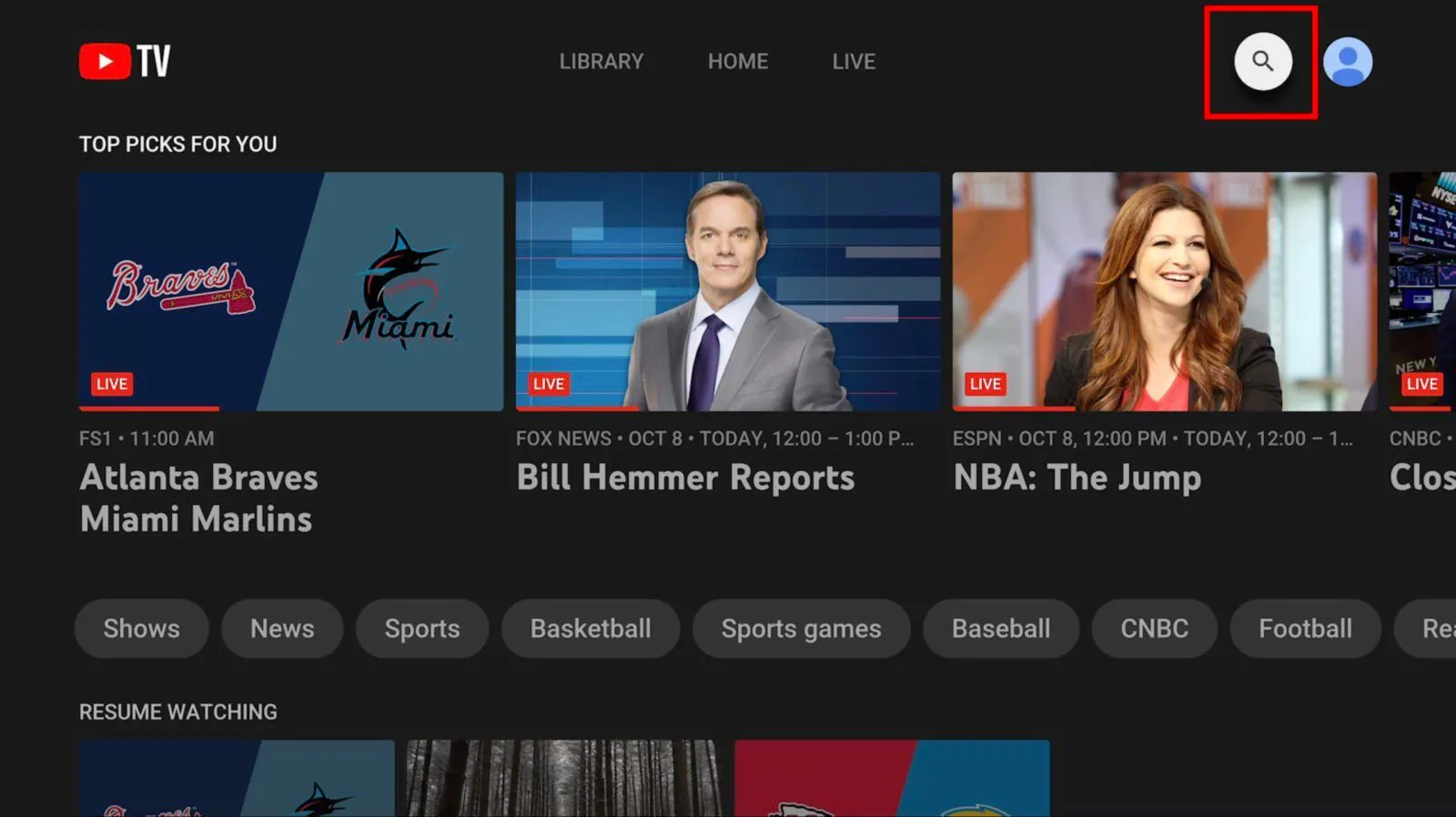
Recording live content on YouTube TV is one of its standout features, making it super convenient to catch your favorite shows whenever you want! Here’s how to do it:
- Find Your Show: Use the search function or browse through the channel guide to locate the live program you want to record.
- Hit the Record Button: Once you’ve found your show, click on it to open the details page. Look for the red “Record” button and click it. Voila! You’ve just scheduled a recording.
- Manage Your Recordings: You can view all your recorded shows by navigating to the “Library” section. Here, you can see what’s recorded, delete old recordings, or watch what you’ve saved.
- Auto-Record Series: If you’re a fan of a particular show, you can set it to record every episode automatically. Just click on the show, select “Record,” and choose “Record all episodes.”
YouTube TV gives you unlimited cloud DVR storage for up to nine months, so there’s plenty of room for all your favorite content. Enjoy the flexibility of watching on your schedule!
Managing Your Recordings
Once you’ve started recording live TV on YouTube TV, it’s essential to know how to manage those recordings effectively. YouTube TV makes it super easy to access, organize, and delete your recordings whenever you want. Let’s break it down:
- Accessing Your Recordings: To view your saved recordings, simply navigate to the “Library” tab on the YouTube TV interface. Here, you’ll see a list of all your recorded shows and movies, sorted by the most recent recordings.
- Organizing Your Library: You can use the search bar to quickly find a specific recording or browse through categories. YouTube TV automatically categorizes your recordings by type, such as ‘Shows’, ‘Movies’, or ‘Sports’.
- Deleting Unwanted Recordings: Running out of space? No problem! To delete a recording, click on the title in your Library, and then select the “Delete” option. This helps free up space for new recordings.
- Managing Recording Settings: You can adjust your settings by going to “Settings” > “Recordings.” Here, you can choose whether to record entire seasons or just single episodes. Set your preferences based on your viewing habits!
With these tools at your disposal, managing your recordings on YouTube TV becomes a breeze, allowing you to enjoy your content without any hassle!
Troubleshooting Common Issues
Even with a user-friendly platform like YouTube TV, sometimes issues can arise with your recordings. But don’t worry! Here’s a handy guide to troubleshooting some common problems:
| Issue | Possible Solution |
|---|---|
| No recordings showing up | Check your internet connection and ensure you’re logged into the correct account. Sometimes, a simple refresh can fix this issue! |
| Recording failed | This could be due to low storage space. Delete some old recordings to make room, or check the recording settings to ensure everything is set up correctly. |
| Quality issues with recordings | Quality can be affected by your internet speed. Try connecting to a faster network or adjusting the video quality settings in your app. |
| Missing episodes | Not all channels allow recording of every show. Check the channel’s recording policies or look for episodes in the On-Demand section. |
If you encounter any other issues, the YouTube TV Help Center is a great resource. Remember, a little troubleshooting goes a long way in ensuring you enjoy your favorite shows without interruptions!
How to Record Live TV on YouTube TV
YouTube TV is a popular streaming service that allows users to watch live television and record shows for later viewing. With its unlimited cloud DVR storage, you can record your favorite live TV shows, movies, and sports events without worrying about storage constraints. Below is a step-by-step guide on how to effectively record live TV using YouTube TV.
Step-by-Step Guide to Recording Live TV
- Sign In to YouTube TV: Open the YouTube TV app or website and log in to your account.
- Find the Show: Use the search bar to locate the live show you want to record.
- Access the Show Page: Click on the show to open its dedicated page, where you’ll see the option to record.
- Click on the Record Button: Select the red “Record” button. You can choose to record a single episode or all episodes of a series.
Managing Your Recordings
Once you start recording, you can manage your recordings easily:
- View Recordings: Go to the “Library” section to see all your recorded shows.
- Delete Recordings: Click on the three dots next to the recording to delete it if you no longer need it.
- Edit Settings: You can adjust the settings for each recording, such as choosing to keep it for a certain duration.
Important Features
| Feature | Description |
|---|---|
| Unlimited DVR Storage | Record as much content as you want without storage limitations. |
| Automatic Deletion | Recordings are automatically deleted after 9 months. |
| Fast Forward | Skip through commercials when watching recorded content. |
In conclusion, recording live TV on YouTube TV is a straightforward process that enhances your viewing experience, allowing you to enjoy your favorite shows at your convenience. With its user-friendly interface and powerful features, YouTube TV stands out as a top choice for cord-cutters.