
Dailymotion is a popular platform for streaming videos, much like other well-known sites, but it offers its unique features and content. One of those features is the option for subtitles, which enhance the viewing experience for many users. Subtitles ensure that people from different linguistic backgrounds can enjoy the diverse array of content available on the platform.
Whether you’re watching educational videos, music clips, or international films, having subtitles can improve understanding and engagement. However, the default size of these subtitles might not be ideal for everyone. If you find it challenging to read the subtitles due to their small size, you’re in the right place! In this blog post, we’ll guide you on how to easily enlarge subtitles on Dailymotion for a more comfortable viewing experience.
Understanding Subtitle Options on Dailymotion
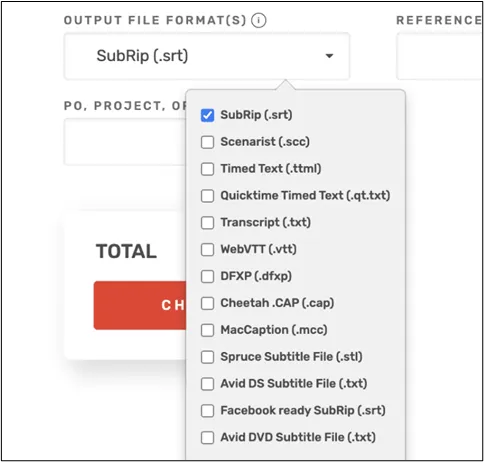
Dailymotion offers a variety of subtitle options that cater to different user needs. Let’s dive into these to ensure you know what to expect when watching videos. Here’s what you need to know:
- Automatic Subtitles: Dailymotion may automatically generate subtitles for certain videos. These can be helpful if the uploader has not provided any.
- Manual Subtitles: Many creators upload their own subtitles to ensure accuracy, especially in videos where precise wording is crucial, like tutorials or translations.
- Multiple Languages: Depending on the content, you might find subtitles available in several languages, allowing a broader audience to engage with the material.
When it comes to customizing your viewing experience, you might wonder about the options available for adjusting subtitle size:
| Subtitle Option | Description |
|---|---|
| Size Adjustment | The ability to enlarge or reduce the subtitle size to suit your preferences. |
| Background Color | Some users can change the background color of subtitles for better visibility. |
| Font Style | Choosing different fonts can make reading easier for some users. |
Understanding these options before diving into video adjustments will provide you an enhanced viewing experience on Dailymotion. Let’s move forward and explore how to enlarge those subtitles step by step.
5. Adjusting Video Player Settings
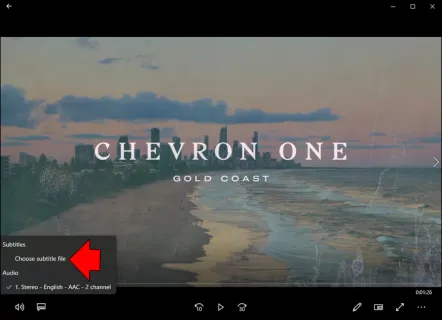
If you’re watching videos on Dailymotion and find the subtitles too small to read comfortably, you might be in luck. Many video players offer adjustable settings that can help you enhance the subtitle size. Here’s how you can do it:
First, locate the video player settings, often represented by a gear icon (⚙️) at the bottom right of the video. Click on it to explore the available options. If Dailymotion allows subtitle customization directly, you’ll see specific settings for subtitles where you can:
- Change font size: This option lets you increase the size of the text.
- Select different fonts: Some players allow you to choose fonts that are easier on the eyes.
- Alter text color: A contrast in color can make subtitles pop against the video backdrop.
- Adjust background color: A non-transparent background can improve visibility, especially in visually busy scenes.
After making your adjustments, don’t forget to click “Save” or “Apply” to ensure your preferences are retained. If Dailymotion does not support in-app subtitle changes, don’t worry—you can try other methods.
Remember, the accessibility of subtitle settings can vary based on the browser or device you’re using. Some browsers might fully support custom settings while others do not. So, give it a try, and you might find it makes all the difference!
6. Using Browser Zoom Features
If you’ve adjusted the video player settings and still feel that the subtitles are harder to read than you’d like, there’s another simple solution at your disposal—your browser’s zoom feature! Here’s how it works:
Most web browsers allow you to zoom in on webpages easily, which also enlarges everything on the page, including subtitles. Here’s how you can do it:
- Zoom In: Press Ctrl and the + key (or Cmd and + on Mac) to increase the size of everything on the page. You can do this multiple times for a larger effect.
- Zoom Out: If you’ve zoomed in too much, simply press Ctrl and the – key (or Cmd and – on Mac) to decrease the size.
- Reset Zoom: To return to the normal size, press Ctrl and 0 (or Cmd and 0 on Mac).
Alternatively, you can access the zoom settings through the browser’s menu, typically found in the top right corner (three dots or lines). This method boosts everything on the page, so while subtitles will be larger, so will the video and any other text or images.
This is particularly handy when you’re watching on a smaller screen or if you simply prefer a more accessible viewing experience. Enjoy your videos without straining your eyes!
7. Alternatives for Improving Visibility
When it comes to enjoying videos on Dailymotion, having clear and visible subtitles is essential, especially for those who are deaf or hard of hearing, or for viewers who are non-native speakers. If enlarging the subtitles directly isn’t yielding the results you want, there are several other methods to improve visibility. Let’s go through some of the most effective alternatives:
- Choose High-Contrast Video Settings: Adjusting the video playback to a setting that enhances contrast can help make subtitles stand out. High-contrast colors between text and background often improve readability.
- Use Screen Zoom: Most devices allow you to zoom into your screen. On computers, you can often do this via the browser settings or by pressing Ctrl + Plus (+). On mobile devices, you can pinch to zoom, which may also enlarge the subtitles.
- Change Player Settings: Some video players offer subtitle customization. Check if your player allows you to change font size, color, or outline, which can significantly enhance readability.
- Use Accessibility Features: Operating systems typically have accessibility settings that allow you to modify text size and display options. This can be helpful across all applications, not just Dailymotion.
- Watch on Larger Screens: If you’re viewing on a small screen, switching to a larger display—like a smart TV or a monitor—can also make subtitles more legible.
These alternatives can drastically improve your viewing experience, making sure you never miss a word of your favorite content!
8. Troubleshooting Common Issues
Even with all the tools available, sometimes subtitles on Dailymotion can be tricky. If you’re experiencing issues, don’t worry! Here are some common problems and their solutions:
- Subtitles Not Showing Up: If subtitles aren’t appearing, check the video settings to ensure that subtitles are enabled. It’s also worth refreshing the page or restarting the video.
- Subtitles Out of Sync: This can occur occasionally, but you can try pausing the video and resuming it. If that doesn’t work, consider playing the video in a different browser or device.
- Font Size Still Too Small: If you’ve enlarged subtitles but they aren’t enough, try adjusting your device’s text size settings. Also, remember that using high contrast or zoom features can help.
- Inaccurate Translations: If subtitles are poorly translated or inaccurate, this might be due to the uploader’s settings. Try contacting the uploader or checking if an alternative version is available.
- Playback Issues: If the video doesn’t play well, it could be a bandwidth issue. Try lowering the video quality or checking your internet connection.
By following these steps, you can troubleshoot most common issues and enjoy your Dailymotion experience to the fullest!
“`html
How to Enlarge Subtitles on Dailymotion: Quick Video Guide
Dailymotion offers an excellent platform for streaming videos and sharing content, but sometimes, the default subtitle size may not be ideal for everyone. Whether you’re hard of hearing or simply prefer larger text for better visibility, enlarging subtitles can enhance your viewing experience. This guide will help you quickly adjust subtitle settings on Dailymotion.
Step-by-Step Guide to Enlarge Subtitles
Follow these simple steps to enlarge subtitles while watching videos on Dailymotion:
- Open a Dailymotion Video: Navigate to the video you want to watch.
- Enable Subtitles: Click on the “CC” icon at the bottom right of the video player.
- Access Settings: Click on the gear (settings) icon next to the “CC” icon.
- Select Subtitle Options: Look for options regarding subtitles or captions.
- Adjust Font Size: Choose a larger font size if the option is available, or check if there are preset sizes to select from.
- Save Your Preferences: Make sure to save any changes you make to ensure they apply to your future viewing sessions.
Best Practices for Subtitle Viewing
Here are some additional tips to enhance your subtitle experience:
- Contrast: Make sure subtitles contrast well with the video background.
- Language: Always select the right language for better comprehension.
- Positioning: Adjust subtitle positioning if options are available to avoid covering important visuals.
Conclusion and Final Tips
By following the steps above, you can easily enlarge subtitles on Dailymotion for a more enjoyable viewing experience. Always remember to check your settings before watching and experiment with different options to find what works best for you.
“`