
Before you dive into uploading your videos to Dailymotion via remote upload, it’s essential to ensure that your content is in tip-top shape. Here are some key points to keep in mind:
- Video Format: Dailymotion supports several video formats, including MP4, AVI, MOV, and more. It’s best to convert your video to a compatible format if it’s not already.
- Video Resolution: Aim for at least 720p for standard uploads. Higher resolutions like 1080p or even 4K are recommended for better quality and viewer engagement.
- File Size: Ensure your video file does not exceed the maximum upload limit – typically 2GB for standard users. If your file is larger, consider compressing it without significantly sacrificing quality.
- Duration: Dailymotion allows videos of various lengths, but if you want to capture more audience attention, keep your videos between 3-10 minutes for optimal engagement.
- Metadata: Prepare relevant metadata, including a catchy title, description, and tags. This not only aids in discoverability but also enhances viewer understanding of your content.
Lastly, make sure to review your videos for any errors or necessary edits before uploading. A polished final product reflects your effort and professionalism, which can keep your audience coming back for more!
Creating a Dailymotion Account
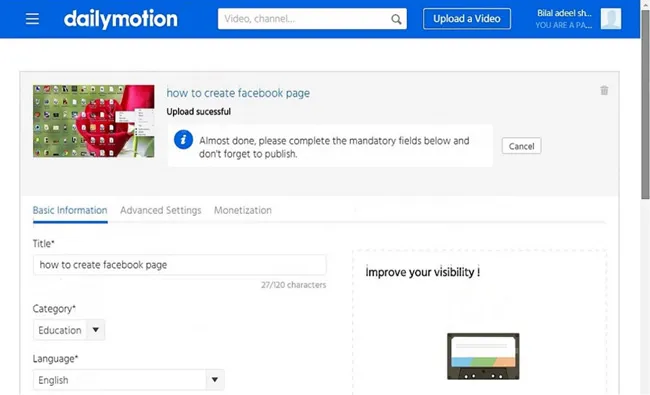
Getting started on Dailymotion is a breeze, and creating an account is your first step towards sharing your videos. Here’s how to do it:
- Visit the Dailymotion website: Head over to Dailymotion.com. You’ll find the option to sign up prominently displayed.
- Click on “Sign Up”: This button is usually located at the top right corner of the homepage. It will take you to the registration form.
- Fill Out the Registration Form: Dailymotion will ask for your information, including your name, email address, and a password. Make sure to use a strong password for security!
- Verification: After filling out the form, check your email for a verification link. Clicking it will activate your account.
- Profile Customization: Once your account is live, you can customize your profile. Add a profile picture and a short bio to connect with your audience.
Congratulations! You now have a Dailymotion account. This enables you to upload, share, and engage with viewers worldwide. Dive into the world of video sharing and showcase your creativity!
Navigating Dailymotion’s Remote Upload Feature
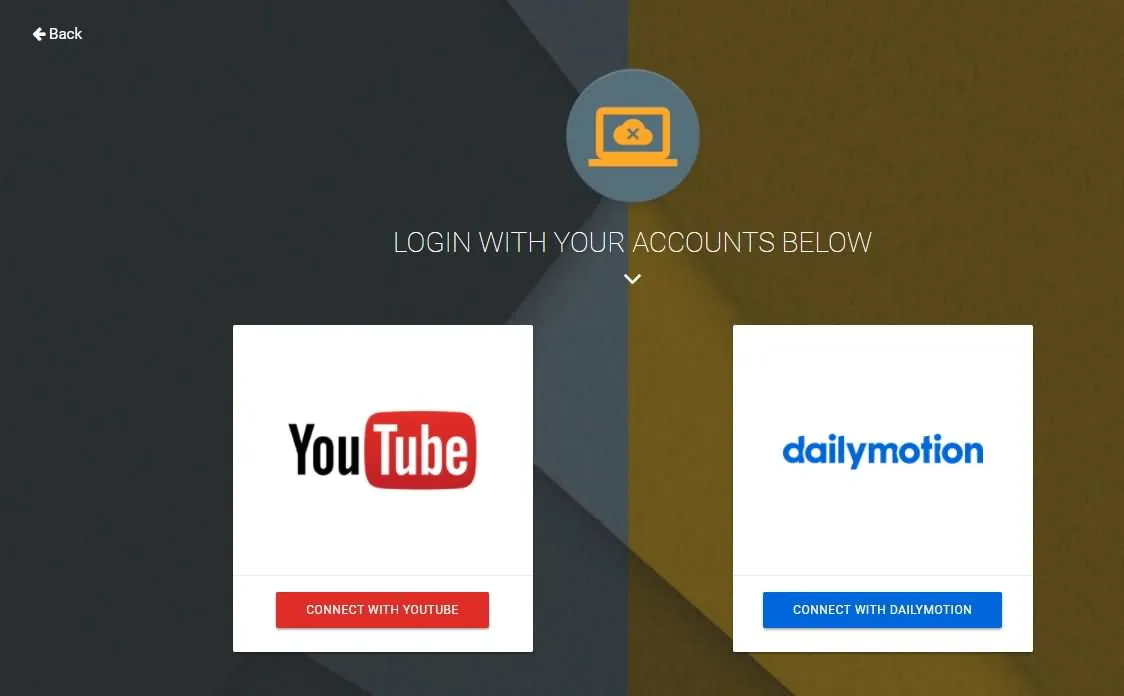
So, you’ve decided to share your masterpiece on Dailymotion! Excellent choice! But first, let’s get familiar with Dailymotion‘s Remote Upload feature. This tool allows you to upload videos directly from a URL—no need for cumbersome downloads and uploads. It’s perfect for those times when you stumble across a video that deserves the limelight or you have multiple friends or collaborators sending you videos they want to share.
To start, you’ll want to log into your Dailymotion account. Here’s how to navigate the Remote Upload feature:
- Access Your Dashboard: Once logged in, head to your user dashboard. This is your mission control for all things video-related.
- Find the Upload Section: Look for the ‘Upload’ button, which usually stands out in a bright color. Click it, and you’ll be directed to the upload interface.
- Locate Remote Upload: In the upload options, you’ll see an option for Remote Upload. This is the magical button you need!
- Input the Video URL: Paste the URL of the video you wish to upload into the designated field. Make sure it’s a valid and accessible URL.
- Verify and Customize: After entering the URL, you can verify it, choose a title, add a description, and tag your video. This step is crucial for optimizing discoverability!
And there you have it! Navigating Dailymotion’s Remote Upload feature is a breeze. This handy tool not only simplifies the uploading process but makes sharing content more dynamic and efficient.
Steps to Upload Videos Remotely
Ready to dive into the nitty-gritty? Uploading videos remotely on Dailymotion is a straightforward process if you follow these handy steps:
- Step 1: Log In
First things first—log into your Dailymotion account. If you don’t have an account yet, take a minute to create one!
- Step 2: Navigate to Upload
From your dashboard, click on the ‘Upload’ button. This is where the magic happens.
- Step 3: Select Remote Upload
In the upload options, look for the ‘Remote Upload’ section. This will allow you to upload videos directly from a link.
- Step 4: Copy and Paste Video URL
Grab the link of the video you want to upload and paste it into the remote upload field. Double-check that the URL is correct and accessible!
- Step 5: Fill in Video Details
- Title: Choose a catchy title that describes your video.
- Description: Write a brief description to inform viewers about the content.
- Tags: Add relevant tags to help categorize your video.
- Step 6: Review and Upload
Before you hit that glorious upload button, take a moment to review everything. Once you’re satisfied, click ‘Upload’ to bring your video into the Dailymotion universe!
And voilà! You’ve shared your video with the world using Dailymotion’s Remote Upload feature. Keep an eye on the engagement and enjoy sharing your creative expression.
Common Issues and Troubleshooting Tips
Uploading videos to Dailymotion via remote upload can sometimes hit a few snags. Fear not! We’ve compiled a list of common issues you might face along with handy troubleshooting tips to help you get back on track.
- Upload Failure: If your video fails to upload, first check the URL you’re using. Ensure it’s a direct link to the video file, like MP4. Avoid links that lead to web pages.
- Video Format Compatibility: Dailymotion supports various formats, but not all. If you’re facing issues, confirm your video’s format and encoding. Tools like HandBrake can help convert your video into a compatible format.
- File Size Limitations: Videos must be less than 2 GB. If your file exceeds this, consider compressing it before trying again. There are several free online compressors available.
- Network Issues: An unstable internet connection can disrupt the upload process. Make sure your internet connection is strong and stable when attempting to upload.
- Account Restrictions: Ensure that your Dailymotion account is in good standing. New accounts may have upload restrictions. If you’re facing issues, check your account status on Dailymotion.
And remember, if all else fails, contacting Dailymotion’s support can provide you with specific help tailored to your situation. Patience and a little troubleshooting often lead to success!
Best Practices for Successful Uploads
To ensure your video uploads to Dailymotion smoothly and successfully, it’s crucial to follow some best practices. These not only enhance the likelihood of a successful upload but also improve the overall quality and reach of your video content.
| Practice | Description |
|---|---|
| Understand Dailymotion Guidelines | Familiarize yourself with the platform’s content policies, including copyright and community guidelines, to ensure your video complies. |
| Choose the Right Format | Stick to Dailymotion’s recommended video formats like MP4 for the best compatibility and quality. |
| Optimize Video Size | Before uploading, compress your video if necessary to keep it under the 2 GB limit while maintaining quality. |
| Use Descriptive Titles and Tags | Proper titles and relevant tags can improve your video’s visibility in search results, helping it reach a wider audience. |
| High-Quality Thumbnails | Create eye-catching thumbnails that accurately represent your content to grab viewers’ attention. |
| Promote Your Uploads | Share your videos across social media platforms and other channels to increase views and engagement. |
By adhering to these best practices, you’ll not only enhance the uploading process but also maximize your video’s impact on Dailymotion. Happy uploading!
“`html
How to Share Videos to Dailymotion via Remote Upload
Dailymotion is a popular platform for sharing videos, and with its remote upload feature, users can easily upload videos from external sources without needing to go through the standard upload process. This guide will walk you through the steps to effectively share your videos to Dailymotion via remote upload.
What is Remote Upload?
Remote upload allows you to upload videos directly from a URL, saving you time and bandwidth. Instead of downloading the video file to your device and then uploading it to Dailymotion, you can paste the video link, and Dailymotion will handle the rest.
Steps to Share Videos via Remote Upload
- Create a Dailymotion Account:
- Visit Dailymotion’s website.
- Click on “Sign Up” to create a new account.
- Find Your Video URL:
- Locate the video you want to upload.
- Copy the link from the address bar.
- Access the Upload Section:
- Log in to your Dailymotion account.
- Click on the upload button and select “Remote Upload”.
- Paste the Video URL:
- In the remote upload section, paste the copied URL.
- Click on the “Upload” button.
- Fill in Video Details:
- Once uploaded, add descriptions, titles, and tags to enhance discoverability.
- Select an appropriate thumbnail.
Things to Keep in Mind
- Ensure the video is properly hosted and accessible via the URL.
- Check that the video complies with Dailymotion’s community guidelines.
- Be patient; larger files may take longer to upload and process.
In conclusion, sharing videos to Dailymotion via remote upload is an efficient way to manage content without the hassle of traditional uploads. By following these straightforward steps, you can easily leverage this feature to enhance your video-sharing experience on the platform.
“`