
Uploading your Illustrator file to Behance can be a game-changer for showcasing your design skills. Whether you’re a seasoned designer or just starting out, sharing your work on this platform can open doors to new opportunities. In this guide, we’ll walk you through the entire process step-by-step, so you can effortlessly share your creativity with the world. Let’s dive in!
Preparing Your Illustrator File
Before you hit that upload button on Behance, it’s essential to prepare your Illustrator file for optimal presentation. Here’s a detailed breakdown of how to ensure your artwork shines:
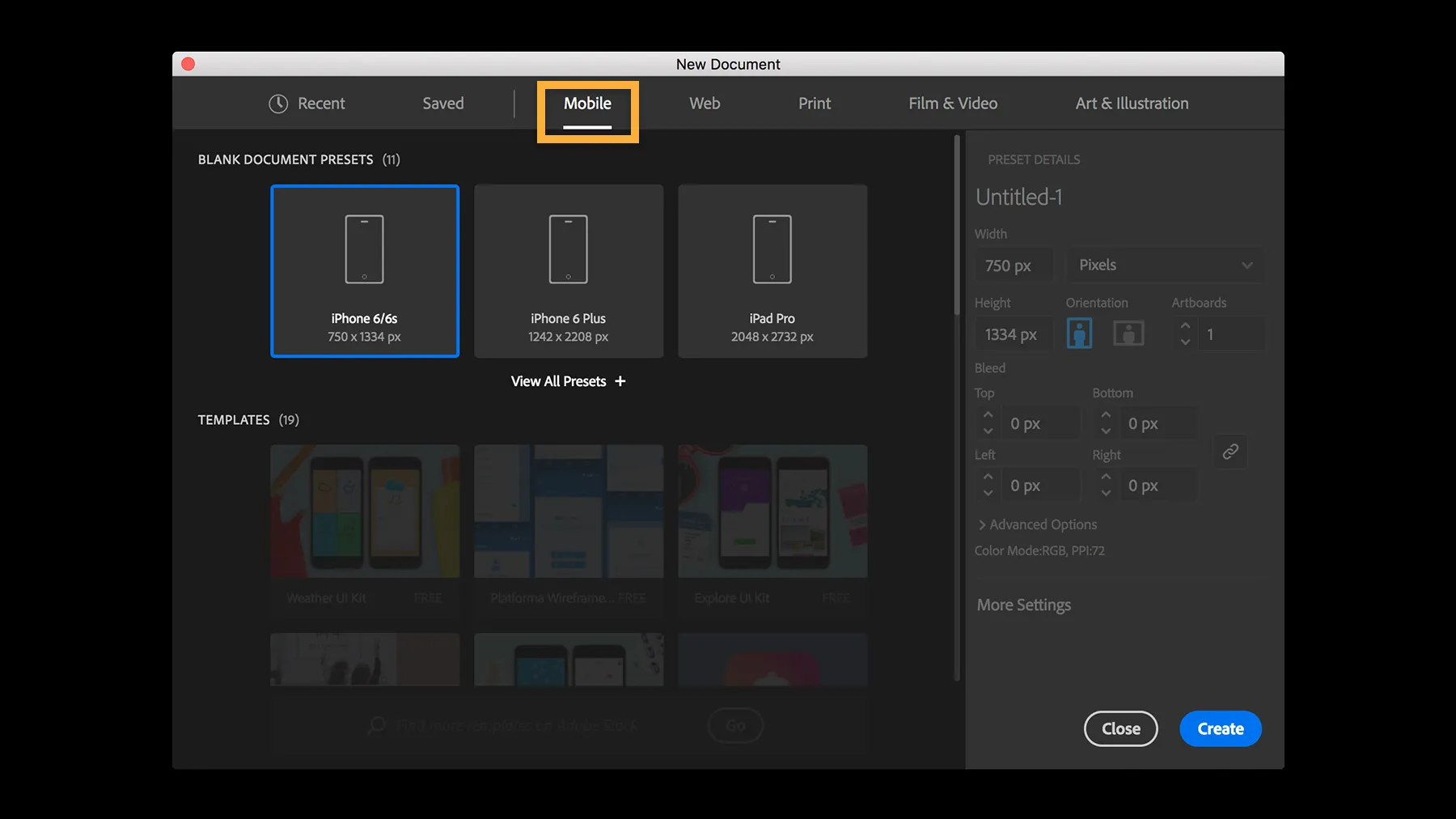
- Check Your Artboard Size: Ensure your artboard is set to the appropriate dimensions. Common sizes are A4 (210 x 297 mm) or standard screen sizes like 1920 x 1080 pixels. You can adjust this by going to File > Document Setup.
- Organize Your Layers: Properly naming and organizing your layers not only helps you but also improves the user experience if someone wants to see how you structured your work. Group similar elements together and label them clearly.
- Use Vector Elements: Behance supports various file types, but vector graphics are ideal because they maintain quality regardless of scaling. Stick to vector shapes and text whenever possible.
- Export Settings: When you’re ready to export, consider saving your file in a high-quality format. Use File > Export > Export As, and select formats like PNG or JPG for images, or PDF for an interactive portfolio piece.
- Resolution Matters: If exporting as an image, ensure your resolution is at least 72 DPI for web viewing; 300 DPI is best for high-quality prints.
Taking these preparation steps will ensure that your Illustrator file is polished and ready for the Behance audience. Once you’ve finished with these, you’ll be all set to upload your masterpiece!
Creating a Behance Account
Before you can showcase your stunning Illustrator creations on Behance, you need to set up an account. Don’t worry; it’s a straightforward process! Here’s how to get started:
- Visit the Behance website: Go to behance.net. You’ll be greeted with a vibrant community of creatives!
- Click on “Sign Up”: You’ll find this option at the top right corner of the page. Clicking it will lead you to the registration form.
- Choose your sign-up method: You have options! You can register using your Adobe ID, Facebook, Google account, or even email. Pick the one that suits you best.
- Fill in your details: If you choose to sign up with email, provide your name, email address, and create a password. Make sure your password is strong!
- Customize your profile: After registration, you can add a profile picture, a bio, and links to your social media. This is your chance to make a great first impression!
- Verify your email: Don’t forget to check your inbox for a verification email from Behance. Click on the link to activate your account.
And just like that, you’re part of a thriving community of artists and designers! With your account ready, you can explore projects by others and get inspired.
Navigating the Behance Upload Interface
Now that you’ve established your Behance account, it’s time to dive into the upload process. The Behance interface is designed to be user-friendly, but let’s walk through it step by step:
- Log into your account: Enter your credentials on the Behance homepage to access your dashboard.
- Find the upload button: Look for the “Create a Project” button, usually located at the top right corner. It’s a bright green button that stands out!
- Upload your artwork: You can drag and drop your Illustrator files directly into the upload area or click to browse your computer. Behance accepts various file types, so feel free to select your .ai files.
- Organize your project: Once uploaded, you can arrange your images or files in the order you want them displayed. This is a great opportunity to create a visually compelling narrative!
- Add project details: Provide a title, description, and relevant tags. This information will help others find and appreciate your work. Use keywords that resonate with your design style.
- Set project visibility: You can choose to make your project public or private, depending on whether you want to share it with the world or keep it within your network.
- Hit publish: Once you’re satisfied with everything, click the “Publish” button. Congratulations, your work is now live for the community to see!
With these steps, you’ll be navigating the Behance upload interface like a pro. Now go ahead and share your creativity with the world!
5. Uploading Your Illustrator File
Uploading your Illustrator file to Behance is a straightforward process, and I’m here to walk you through it step by step. First, make sure you have your Illustrator project ready and saved in a compatible format, like .AI or .PDF. Here’s how to do it:
- Log into Behance: Start by logging into your Behance account. If you don’t have an account yet, you’ll need to create one—it’s free and easy!
- Navigate to the Upload Section: Once you’re logged in, look for the ‘+’ icon or ‘Create a Project’ button on your dashboard. This takes you to the project upload interface.
- Select Your File: Click on ‘Upload Files’ and browse to find your Illustrator file. You can upload multiple files at once, so feel free to select more if you want!
- Preview Your Work: After selecting your file, you’ll see a preview. This is a great chance to check if everything looks good before finalizing the upload.
- Click ‘Next’: Once satisfied, click the ‘Next’ button to move on to the next stage.
And there you have it! Your Illustrator file is now on its way to being showcased on Behance. Ready to add the finishing touches? Let’s move on to adding project details!
6. Adding Project Details and Description
Now that your Illustrator file is uploaded, it’s time to make your project shine with some engaging details and a captivating description. This step is crucial because it helps viewers understand your work and its context. Here’s how to do it:
- Project Title: Start by giving your project a catchy title. Make it memorable and relevant to the content you’re sharing.
- Description: In the description box, tell the story behind your project. Explain your creative process and what inspired you. Consider including:
- Objectives of the project
- Techniques you used
- Challenges faced and how you overcame them
Finally, once everything looks good, hit the ‘Publish’ button. Your project will now be live on Behance for everyone to see!
7. Publishing Your Project
After you’ve meticulously crafted your project in Adobe Illustrator and prepared it for showcase, it’s time to publish it on Behance. This step is crucial because it’s not just about sharing your work; it’s about presenting it in a way that captures attention and engages viewers. Let’s walk through the process!
First, ensure that your project is complete. Take a moment to double-check your artwork, ensuring that all elements are polished and ready for the spotlight. Consider the following tips:
- Optimize Your Images: Make sure your images are high-resolution and look sharp. Low-quality images can detract from your work.
- Create Engaging Thumbnails: Your project’s thumbnail is the first impression. Choose an eye-catching image that represents your work well.
- Write a Captivating Description: Include a brief description of your project. Explain your inspiration, the tools you used, and any challenges you overcame.
Once you’re satisfied, navigate to the Behance website and log into your account. Click on the ‘Create a Project’ button:
- Select ‘Upload Files’ and choose your Illustrator file or images.
- Add your title and project description.
- Tag your project with relevant keywords to increase visibility.
- Choose a cover image that will grab attention!
Finally, once everything looks great, hit the ‘Publish’ button. Congratulations! Your project is now live for the world to see!
8. Conclusion
Uploading your Illustrator file to Behance can be an exhilarating experience. Not only do you get to showcase your creative talents, but you also enter a vibrant community of artists and designers. Throughout this guide, we’ve covered essential steps, from preparing your file to publishing your project.
Here’s a quick recap of what we’ve discussed:
- Preparing your Illustrator file for export.
- Creating an engaging Behance project.
- Utilizing tags and descriptions effectively.
- Publishing and sharing your work with confidence.
Remember, the key to success on platforms like Behance lies in presentation and interaction. Don’t hesitate to engage with comments and feedback from viewers. Keep refining your craft and sharing your journey. So, what are you waiting for? Get your artwork out there and make your mark!