
Changing your phone number on Telegram might seem daunting, but it’s easier than you think! Whether you’ve switched carriers, upgraded your device, or simply want a fresh start, updating your number ensures you stay connected with your friends and family. In this guide, we’ll walk you through the reasons for changing your phone number and the simple steps to do it seamlessly.
Why Change Your Phone Number?
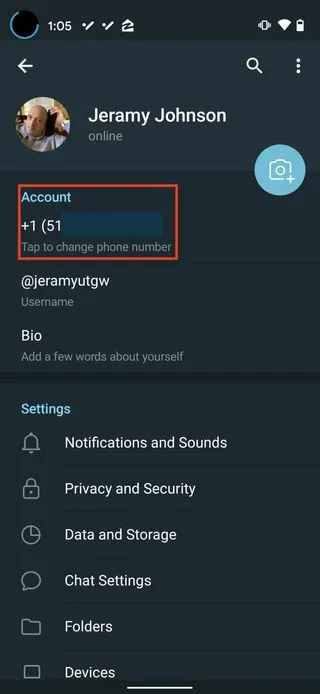
There are several reasons why you might consider changing your phone number on Telegram. Let’s dive into some of the most common motivations:
- Switching Carriers: If you’ve decided to switch mobile carriers for better rates or coverage, your new SIM card will come with a new phone number. Updating this in Telegram keeps your account active and connected.
- Privacy Concerns: Perhaps you’ve had your number shared too widely or received unwanted messages. Changing your phone number can help enhance your privacy and security.
- Personal or Business Reasons: If you’ve changed jobs or decided to maintain a separate number for personal and professional communications, updating your Telegram number is essential.
- Relocation: Moving to a different city or country might require a new phone number, especially if you want to stay connected with local contacts.
Regardless of your reason, remember that changing your phone number on Telegram doesn’t erase your chat history or contacts. It’s a straightforward process that ensures you can keep your connections while adapting to your new number.
Steps to Change Your Phone Number in Telegram
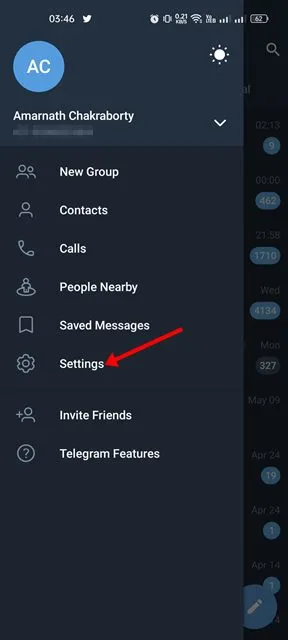
Changing your phone number in Telegram is a straightforward process. Just follow these steps to ensure a smooth transition:
- Open Telegram: Launch the Telegram app on your device. Make sure you’re logged into your account.
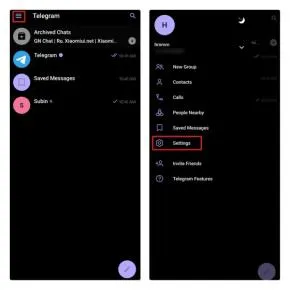
- Go to Settings: Tap on the three horizontal lines (menu) in the top left corner or the gear icon, depending on your device.
- Select Your Profile: At the top of the menu, click on your name or profile picture. This will take you to your profile settings.
- Change Number: Look for the option that says Change Number. Tap on it, and a prompt will appear explaining what will happen when you change your number.
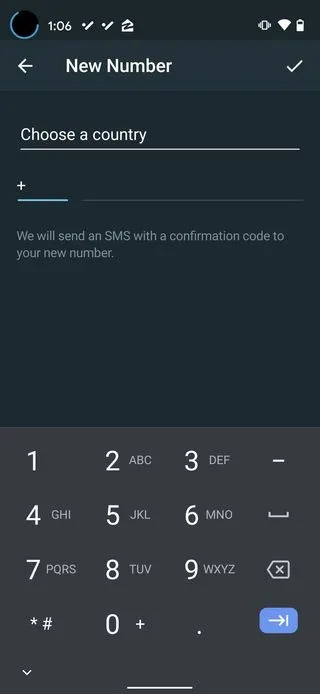
- Enter New Number: Input your new phone number. Ensure it’s correct, as Telegram will send a verification code to this new number.
- Verify Your New Number: Check your SMS for a verification code. Enter this code into the app to confirm your new number.
- Done! After verification, your contacts will be notified of the change, and your chats will remain intact. You’re all set!
Considerations Before Changing Your Number
Before making the switch, it’s essential to think about a few key considerations:
- Contact Notifications: Your contacts will receive a notification about your number change. If privacy is a concern, you might want to inform them personally.
- Two-Step Verification: If you have two-step verification enabled, ensure you have access to your recovery methods. This will help avoid issues if you’re locked out.
- Pending Messages: Make sure to clear any conversations you’re currently having that might need your attention before changing your number.
- Linked Accounts: If your Telegram is linked to other services (like bots or channels), check if those might be affected by your number change.
- Old Number Access: You might need access to your old number to receive the verification code, so have it handy if possible.
By thinking through these considerations, you can ensure a seamless transition to your new number!
What Happens to Your Contacts?
Changing your phone number in Telegram may sound like a daunting task, but it’s quite straightforward. However, one of the biggest concerns many users have is: what happens to their contacts when they make this change?
When you change your phone number on Telegram, here’s what you need to know:
- Your Contacts Remain Intact: All your existing contacts remain in your Telegram app. The app efficiently updates your contacts with your new number, so your friends won’t miss a beat.
- Notification to Contacts: Telegram will notify your contacts (who have your old number saved) about the change. This ensures they know how to reach you on your new number, which can be quite handy.
- Privacy Settings: If your privacy settings allow, your contacts will see your new number. If you’re concerned about privacy, you can adjust these settings beforehand.
- Groups and Channels: Your membership in groups and channels will remain unaffected. You’ll still be part of the same communities and conversations, making the transition seamless.
In summary, changing your phone number in Telegram is designed to be a user-friendly process, ensuring that both you and your contacts can continue communicating without any interruptions!
FAQs About Changing Phone Numbers in Telegram
If you’re considering changing your phone number in Telegram, you might have some questions. Here are some of the most frequently asked questions:
| Question | Answer |
|---|---|
| Can I change my phone number back? | Yes, you can switch back to your old number if you still have access to it. |
| Will I lose my chat history? | No, your chat history remains intact regardless of your phone number change. |
| Do I need to inform my contacts? | While Telegram notifies them, it’s always a good idea to let close contacts know about your number change. |
| What if I don’t receive the verification code? | Ensure you have good network coverage or try resending the code. If still unsuccessful, contact Telegram support. |
Changing your phone number in Telegram shouldn’t be a source of stress. With this FAQ section, you’ll find answers to common concerns, making the process smoother and easier!
How to Change Your Phone Number in Telegram
Changing your phone number in Telegram is a straightforward process that ensures your contacts stay updated with your new number. Here’s a step-by-step guide to help you through the transition smoothly.
Before you begin, it’s crucial to note that your Telegram account is linked to your phone number. When you change your number, your account, including all chats and contacts, will remain intact. Here’s how you can change your phone number in Telegram:
- Open the Telegram App: Launch the Telegram application on your smartphone.
- Access Settings: Tap on the three horizontal lines (☰) in the upper left corner to open the menu, then select Settings.
- Go to Account: In the settings menu, tap on Account to view your account details.
- Change Phone Number: Tap on Change Number. Telegram will inform you that your account will be transferred to the new number.
- Enter New Number: Input your new phone number and tap Next. You will receive a verification code on your new number.
- Verify New Number: Enter the verification code sent to your new number to complete the process.
Once you’ve completed these steps, your Telegram account will be updated with your new phone number. Your contacts will also be notified of this change, making it easier for them to reach you.
| Step | Action |
|---|---|
| 1 | Open Telegram |
| 2 | Access Settings |
| 3 | Go to Account |
| 4 | Change Phone Number |
| 5 | Enter New Number |
| 6 | Verify New Number |
In conclusion, changing your phone number in Telegram is a simple process that can be completed in just a few steps, ensuring your communication remains seamless with your contacts.