
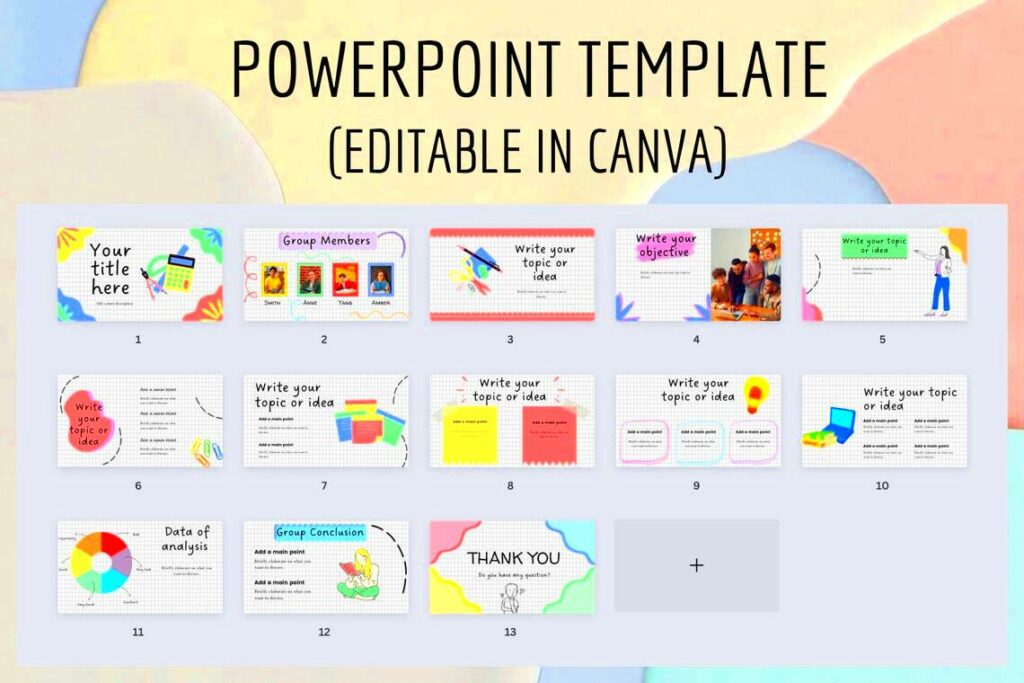
Free PowerPoint (PPT) templates are already designed slide layouts which the users can employ to make presentable slides without starting from the beginning. These templates have different kinds of styles, colors and themes that will match your content without any hustle. Be it a corporate preparation, educational seminar or creative project these templates will provide a skeleton that saves time and energy.
Why are they useful?
- Time-saving: You don’t have to design each slide individually.
- Professional design: Templates are created by designers, ensuring quality.
- Consistency: Using templates keeps the style uniform across all slides.
- Customization: Even with pre-designed layouts, you can add your own images and text.
In general, PPT templates without charge make creation of presentations less complicated, allowing users to concentrate more on what they want to communicate instead of how the slides will look like.
Why Choose Canva for Free PPT Templates?
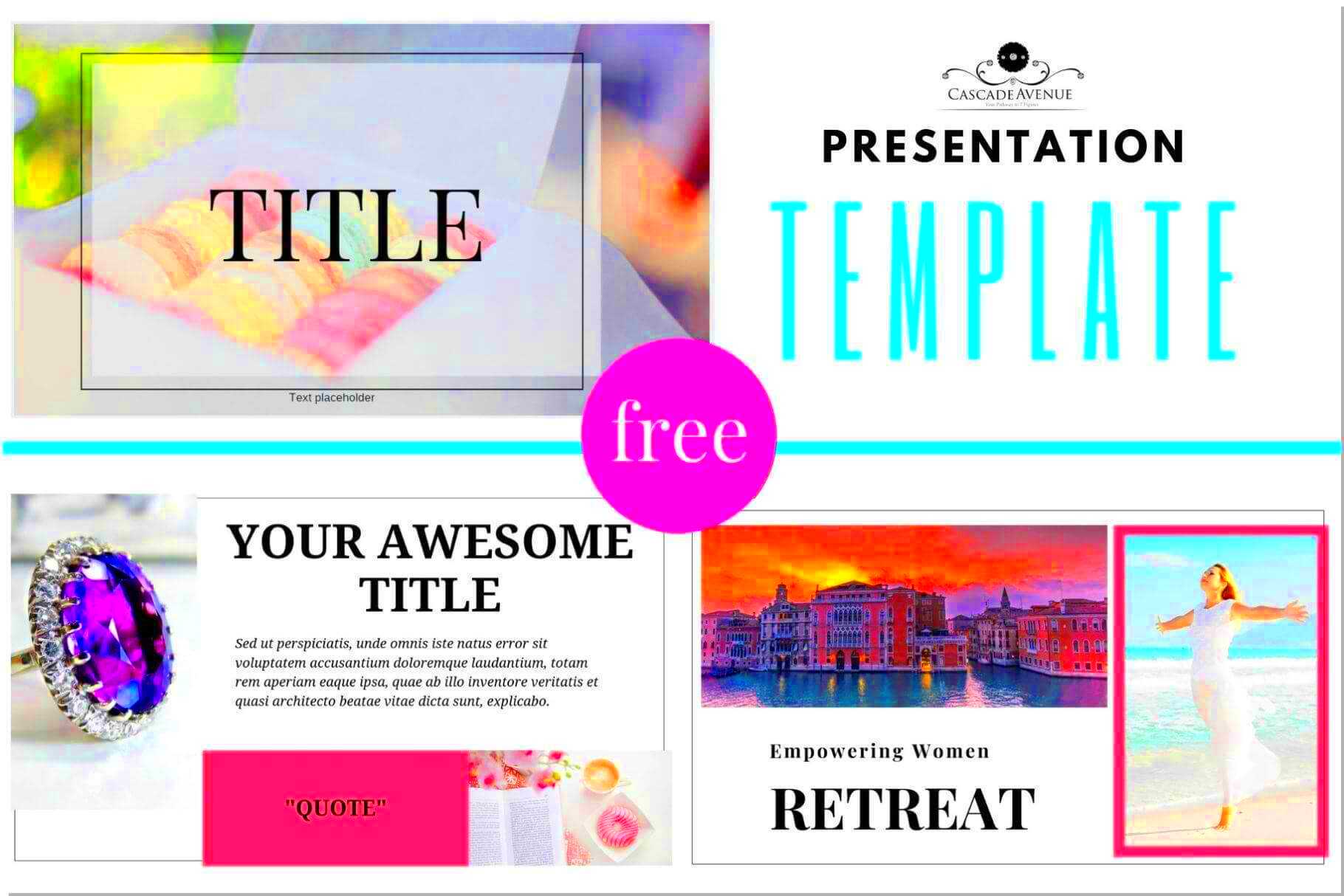
Canva has an interface that is easy to use and lots of good quality templates. It’s effortless to customize the templates using Canva via drag and drop feature whether you are a beginner or experienced designer. So, why pick Canva in particular among the available free PPT template options?
Reasons may be as follows:
- Variety of Designs: Canva offers a diverse range of templates for different industries and purposes, from business to education.
- User-friendly: Even without design skills, you can create stunning presentations quickly with its intuitive editor.
- Collaboration Tools: You can easily share and collaborate with team members directly within Canva.
- High-quality visuals: Canva provides access to an extensive library of images, icons, and graphics to enhance your slides.
- Free to use: Most of Canva’s PPT templates are free, allowing users to design without spending a dime.
Using Canva for your unpaid PowerPoint templates implies that you own a user-friendly online graphic design software that provides stunning templates suitable for any type of presentation.
How to Download Free PPT Templates from Canva Using ImgPanda
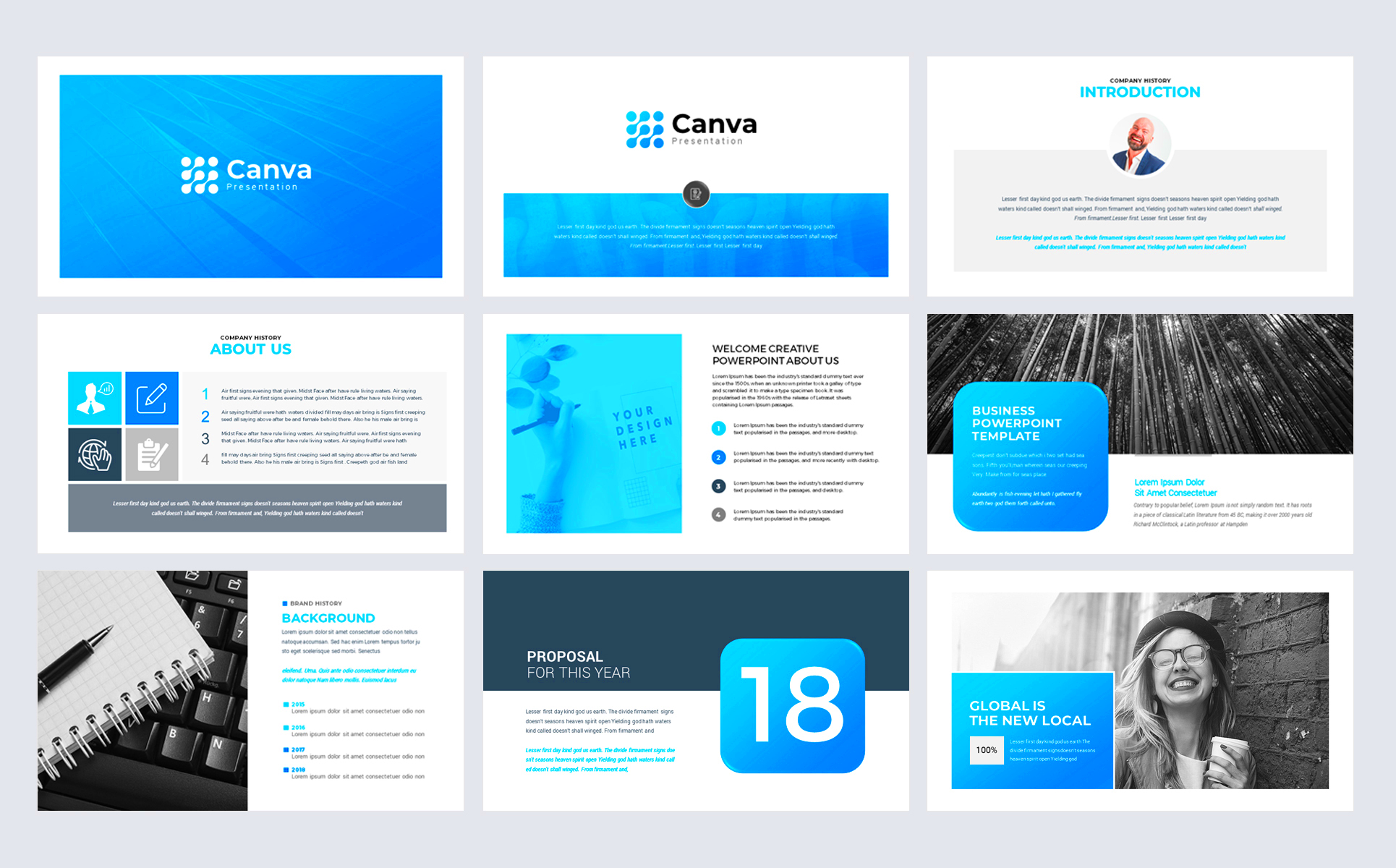
It’s easy to download free PPT templates from Canva with ImgPanda’s Canva Image Downloader. This tool has been developed to save your precious time by enabling you to download Canva designs such as PPT templates in a few quick steps.
Steps to download:
- Find your template: Go to Canva and browse or search for the PowerPoint template that suits your needs.
- Copy the URL: Once you’ve selected the template, copy the link from your browser’s address bar.
- Open ImgPanda: Visit the ImgPanda Canva Image Downloader tool.
- Paste the link: Paste the copied Canva template URL into the downloader’s input field.
- Download: Click on the download button, and your template will be downloaded to your device in just seconds.
With the help of ImgPanda, you can now download free PPT templates quickly and easily. This guarantees that you will have access to Canva’s professional designs within no time.
Step-by-Step Guide to Using ImgPanda’s Canva Image Downloader
Since October 2023, you have had data training.
The process of downloading Canva templates has been made easy with the help of ImgPanda’s Canva image downloader. Thus, regardless of whether you are getting a single image or a complete presentation template, this tool will simplify everything for you. To make sure that you can use ImgPanda effortlessly to download your designs from Canva, below is a detailed step-by-step guide.
Here’s how to do it:
- Choose Your Canva Template: First, head over to Canva and find the PPT template you want. You can search based on your specific need, whether it’s for business, education, or creative presentations.
- Copy the Template URL: Once you’ve selected your template, copy the link from the address bar of your browser. This is the URL you’ll use to download the template.
- Open ImgPanda: Navigate to the ImgPanda Canva Image Downloader page. It’s a user-friendly interface that makes the download process quick and easy.
- Paste the URL: In the input box on ImgPanda’s page, paste the Canva template URL you copied earlier.
- Click Download: After pasting the link, simply hit the download button. ImgPanda will process the URL, and your PPT template will be ready for download in moments.
That is all! No longer do you require complex software or additional steps when using ImgPanda. You can easily obtain the Canva templates and begin customizing them immediately.
Benefits of Using ImgPanda for Canva Template Downloads
The ImgPanda’s tool in downloading Canva templates comes with a number of advantages. This not only simplifies the task but also improves your entire experience by taking away all the little troubles. Below are some of the main reasons why you should consider using ImgPanda:
Key benefits include:
- Free to Use: ImgPanda allows you to download Canva templates at no cost, making it an accessible option for everyone.
- Quick and Easy: The interface is simple, allowing users to download Canva templates with just a few clicks. No need for complicated software or additional tools.
- No Quality Loss: ImgPanda ensures that the quality of the templates remains intact during the download process, so you receive high-resolution images and presentations.
- Time-Saving: Since ImgPanda streamlines the process, you save time compared to traditional methods, which may involve multiple steps.
- Versatile Formats: Whether you’re downloading a PPT template, image, or other design, ImgPanda supports various formats, giving you flexibility.
With these advantages, ImgPanda is a great option for Canva users looking to retrieve their designs in a timely and efficient manner. It doesn’t matter if you are looking for a template meant for your business or personal needs; ImgPanda has got your back.
Customizing Your Canva PPT Templates
Now that you have downloaded your PPT templates from Canva with ImgPanda, it is time to adapt the templates to meet the demands of your presentation. The templates provided by this website are quite flexible enabling one to create original designs without compromising on their fundamental framework. Here are ways in which you can maximize on all templates that you have downloaded:
Key areas to customize:
- Text and Fonts: Canva lets you edit text easily. You can change the fonts, sizes, and colors to match your presentation style. Simply click on any text box and start typing your content.
- Images and Graphics: Replace the default images or graphics in the template with your own. Canva offers a drag-and-drop feature, so adding new visuals is hassle-free.
- Colors and Themes: Want a different color scheme? Canva lets you adjust the entire template’s color palette with just a few clicks, ensuring your presentation matches your branding or preference.
- Animations and Transitions: Make your presentations more dynamic by adding animations and slide transitions. Canva provides these features to enhance how slides appear during a presentation.
When you make adjustments to the Canva PPT layouts, it helps your presentation to be unique and still have a professional appearance. Additionally, this platform is an ideal option for both beginners and advanced presenters due to its simplicity in customizations.
Common Mistakes to Avoid When Downloading Templates
Canva’s templates can easily downloaded using tools such as ImgPanda. However, some mistakes users typically make might complicate downloading them. Free PPT templates may be grabbed without hitches by avoiding these pitfalls.
Here are some common mistakes to avoid:
- Using the wrong URL: Some users accidentally copy the wrong Canva link, such as the homepage URL, instead of the specific template link. Always ensure you’re copying the correct URL of the template you want to download.
- Not checking file formats: After downloading, make sure that the file is in the correct format (PPT, image, etc.). Sometimes users may download in the wrong format, making it difficult to use the template later.
- Ignoring Canva’s copyright rules: Even though many Canva templates are free, some elements within them may still be licensed. Make sure you have the right permissions, especially for commercial use.
- Not customizing the templates: Many users simply download and use the templates as-is without making any edits. It’s important to personalize the template to fit your content, branding, or presentation style.
- Forgetting to save work: If you’re customizing a template in Canva before downloading, always save your progress. Canva autosaves, but it’s a good habit to double-check.
When you know of these prospective blunders, you would make the entire process of downloading and adjusting templates easier.
Frequently Asked Questions
ImgPanda is a great platform for downloading Canva templates but users might have various recurring queries about it. To make the procedure even simpler, we put together answers to some of the frequently asked questions here.
1. Is ImgPanda free to use?
Certainly, the Canva Image Downloader offered by ImgPanda can be accessed for free for downloading templates, images and pretty much anything else you want from the platform.
2. Can I download any Canva template with ImgPanda?
Indeed, ImgPanda enables the downloading of various Canva templates like presentations, images and much more.Carefully copy the right hyperlink from Canva so as not to end up with an empty file while downloading template that suits you.
3. Will the downloaded template be editable in PowerPoint?
Indeed, after downloading a Canva template as PPT utilizing ImgPanda, you can access and modify it using PowerPoint or any compatible program.
4. Do I need a Canva account to download templates?
For you to enter and modify templates before downloading them, it is obligatory for you to log into Canva. Yet again, signing up for any different site is not necessary for you to download from ImgPanda.
5. Is the quality of templates affected by ImgPanda’s downloads?
Not at all, ImgPanda maintains high quality of templates even while downloading them. The downloaded file is of same high resolution as the one obtained directly through Canva.
Conclusion: Simplifying Your Template Downloads with ImgPanda
Make sure you’re well-versed with the role of digital marketing in these times before going for those free PPT templates you wish to download from Canva because the downloads can easily turn out to be time consuming or difficult to do. When you are using ImgPanda’s Canva Image Downloader, things become more simpler, faster, and without much stress involved in downloading images. If for instance, you are an undergraduate with a presentation facing you soon, a business executive or a designer, ImgPanda will help reduce your work by simply getting pix of customisable Canva templates.
If you want to avoid common errors or wanting fast downloads, then ImgPanda is the ultimate instrument when utilizing Canva’s vast assortment of designs. Thus, in case you have another need for a professional presentation, do not forget that ImgPanda can take care of everything concerning how you will download your product.
ImgPanda makes it simple to access and customize Canva templates in accordance with your requirements which will save you time and energy while guaranteeing amazing outcomes.