
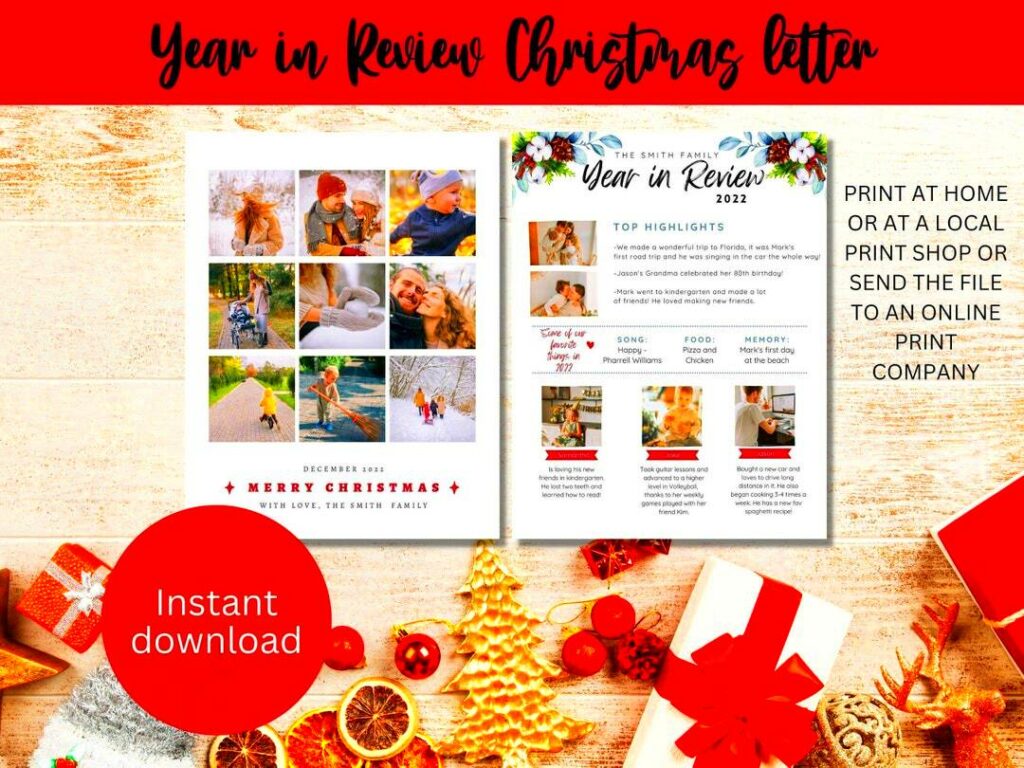
The Canva Year In Review Template is an amazing way to look back at your year. It provides an aesthetically pleasing structure for displaying your accomplishments, cherished memories and development. This template offers you a well-organized space to emphasize every important aspect of last year either for your personal life or for business purposes. Furthermore, its design makes it easy to modify so that it suits one’s taste and demands.
How the Year in Review Template Helps You
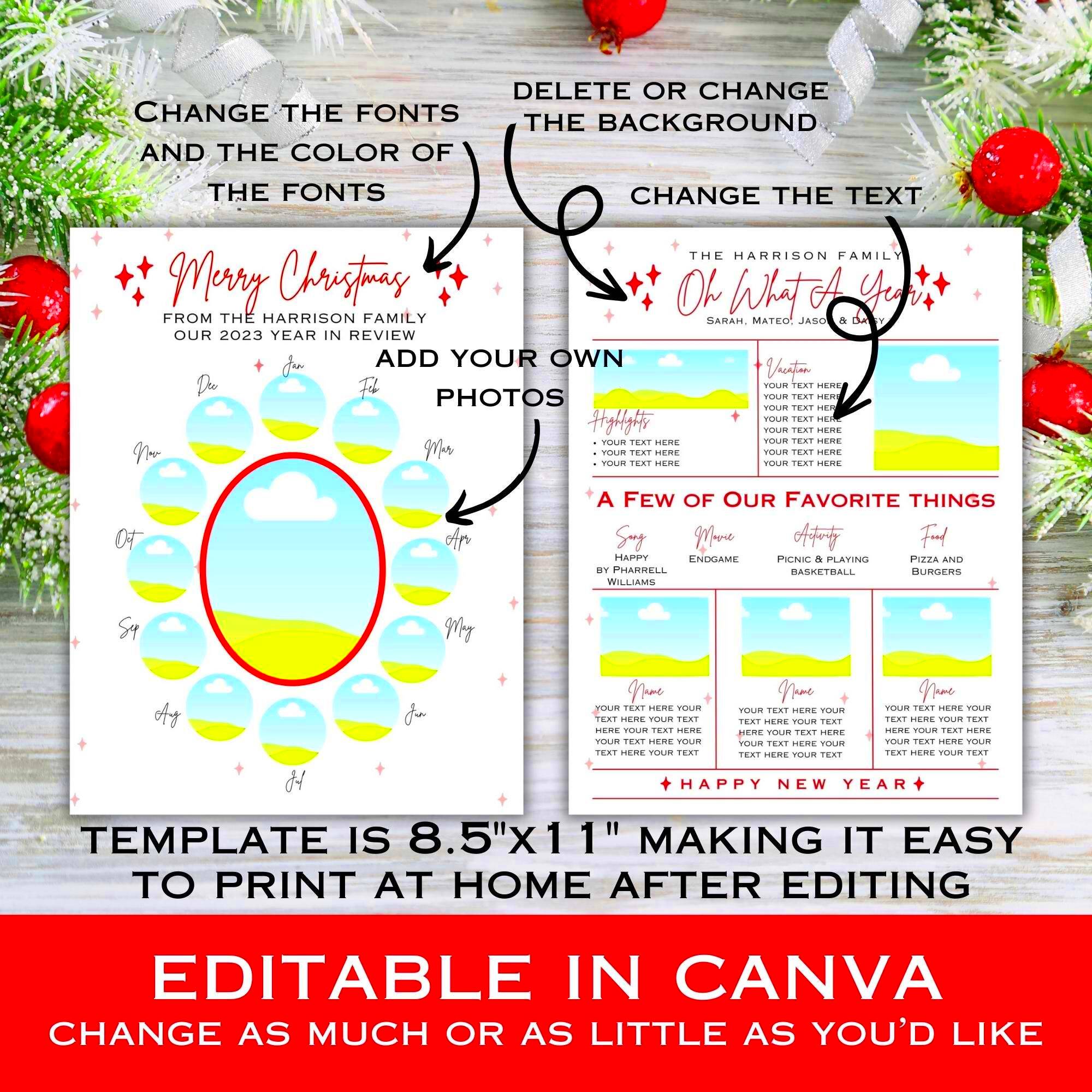
More than an aesthetically pleasing template, this serves many helpful functions:
- Reflection: It encourages you to think back on what you’ve accomplished and learned over the year.
- Organization: By structuring your highlights, you can present your experiences clearly and concisely.
- Sharing: You can easily share your review with friends, family, or colleagues, making it a great conversation starter.
- Goal Setting: Reflecting on your year can help you set goals for the next one.
To sum up, the Year in Review Template encourages feelings of appreciation and success, making you more aware of your progress.
Features of the Canva Year in Review Template
The Canva Year in Review Template is full of useful features that turn any boring recap into a beautiful one. Here are a few noteworthy features:
- Customizable Layouts: Choose from various layouts that suit your style. Whether you prefer a minimalist look or something more vibrant, there’s an option for you.
- Drag-and-Drop Functionality: Adding photos, text, and other elements is simple. Just drag and drop your items into place.
- Rich Graphics Library: Access a wide range of graphics, illustrations, and icons to enhance your design.
- Collaborative Tools: If you’re working with a team, you can easily share and edit the template together in real time.
- Export Options: Once you’re satisfied with your creation, you can download it in various formats, such as PDF, PNG, or JPG.
By using these qualities, this ideal canvas year in review template can be used to look back at one’s year through an artistic perspective.
Steps to Customize Your Year in Review Template
Fiddling with your Year in Review Template has never been this simple! Check out these easy-to-follow steps that can assist you in personalizing it:
- Choose a Template: Start by selecting the Year in Review Template from the Canva library. Browse through various designs to find one that resonates with you.
- Edit Text: Click on the text boxes to input your achievements and highlights. Make sure to include key moments that stood out for you.
- Add Images: Drag and drop your favorite photos into the template. You can resize and reposition them to fit your layout perfectly.
- Play with Colors: Change the color scheme to match your personality or brand. Use Canva’s color palette options for inspiration.
- Include Graphics: Enhance your template with icons or illustrations. Canva’s library has tons of options to make your review visually appealing.
- Save Your Work: Don’t forget to save your progress. Canva automatically saves your designs, but it’s good to double-check!
When you follow these steps, you will have a unique Year in Review Template that sums up your whole year in style.
Using Canva Image Downloader for Your Review
After personalizing your Year in Review template, it’s time to export that baby for sharing or record-keeping. So, here goes a really simple guide on how to make best use of Canva Image Downloader:
- Finish Your Design: Make sure everything looks perfect. Review your text, images, and overall layout.
- Select Download Option: Click on the “Download” button at the top right of the Canva interface.
- Choose File Type: Decide on the format you want to download your image in. Options include PNG, JPG, and PDF.
- Adjust Settings: For PNG files, you can choose to download with a transparent background or high resolution if needed.
- Download Your Image: Hit the “Download” button again, and your file will be saved to your device.
You do not need to worry anymore because it has become easier to take your designs from the platform and store them on your devices with Canva Image Downloader; this means that you can share your best moments in this year at any time.
Sharing Your Year in Review on Social Media
Unsocializing can be a little fun. Introducing that each month of the year will be split into four weeks is one of the strategies to achieve this goal.
Consider producing a Year in Review and utilizing it on the social media platforms as a means through which you show appreciation to your friends as well as your followers. The following outlines how this can be done:
- Choose the Right Platform: Decide where you want to share your review. Popular options include Instagram, Facebook, and Twitter.
- Post the Image: Upload the downloaded image from Canva. Make sure it fits well within the platform’s image guidelines.
- Craft a Captivating Caption: Write a brief caption that summarizes your year or highlights a few key moments. Engage your audience by asking them to share their own experiences.
- Use Hashtags: Include relevant hashtags to increase your post’s visibility. For example, #YearInReview, #2024Reflections, or #MyJourney.
- Tag Friends: If your review includes shared memories with friends, tag them to encourage interaction.
The Year in Review that you posted on social media, is not only a way of commemorating your previous year but also enabling other people to spend some time thinking through what they have been through!
Common Questions About Canva Year in Review Template
Regarding the Canva Year in Review Template, you may have a few inquiries. Below we’ll tackle some frequently asked questions that will aid your understanding in using it.
- Can I use the template for personal and professional purposes?
Absolutely! The template is versatile and works great for personal reflections or business overviews. - Is it easy to customize the template?
Yes, Canva’s user-friendly interface makes customization simple. You can change colors, fonts, and images with just a few clicks. - Do I need graphic design skills?
No prior design experience is necessary! Canva is designed for everyone, and its templates do most of the heavy lifting for you. - Can I collaborate with others on my review?
Yes! You can easily share your design with friends or colleagues, allowing them to edit or provide feedback. - What file formats can I download my review in?
You can download your design in various formats, including PNG, JPG, and PDF, making it easy to share or print.
In case there are additional queries, you are free to look at help resources from Canva or approach their support team for aid.
Conclusion on Your Year in Review Journey
Canva’s Year in Review is more than just a collection of events; it offers an opportunity for reflection and celebrating growth. The process can reveal useful lessons you’ve learned during the year, as you review your achievements, struggles and memorable times. Your review thereby becomes an accurate representation of your experience by being personalized.
Keep in mind that it’s not merely a pattern but actually a framework within which you will leave behind your footsteps as well as triumphs. Distribute this to someone else so they can also regard their own tracks at least in some way. Whether setting new goals or preserving fond memories among us, year in reflection is one way of summarizing ourselves and all those places we have been together beautifully.
FAQ about Canva Year in Review Template
In case you have more questions regarding the Canva Year in Review Template. Here are a few frequently asked questions
- What is the best way to start my Year in Review?
Begin by brainstorming key moments from your year. Jot down accomplishments, challenges, and highlights before diving into the template. - Can I access the Year in Review Template for free?
Yes! Canva offers many free templates, including the Year in Review, but some premium features may require a subscription. - How long does it take to create a Year in Review?
The time varies based on how detailed you want to be, but many users complete their review in an hour or less. - Can I update my Year in Review later?
Definitely! You can go back and make changes anytime, allowing you to add new achievements or memories. - Is there a limit to what I can include?
No, you can include as much or as little as you like. The template is flexible to accommodate your preferences.
Before you make this decision, there are some questions to ask yourself. They are likely to act as guidance and ensure that you don’t have any lingering doubts. Enjoy designing!